<?xml version="1.0" encoding="UTF-8"?>
<!--Generated by Squarespace V5 Site Server v5.13.158 (http://www.squarespace.com) on Wed, 22 May 2013 18:44:18 GMT--><feed xmlns="http://www.w3.org/2005/Atom" xmlns:dc="http://purl.org/dc/elements/1.1/"><title>Articles</title><subtitle>-</subtitle><id>http://www.savagehomeautomation.com/projects/</id><link rel="alternate" type="application/xhtml+xml" href="http://www.savagehomeautomation.com/projects/"/><link rel="self" type="application/atom+xml" href="http://www.savagehomeautomation.com/projects/atom.xml"/><updated>2013-04-12T13:24:22Z</updated><generator uri="http://five.squarespace.com/" version="Squarespace V5 Site Server v5.13.158 (http://www.squarespace.com)">Squarespace</generator><entry><title>Raspberry Pi - Pi4J Version 0.0.5 Released!</title><category term="Embedded Computing"/><category term="Java"/><category term="Pi4J"/><category term="Raspberry Pi"/><category term="Raspberry Pi"/><category term="java"/><category term="pi4j"/><id>http://www.savagehomeautomation.com/projects/raspberry-pi-pi4j-version-005-released.html</id><link rel="alternate" type="text/html" href="http://www.savagehomeautomation.com/projects/raspberry-pi-pi4j-version-005-released.html"/><author><name>Robert Savage</name></author><published>2013-03-19T14:00:00Z</published><updated>2013-03-19T14:00:00Z</updated><summary type="html" xml:lang="en-US"><![CDATA[Pi4J Version 0.0.5 is now released and it has been a stable build for quite some time.  Users of previous versions are encouraged to upgrade to this latest build.  This release includes a number of bug fixes (see below), new features, and added support for add-on accessory boards and GPIO expander chips.  This version also introduces a component abstraction layer where interfaces are defined for components such as Relays, Lights, Switches, and LCD displays.]]></summary></entry><entry><title>Raspberry Pi - Programming Pi-Face with Java &amp; Pi4J</title><category term="Embedded Computing"/><category term="Java"/><category term="Pi4J"/><category term="Raspberry Pi"/><category term="Raspberry Pi"/><category term="java"/><category term="pi"/><category term="pi-face"/><category term="pi4j"/><category term="piface"/><category term="raspberry"/><category term="raspi"/><id>http://www.savagehomeautomation.com/projects/raspberry-pi-programming-pi-face-with-java-pi4j.html</id><link rel="alternate" type="text/html" href="http://www.savagehomeautomation.com/projects/raspberry-pi-programming-pi-face-with-java-pi4j.html"/><author><name>Robert Savage</name></author><published>2013-02-25T13:25:30Z</published><updated>2013-02-25T13:25:30Z</updated><summary type="html" xml:lang="en-US"><![CDATA[<p>I just got my hands on a Pi-Face expansion board for my Raspberry Pi. &nbsp;I purchased mine direct from Newark and it arrived is less than a week. My first objective was to get this board integrated into the <a href="http://www.pi4j.com" target="_blank">Pi4J</a> project and fully working with Java on my Raspberry Pi. &nbsp;This article covers installing the Pi-Face board, setting up the SPI communication driver, and demonstrates programming the Pi-Face in Java. &nbsp;With the Pi-Face Java API interface now available in the Pi4J libraries (<em>in Pi4J version 0.0.5-SNAPSHOT and later</em>) this makes it a breeze to program and work with in your own Java program.</p>
<img src="http://www.savagehomeautomation.com/storage/thumbnails/13113340-22015128-thumbnail.jpg __SQUARESPACE_CACHEVERSION=1361749121306" alt="" />]]></summary></entry><entry><title>Raspberry Pi - Java GPIO Frequency Benchmarks</title><category term="Embedded Computing"/><category term="Java"/><category term="JavaFX"/><category term="Pi4J"/><category term="Raspberry Pi"/><category term="Raspberry Pi"/><category term="benchmarks"/><category term="frequency"/><category term="gpio"/><category term="java"/><category term="jdk"/><category term="performance"/><category term="pi"/><category term="pi4j"/><category term="raspberry"/><category term="raspi"/><id>http://www.savagehomeautomation.com/projects/raspberry-pi-java-gpio-frequency-benchmarks.html</id><link rel="alternate" type="text/html" href="http://www.savagehomeautomation.com/projects/raspberry-pi-java-gpio-frequency-benchmarks.html"/><author><name>Robert Savage</name></author><published>2013-01-09T14:30:00Z</published><updated>2013-01-09T14:30:00Z</updated><summary type="html" xml:lang="en-US"><![CDATA[In a previous article we covered Java runtime benchmarks using various JVMs.  Typical benchmark testing runs a series of varied task-based tests that attempt a wide array of coverage.  While these benchmark tests are great for generalized comparisons, I was curious how fast Java programs could update/write to the GPIO pins.  So this article is a very coarse-grained comparison on a single data point ... frequency of GPIO state changes.

Click the title to see the full article.]]></summary></entry><entry><title>Raspberry Pi - Install a Momentary Reset Button</title><category term="Embedded Computing"/><category term="Raspberry Pi"/><category term="Raspberry Pi"/><category term="button"/><category term="pi"/><category term="raspberry"/><category term="raspi"/><category term="reset"/><id>http://www.savagehomeautomation.com/projects/raspberry-pi-install-a-momentary-reset-button.html</id><link rel="alternate" type="text/html" href="http://www.savagehomeautomation.com/projects/raspberry-pi-install-a-momentary-reset-button.html"/><author><name>Robert Savage</name></author><published>2013-01-07T09:05:07Z</published><updated>2013-01-07T09:05:07Z</updated><summary type="html" xml:lang="en-US"><![CDATA[Inspired by a blog post by Alex on Raspi.tv (Thanks Alex!) on how to install a reset switch on the Raspberry Pi, I too wanted to install a reset switch on my Raspberry Pi.  The only significant difference is that I wanted to install an actual momentary push-button switch permanently on the Pi rather than header pins and an external pushbutton switch.  

This article provides a step-by-step set of instructions and photographs for installing a reset switch on the Raspberry Pi.  Please click the title to view the full article.]]></summary></entry><entry><title>Raspberry Pi - Stepper Motor Control &amp; Breakout Board</title><category term="Embedded Computing"/><category term="Java"/><category term="Pi4J"/><category term="Raspberry Pi"/><category term="Raspberry Pi"/><category term="java"/><category term="motor"/><category term="pi"/><category term="pi4j"/><category term="raspberry"/><category term="raspi"/><category term="stepper"/><id>http://www.savagehomeautomation.com/projects/raspberry-pi-stepper-motor-control-breakout-board.html</id><link rel="alternate" type="text/html" href="http://www.savagehomeautomation.com/projects/raspberry-pi-stepper-motor-control-breakout-board.html"/><author><name>Robert Savage</name></author><published>2012-12-31T21:20:56Z</published><updated>2012-12-31T21:20:56Z</updated><content type="html" xml:lang="en-US"><![CDATA[<p><span class="full-image-block ssNonEditable"><img src="http://www.savagehomeautomation.com/storage/post-images/raspberrypi/raspi-banner680.png?__SQUARESPACE_CACHEVERSION=1344867662099" alt="" /></span></p>
<h3>Overview</h3>
<div>
<div>Many of the previous Raspberry Pi projects I had been working on were based on fairly simple GPIO logic to turn things on and off. &nbsp;Today I wanted a little more of a challenge so I started working to control a stepper motor from my Raspberry Pi using Java. &nbsp;Fortunately I had previously obtained one of John Jay's Stepper Motor Breakout Board kits which includes all the necessary components (including the stepper motor) to get started. &nbsp;</div>
<div></div>
<div></div>
<div><br /><span style="font-size: 90%;">The kit includes:</span></div>
<div>
<ul>
<li><span style="font-size: 90%;">1 @ printed circuit board</span></li>
<li><span style="font-size: 90%;">1 @&nbsp;ULN2803 8 Channel Darlington Driver IC (<a class="offsite-link-inline" href="http://www.adafruit.com/blog/2012/08/23/new-product-uln2803-8-channel-darlington-driver-solenoidunipolar-stepper-uln2803a/" target="_blank">Adafruit</a>)</span></li>
<li><span style="font-size: 90%;">1 @ 18 pin DIP socket (<a class="offsite-link-inline" href="http://www.amazon.com/exec/obidos/ASIN/B0079SLPIW/savagehomeaut-20" target="_blank">Amazon</a>)</span></li>
<li><span style="font-size: 90%;">8 @ green LEDs</span></li>
<li><span style="font-size: 90%;">1 @ Jumper and Jumper header</span></li>
<li><span style="font-size: 90%;">1 @ resistor array/network</span></li>
<li><span style="font-size: 90%;">1 @ capacitor</span></li>
<li><span style="font-size: 90%;">1 @ 26 pin PCB mount female header&nbsp;(not pictured)</span></li>
<li><span style="font-size: 90%;">1 @ peel-and-stick on rubber bumper &nbsp;(not pictured)&nbsp;</span></li>
<li><span style="font-size: 90%;">1 @ 28BYJ-48 5 VDC stepper motor&nbsp;(<a class="offsite-link-inline" href="http://www.amazon.com/exec/obidos/ASIN/B009ZB861K/savagehomeaut-20" target="_blank">Amazon</a> | <a class="offsite-link-inline" href="http://www.adafruit.com/products/858" target="_blank">Adafruit</a>)</span></li>
</ul>
</div>
<div></div>
<div>This kit is very easy to assemble and very reasonably priced. &nbsp;<br />It is available now on eBay. &lt;&lt;&nbsp;<a class="offsite-link-inline" href="http://www.ebay.com/itm/Raspberry-Pi-Stepper-breakout-board-with-stepper-motor-GPIO-/261147900179" target="_blank">Click here to see John Jay's eBay listings</a>&nbsp;&gt;&gt;&nbsp;</div>
<div>&nbsp;</div>
<div></div>
<div>
<h3>Assembly</h3>
</div>
<div></div>
<div>Please visit John's website for further instructions and photos on assembly:<br />&lt;&lt; <a class="offsite-link-inline" href="http://mypishop.com/Stepper.html" target="_blank">http://mypishop.com/Stepper.html</a>&nbsp;&gt;&gt;</div>
<div>&nbsp;</div>
<div></div>
<h3>Shopping List</h3>
<div>
<div>
<ul>
<li>1 @&nbsp;<a class="offsite-link-inline" href="http://www.raspberrypi.org/" target="_blank">Raspberry Pi</a>&nbsp; (<em><a href="http://www.savagehomeautomation.com/projects/raspberry-pi-shopping-list.html">see this page for more Raspberry Pi related supplies</a></em>)</li>
<li>1 @&nbsp;<a class="offsite-link-inline" href="http://www.ebay.com/itm/Raspberry-Pi-Stepper-breakout-board-with-stepper-motor-GPIO-/261147900179" target="_blank">John Jay's Stepper Motor Breakout Board (kit)</a>&nbsp;(<em>includes stepper motor</em>)</li>
</ul>
</div>
<h3>Logic</h3>
</div>
<p><span class="full-image-float-right ssNonEditable"><span><img style="width: 280px;" src="http://www.savagehomeautomation.com/storage/post-images/jj-stepper/figure1-stepper-motor.png?__SQUARESPACE_CACHEVERSION=1356982584656" alt="" /></span></span>The stepper motor is controlled by pulsing the GPIO pins from LOW to HIGH states in a sequence that causes the motor to spin. &nbsp;Each time a GPIO pin state is HIGH an electromagnet is engaged inside the stepper motor to cause a rotational force on the center rotor.&nbsp;With the proper sequence and timing you achieve motor rotation.&nbsp;</p>
<p>Here is a fantastic article with photos and illustrations to help learn more about stepper motors and stepping techniquest:<br /><a class="offsite-link-inline" href="http://www.lirtex.com/robotics/stepper-motor-controller-circuit/" target="_blank">http://www.lirtex.com/robotics/stepper-motor-controller-circuit/</a></p>
<h3>Photos</h3>
<p>Below are photos of the assembled board and attached stepper motor.</p>
<p><span class="full-image-float-left ssNonEditable"><a href="javascript:showFullImage('/display/ShowImage?imageUrl=%2Fstorage%2Fpost-images%2Fjj-stepper%2Fstepper-board-1.jpg%3F__SQUARESPACE_CACHEVERSION%3D1356936730877',1391,1281);"><img style="width: 166px;" src="http://www.savagehomeautomation.com/storage/thumbnails/13113340-21396647-thumbnail.jpg?__SQUARESPACE_CACHEVERSION=1356937860957" alt="" /></a></span><span class="full-image-float-left ssNonEditable"><a href="javascript:showFullImage('/display/ShowImage?imageUrl=%2Fstorage%2Fpost-images%2Fjj-stepper%2Fstepper-board-4.jpg%3F__SQUARESPACE_CACHEVERSION%3D1356937055289',856,1084);"><img style="width: 228px;" src="http://www.savagehomeautomation.com/storage/thumbnails/13113340-21396659-thumbnail.jpg?__SQUARESPACE_CACHEVERSION=1356937842817" alt="" /></a></span></p>
<p><span class="thumbnail-image-block ssNonEditable"><a href="javascript:showFullImage('/display/ShowImage?imageUrl=%2Fstorage%2Fpost-images%2Fjj-stepper%2Fstepper-board-7.jpg%3F__SQUARESPACE_CACHEVERSION%3D1356937770227',1000,1361);"><img style="width: 244px;" src="http://www.savagehomeautomation.com/storage/thumbnails/13113340-21396682-thumbnail.jpg?__SQUARESPACE_CACHEVERSION=1356937868147" alt="" /></a></span></p>
<p><span class="full-image-float-left ssNonEditable"><a href="javascript:showFullImage('/display/ShowImage?imageUrl=%2Fstorage%2Fpost-images%2Fjj-stepper%2Fstepper-board-5.jpg%3F__SQUARESPACE_CACHEVERSION%3D1356937241955',845,1030);"><img style="width: 250px;" src="http://www.savagehomeautomation.com/storage/thumbnails/13113340-21396663-thumbnail.jpg?__SQUARESPACE_CACHEVERSION=1356937491818" alt="" /></a></span></p>
<p><span class="thumbnail-image-block ssNonEditable"><a href="javascript:showFullImage('/display/ShowImage?imageUrl=%2Fstorage%2Fpost-images%2Fjj-stepper%2Fstepper-board-6.jpg%3F__SQUARESPACE_CACHEVERSION%3D1356937412801',721,1380);"><img style="width: 392px;" src="http://www.savagehomeautomation.com/storage/thumbnails/13113340-21396672-thumbnail.jpg?__SQUARESPACE_CACHEVERSION=1356937505191" alt="" /></a></span></p>
<h3>Stepper Motor Ports</h3>
<p>This breakout board includes two ports for controlling two separate stepper motors.</p>
<p style="text-align: left;"><span class="full-image-float-left ssNonEditable"><a href="javascript:showFullImage('/display/ShowImage?imageUrl=%2Fstorage%2Fpost-images%2Fjj-stepper%2Fstepper-board-3.png%3F__SQUARESPACE_CACHEVERSION%3D1356936123158',909,806);"><img style="width: 280px;" src="http://www.savagehomeautomation.com/storage/thumbnails/13113340-21396608-thumbnail.jpg?__SQUARESPACE_CACHEVERSION=1356937983843" alt="" /></a></span></p>
<div></div>
<p>&nbsp;</p>
<p>&nbsp;</p>
<p>&nbsp;</p>
<blockquote>
<p><em>You can purchase an additional stepper motor to use on the second port here:</em></p>
<p><span>28BYJ-48 5 VDC stepper motor&nbsp;(</span><a class="offsite-link-inline" href="http://www.amazon.com/exec/obidos/ASIN/B009ZB861K/savagehomeaut-20" target="_blank">Amazon</a><span>&nbsp;|&nbsp;</span><a class="offsite-link-inline" href="http://www.adafruit.com/products/858" target="_blank">Adafruit</a><span>)</span>&nbsp;</p>
</blockquote>
<p>&nbsp;</p>
<p>&nbsp;</p>
<p>&nbsp;</p>
<h3>GPIO Wiring Diagram</h3>
<p>The two stepper motor controllers are mapped to GPIO pins on the Raspberry Pi's&nbsp;P1 header as depicted in the diagram below. &nbsp;The GPIO numbering in the diagrams below is based on the WiringPi &nbsp;/ Pi4J numbering scheme. &nbsp;See below for a mapping chart for other numbering schemes.&nbsp;</p>
<ul>
<li>GPIO Pins 0 to 3 are mapped to the X1 motor controller port (LEFT).</li>
<li>GPIO Pins 4 to 7 are mapped to the X2 motor controller port (RIGHT).</li>
</ul>
<p><span class="full-image-block ssNonEditable"><a href="javascript:showFullImage('/display/ShowImage?imageUrl=%2Fstorage%2Fpost-images%2Fjj-stepper%2FJJStepperMotorBreakoutBoardPinNumbering.png%3F__SQUARESPACE_CACHEVERSION%3D1356933155577',929,1323);"><img src="http://www.savagehomeautomation.com/storage/thumbnails/13113340-21396381-thumbnail.jpg?__SQUARESPACE_CACHEVERSION=1356933158095" alt="" /></a></span></p>
<h3>GPIO Pin Cross-Reference Chart</h3>
<p>Below is a cross reference chart to better help define the GPIO pin numbers used under the various pin numbering schemes.</p>
<p style="text-align: center;"><span class="thumbnail-image-block ssNonEditable"><a href="javascript:showFullImage('/display/ShowImage?imageUrl=%2Fstorage%2Fpost-images%2Fjj-stepper%2Fjjstepper-pinmap.png%3F__SQUARESPACE_CACHEVERSION%3D1356933791511',243,730);"><img style="width: 550px;" src="http://www.savagehomeautomation.com/storage/thumbnails/13113340-21396419-thumbnail.jpg?__SQUARESPACE_CACHEVERSION=1356933994345" alt="" /></a></span></p>
<div></div>
<h3>JP1 Jumper Information</h3>
<p>A jumper is provided on the board to supply 5 VDC to the stepper motors directly from the 5 VDC output from the Raspberry Pi. &nbsp;If you would prefer to provide 5 VDC from an external power supply, please remove the jumper from JP1 and connect your power source to JP1 pins 2 and 3. &nbsp;See the diagrams below.</p>
<p style="text-align: center;"><br /><span class="thumbnail-image-block ssNonEditable"><a href="javascript:showFullImage('/display/ShowImage?imageUrl=%2Fstorage%2Fpost-images%2Fjj-stepper%2Fstepper-board-jp1.png%3F__SQUARESPACE_CACHEVERSION%3D1356935188487',952,1528);"><img src="http://www.savagehomeautomation.com/storage/thumbnails/13113340-21396529-thumbnail.jpg?__SQUARESPACE_CACHEVERSION=1356935188488" alt="" /></a></span></p>
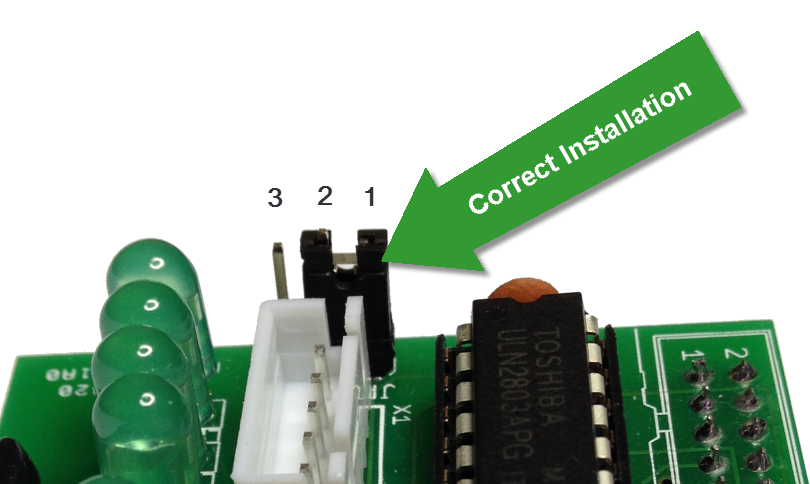
<p style="text-align: left;">Make sure that you place the jumper between&nbsp;pins 1 and 2. &nbsp;</p>
<p style="text-align: center;"><span class="full-image-block ssNonEditable"><img style="width: 400px;" src="http://www.savagehomeautomation.com/storage/post-images/jj-stepper/stepper-board-jp1-correct.png?__SQUARESPACE_CACHEVERSION=1356935575944" alt="" /></span></p>
<blockquote>
<p style="text-align: left;"><strong>ATTENTION !</strong></p>
<p style="text-align: left;">Never attach JP1 pins 1 and 3 together as this will cause a direct short on the 5 VDC power line from the Raspberry Pi. &nbsp;This would likely render the Pi defective. &nbsp;&nbsp;</p>
</blockquote>
<h3>Java Sample Program using Pi4J to Control Stepper Motor</h3>
<p>Below is a sample Java program for controlling the stepper motor. &nbsp;The <a class="offsite-link-inline" href="http://www.pi4j.com" target="_blank">Pi4J</a> project now includes a new stepper motor interface and component implementation for GPIO based stepper motors. &nbsp;This makes it really simple to control a stepper motor from Java. &nbsp;(Note that the stepper motor implementation is available in 0.0.5 and later versions of Pi4J.)</p>
<p>The source for this example is provided with the Pi4J installation package and can also be found on Github:</p>
<ul>
<li>&lt;&lt;&nbsp;<a class="offsite-link-inline" href="https://github.com/Pi4J/pi4j/blob/develop/pi4j-example/src/main/java/StepperMotorGpioExample.java" target="_blank">Click here to view source on Github</a>&nbsp;&nbsp;&gt;&gt;</li>
</ul>
<p><iframe src="http://pastebin.com/embed_iframe.php?i=LRqWTbPq" style="border:1px solid black;width:660px; height:500px;"></iframe></p>
<h3>Final Thoughts</h3>
<p>This was my first time working with a stepper motor and having this kit certainly made it much easier to understand and get started. &nbsp;For me the timing was the trickiest thing to get right. &nbsp;Fortunately with a little trial and error I was able to get it working. &nbsp;Here is a quick video demonstrating the final working project.</p>
<p><iframe width="640" height="360" src="http://www.youtube-nocookie.com/embed/38w_PcPo8Tk" frameborder="0" allowfullscreen></iframe></p>
<p><strong>Happy New Year!</strong></p>
<p>&nbsp;</p>
</div>]]></content></entry><entry><title>Raspberry Pi - Installing the Airlink 101 Wireless N 150 Ultra Mini-USB Adapter (AWLL5099)</title><category term="802.11"/><category term="Embedded Computing"/><category term="Raspberry Pi"/><category term="Raspberry Pi"/><category term="adapter"/><category term="network"/><category term="raspberry"/><category term="raspi"/><category term="wifi"/><category term="wifipi"/><category term="wireless"/><id>http://www.savagehomeautomation.com/projects/raspberry-pi-installing-the-airlink-101-wireless-n-150-ultra.html</id><link rel="alternate" type="text/html" href="http://www.savagehomeautomation.com/projects/raspberry-pi-installing-the-airlink-101-wireless-n-150-ultra.html"/><author><name>Robert Savage</name></author><published>2012-12-29T07:02:29Z</published><updated>2012-12-29T07:02:29Z</updated><content type="html" xml:lang="en-US"><![CDATA[<p><img src="http://www.savagehomeautomation.com/storage/post-images/raspberrypi/raspi-banner680.png?__SQUARESPACE_CACHEVERSION=1347431055301" alt="" /></p>
<p><span class="full-image-float-right ssNonEditable"><span><a href="javascript:showFullImage('/display/ShowImage?imageUrl=%2Fstorage%2Fpost-images%2Fraspberrypi%2Fedimax.jpg%3F__SQUARESPACE_CACHEVERSION%3D1350763514144',300,300);"><img style="width: 190px;" src="http://www.savagehomeautomation.com/storage/post-images/raspberrypi/airlink.jpg?__SQUARESPACE_CACHEVERSION=1356822288855" alt="" /></a></span></span>The <a class="offsite-link-inline" href="http://www.amazon.com/exec/obidos/ASIN/B006ZZUK5Y/savagehomeaut-20" target="_blank">Airlink 101 Wireless N 150 Ultra Mini-USB Adapter</a>&nbsp;is another low-cost wireless network adapter for use with the Raspberry Pi. &nbsp;Here is what this little adapter has going for it: &nbsp;</p>
<ul>
<li>It is on the <a class="offsite-link-inline" href="http://elinux.org/RPi_VerifiedPeripherals#Working_USB_Wifi_Adapters" target="_blank">approved list</a> of known working peripherals. <span class="full-image-inline ssNonEditable"><img src="http://www.savagehomeautomation.com/storage/post-images/raspberrypi/raspiicon.png?__SQUARESPACE_CACHEVERSION=1350773176405" alt="" /><img src="http://www.savagehomeautomation.com/storage/post-images/raspberrypi/raspiicon.png?__SQUARESPACE_CACHEVERSION=1350773176405" alt="" /><img src="http://www.savagehomeautomation.com/storage/post-images/raspberrypi/raspiicon.png?__SQUARESPACE_CACHEVERSION=1350773176405" alt="" /></span></li>
<li>Works directly attached to the Raspberry Pi USB port.&nbsp;<span class="full-image-inline ssNonEditable"><img src="http://www.savagehomeautomation.com/storage/post-images/raspberrypi/raspiicon.png?__SQUARESPACE_CACHEVERSION=1350773176405" alt="" /><img src="http://www.savagehomeautomation.com/storage/post-images/raspberrypi/raspiicon.png?__SQUARESPACE_CACHEVERSION=1350773176405" alt="" /><img src="http://www.savagehomeautomation.com/storage/post-images/raspberrypi/raspiicon.png?__SQUARESPACE_CACHEVERSION=1350773176405" alt="" /><br /></span><em>(Some network adapters used with the Pi require an external USB powered hub)</em>&nbsp;</li>
<li>The latest Raspbian distributions come with the driver for this adapter pre-installed. &nbsp;<span class="full-image-inline ssNonEditable"><img src="http://www.savagehomeautomation.com/storage/post-images/raspberrypi/raspiicon.png?__SQUARESPACE_CACHEVERSION=1350773176405" alt="" /><img src="http://www.savagehomeautomation.com/storage/post-images/raspberrypi/raspiicon.png?__SQUARESPACE_CACHEVERSION=1350773176405" alt="" /><img src="http://www.savagehomeautomation.com/storage/post-images/raspberrypi/raspiicon.png?__SQUARESPACE_CACHEVERSION=1350773176405" alt="" /></span></li>
<li>It's tiny! &nbsp;It does not block access to the second USB port on the Raspberry Pi (<em>Model B</em>). &nbsp;<span class="full-image-inline ssNonEditable"><img src="http://www.savagehomeautomation.com/storage/post-images/raspberrypi/raspiicon.png?__SQUARESPACE_CACHEVERSION=1350773176405" alt="" /><img src="http://www.savagehomeautomation.com/storage/post-images/raspberrypi/raspiicon.png?__SQUARESPACE_CACHEVERSION=1350773176405" alt="" /></span></li>
<li>Supports 150 Mbps 802.11n &nbsp;<span class="full-image-inline ssNonEditable"><img src="http://www.savagehomeautomation.com/storage/post-images/raspberrypi/raspiicon.png?__SQUARESPACE_CACHEVERSION=1350773176405" alt="" /></span></li>
<li>Backward compatible with 802.11b/g &nbsp;<span class="full-image-inline ssNonEditable"><img src="http://www.savagehomeautomation.com/storage/post-images/raspberrypi/raspiicon.png?__SQUARESPACE_CACHEVERSION=1350773176405" alt="" /></span></li>
<li>Internal chip antenna &nbsp;<span class="full-image-inline ssNonEditable"><img src="http://www.savagehomeautomation.com/storage/post-images/raspberrypi/raspiicon.png?__SQUARESPACE_CACHEVERSION=1350773176405" alt="" /></span></li>
<li>Affordable / Reasonably priced at $9.49 USD (<a class="offsite-link-inline" href="http://www.amazon.com/exec/obidos/ASIN/B006ZZUK5Y/savagehomeaut-20" target="_blank">Buy it here</a>)&nbsp;<span class="full-image-inline ssNonEditable"><img src="http://www.savagehomeautomation.com/storage/post-images/raspberrypi/raspiicon.png?__SQUARESPACE_CACHEVERSION=1350773176405" alt="" /><img src="http://www.savagehomeautomation.com/storage/post-images/raspberrypi/raspiicon.png?__SQUARESPACE_CACHEVERSION=1350773176405" alt="" /><img src="http://www.savagehomeautomation.com/storage/post-images/raspberrypi/raspiicon.png?__SQUARESPACE_CACHEVERSION=1350773176405" alt="" /></span></li>
</ul>
<h3>Shopping List</h3>
<ul>
<li>1 @&nbsp;<a class="offsite-link-inline" href="http://www.raspberrypi.org/" target="_blank">Raspberry Pi</a>&nbsp; (<em><a href="http://www.savagehomeautomation.com/projects/raspberry-pi-shopping-list.html">see this page for more Raspberry Pi related supplies</a></em>)</li>
<li>1 @&nbsp;<a class="offsite-link-inline" href="http://www.amazon.com/exec/obidos/ASIN/B006ZZUK5Y/savagehomeaut-20" target="_blank">Airlink 101 Wireless N 150 Ultra Mini-USB Adapter</a></li>
</ul>
<h3>Photos</h3>
<p>(Click photo to enlarge.)</p>
<p><br /><span class="full-image-float-left ssNonEditable"><span><a href="javascript:showFullImage('/display/ShowImage?imageUrl=%2Fstorage%2Fpost-images%2Fraspberrypi%2Fairlink101-photo-2.jpg%3F__SQUARESPACE_CACHEVERSION%3D1356770512920',1224,1632);"><img src="http://www.savagehomeautomation.com/storage/thumbnails/13113340-21378934-thumbnail.jpg?__SQUARESPACE_CACHEVERSION=1356770520202" alt="" /></a></span></span><span class="full-image-block ssNonEditable"><span><a href="javascript:showFullImage('/display/ShowImage?imageUrl=%2Fstorage%2Fpost-images%2Fraspberrypi%2Fairlink101-photo-1.jpg%3F__SQUARESPACE_CACHEVERSION%3D1356770549291',1224,1632);"><img src="http://www.savagehomeautomation.com/storage/thumbnails/13113340-21378941-thumbnail.jpg?__SQUARESPACE_CACHEVERSION=1356770551154" alt="" /></a></span></span></p>
<p><span class="full-image-float-left ssNonEditable"><span><a href="javascript:showFullImage('/display/ShowImage?imageUrl=%2Fstorage%2Fpost-images%2Fraspberrypi%2Fairlink101-photo-3.jpg%3F__SQUARESPACE_CACHEVERSION%3D1356771603411',1632,1224);"><img src="http://www.savagehomeautomation.com/storage/thumbnails/13113340-21378980-thumbnail.jpg?__SQUARESPACE_CACHEVERSION=1356771609549" alt="" /></a></span></span><span class="full-image-inline ssNonEditable"><span><a href="javascript:showFullImage('/display/ShowImage?imageUrl=%2Fstorage%2Fpost-images%2Fraspberrypi%2Fairlink101-photo-4.jpg%3F__SQUARESPACE_CACHEVERSION%3D1356771631990',1632,1224);"><img src="http://www.savagehomeautomation.com/storage/thumbnails/13113340-21378983-thumbnail.jpg?__SQUARESPACE_CACHEVERSION=1356771634981" alt="" /></a></span></span></p>
<p><span class="full-image-inline ssNonEditable"><span><br /></span></span></p>
<h3>Packaging / Specs</h3>
<p>(Click image to enlarge.)</p>
<p><span class="full-image-float-left ssNonEditable"><span><a href="javascript:showFullImage('/display/ShowImage?imageUrl=%2Fstorage%2Fpost-images%2Fraspberrypi%2Fairlink-package-1.jpg%3F__SQUARESPACE_CACHEVERSION%3D1356799671066',1770,1454);"><img src="http://www.savagehomeautomation.com/storage/thumbnails/13113340-21380000-thumbnail.jpg?__SQUARESPACE_CACHEVERSION=1356799674883" alt="" /></a></span></span><span class="full-image-block ssNonEditable"><span><a href="javascript:showFullImage('/display/ShowImage?imageUrl=%2Fstorage%2Fpost-images%2Fraspberrypi%2Fairlink-package-2.jpg%3F__SQUARESPACE_CACHEVERSION%3D1356799884041',1772,1464);"><img src="http://www.savagehomeautomation.com/storage/thumbnails/13113340-21380012-thumbnail.jpg?__SQUARESPACE_CACHEVERSION=1356799885904" alt="" /></a></span></span></p>
<div></div>
<h3>Installation</h3>
<p>The latest Raspian distribution (<a class="offsite-link-inline" href="http://www.raspberrypi.org/downloads" target="_blank">Raspbian &ldquo;wheezy&rdquo; 2012-12-16</a>) already includes the drivers for this adapter pre-installed. &nbsp;This greatly simplifies the installation. &nbsp;(If you are using a different distribution or an older distribution you may have to install the Linux driver for the Realtek RTL8192CU driver.)</p>
<p>Insert the Airlink 101 USB adapter into your Raspberry Pi's USB port. &nbsp; Next, lets make sure that the Raspberry Pi recognizes the device. &nbsp;Use the following command to verify that the Pi "sees" the Airlink 101 WiFi adapter.</p>
<pre>lsusb</pre>
<p><span class="full-image-block ssNonEditable"><span><img src="http://www.savagehomeautomation.com/storage/post-images/raspberrypi/airlink101-lsusb.png?__SQUARESPACE_CACHEVERSION=1356769077954" alt="" /></span></span></p>
<p>You should see the <em>RealTek RTL8188CUS 802.11n WLAN Adapter</em> device listed in the output. &nbsp;This is the chipset used by the Airlink 101 adapter.</p>
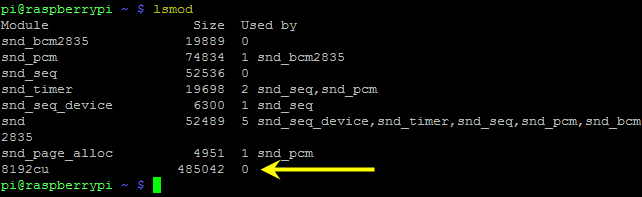
<p><br />Now that we have verified that the Airlink 101 adapter is recognized, lets check to make sure the kernel driver is loaded. &nbsp;Use the following command to list the kernel modules:</p>
<pre>lsmod</pre>
<p><span class="full-image-block ssNonEditable"><img src="http://www.savagehomeautomation.com/storage/post-images/raspberrypi/edimax-lsmod.png?__SQUARESPACE_CACHEVERSION=1350767388976" alt="" /></span></p>
<p>You should see the "8192cu" kernel module loaded. &nbsp;If not, try removing and re-inserting the Airlink 101 USB adapter.&nbsp;</p>
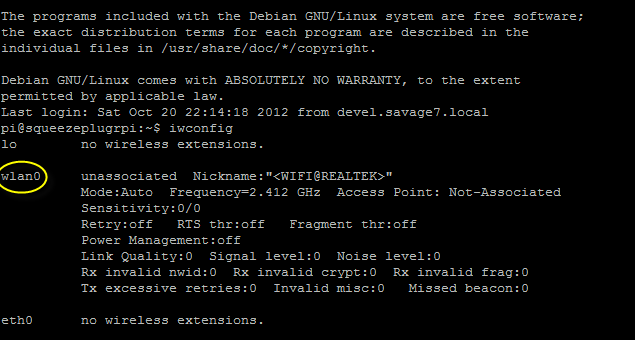
<p><br />As a final validation check to make sure that the Airlink 101 adapter is ready to use, send the "iwconfig" command to display a listing of the current wireless network configuration.&nbsp;</p>
<pre>iwconfig</pre>
<p><span class="full-image-block ssNonEditable"><img src="http://www.savagehomeautomation.com/storage/post-images/raspberrypi/edimax-iwconfig.png?__SQUARESPACE_CACHEVERSION=1350768388291" alt="" /></span></p>
<p>We are just looking to ensure that the "wlan0" adapter is present.</p>
<p>Now we are ready to move on to the configuration steps.</p>
<h3>Configuration</h3>
<div></div>
<p>One you have installed the adapter, verified the kernel driver is loaded, and confirmed that a wireless network interface ("wlan0") is available, you will need to configure the wireless connection settings to securely connect to your wireless network.</p>
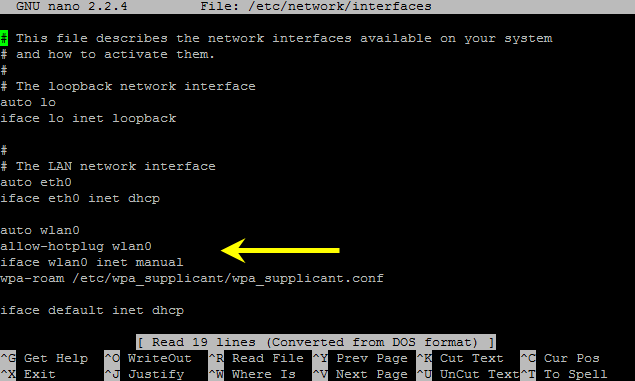
<p>First, let's open the network interfaces configuration file for editing using the following command:</p>
<pre>sudo nano /etc/network/interfaces</pre>
<p>Make sure the following lines are added to (<em>or un-commented in</em>) your file</p>
<pre>auto wlan0
allow-hotplug wlan0<br />iface wlan0 inet manual
wpa-roam /etc/wpa_supplicant/wpa_supplicant.conf</pre>
<p><span class="full-image-block ssNonEditable"><span><img src="http://www.savagehomeautomation.com/storage/post-images/raspberrypi/edimax-interfaces.png?__SQUARESPACE_CACHEVERSION=1350798565422" alt="" /></span></span>&nbsp;</p>
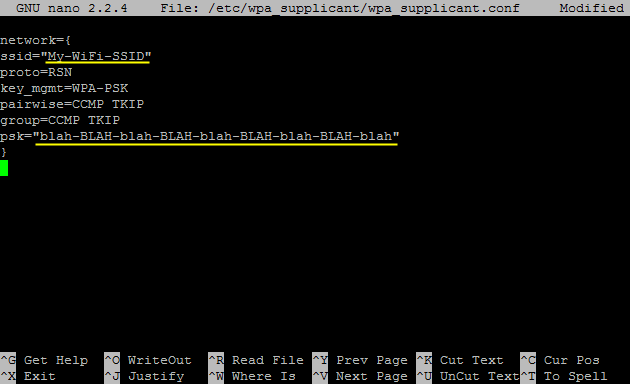
<p>After modifying the network interface configuration file, we need to create the wireless configuration file.  Use the following command to create (or edit) this file.</p>
<pre>sudo nano /etc/wpa_supplicant/wpa_supplicant.conf</pre>
<p>Add the following data to this wireless configuration file. (Replace the "_SSID_" and "_WPA_SHARED_KEY_" text with your actual SSID and WPA key values.)</p>
<pre>network={
ssid="_SSID_"
proto=RSN
key_mgmt=WPA-PSK
pairwise=CCMP TKIP
group=CCMP TKIP
psk="_WPA_SHARED_KEY_"
}</pre>
<p>(<em>Note: &nbsp;This configuration is intended for WPA protected wireless networks.</em>)<span class="full-image-block ssNonEditable"><span><img src="http://www.savagehomeautomation.com/storage/post-images/raspberrypi/edimax-wpa.png?__SQUARESPACE_CACHEVERSION=1350798747292" alt="" /></span></span></p>
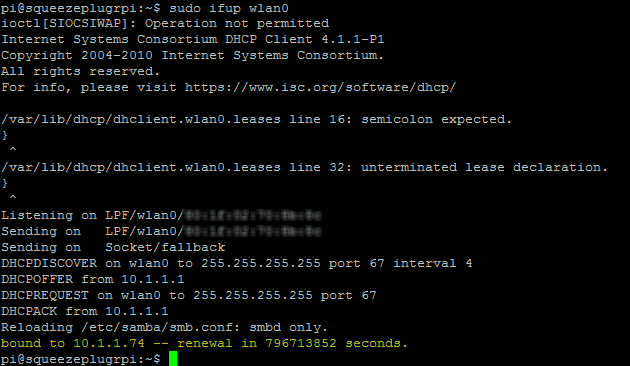
<p><br />Once the configuration files are complete, use the following command to restart the wireless adapter / interface.</p>
<pre>sudo ifup wlan0</pre>
<p>This command will restart the network interface and use the newly defined interface and wireless settings to establish a wireless network connection. &nbsp;Assuming the configuration is correct, the wlan0 interface should connect and acquire an IP address.</p>
<p><span class="full-image-block ssNonEditable"><img src="http://www.savagehomeautomation.com/storage/post-images/raspberrypi/edimax-ifup.png?__SQUARESPACE_CACHEVERSION=1350770232825" alt="" /></span></p>
<p>&nbsp;</p>
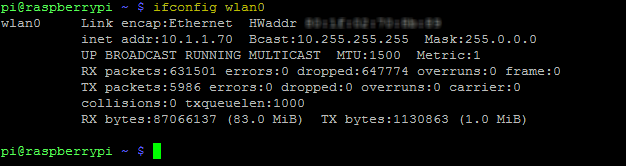
<p>For connection verification and an alternate way to see your assigned IP address, use the following command to list the network configuration:</p>
<pre>ifconfig wlan0</pre>
<p><span class="full-image-block ssNonEditable"><img src="http://www.savagehomeautomation.com/storage/post-images/raspberrypi/edimax-ifconfig.png?__SQUARESPACE_CACHEVERSION=1350770542112" alt="" /></span></p>
<p>If you have any trouble getting connected using the "ifup" command, verify your wireless connection settings and reboot your Raspberry Pi. &nbsp;If you have the Raspberry Pi connected to a display you can watch the Pi attempt the connection during startup. &nbsp;</p>
<p>That's it, hopefully you now have a <strong>WiFiPi</strong>.</p>
<p><span style="font-size: 80%;">*&nbsp;Raspberry Pi is a trademark of the Raspberry Pi foundation.</span></p>
<blockquote>
<p style="padding-top: 8px;"><span class="thumbnail-image-float-left ssNonEditable"><span><a href="javascript:showFullImage('/display/ShowImage?imageUrl=%2Fstorage%2Fpost-images%2Fraspberrypi%2Fedimax.jpg%3F__SQUARESPACE_CACHEVERSION%3D1356772494225',300,300);"><img style="width: 50px;" src="http://www.savagehomeautomation.com/storage/thumbnails/13113340-20695911-thumbnail.jpg?__SQUARESPACE_CACHEVERSION=1356772665657" alt="" /></a></span></span>Also check out the installation instructions for installing and configuring the</p>
<p><strong>&gt;&gt;&nbsp;<a href="http://www.savagehomeautomation.com/raspi-edimax-ew-7811un">Edimax EW-7811Un 150 Mbps Wireless 802.11bgn USB Adapter</a></strong></p>
</blockquote>
<blockquote>
<div style="padding-top: 8px;">The following article is an excellent resource describing many different wireless network configurations for Debian based distributions:&nbsp;</div>
<div>
<ul>
<li><a class="offsite-link-inline" href="http://wiki.debian.org/WiFi/HowToUse" target="_blank">Debian : How to use a WiFi interface</a></li>
</ul>
</div>
</blockquote>]]></content></entry><entry><title>Raspberry Pi - SB Clear Raspberry Pi Enclosure</title><category term="Embedded Computing"/><category term="Raspberry Pi"/><category term="Raspberry Pi"/><category term="case"/><category term="enclosure"/><category term="pi"/><category term="raspberry"/><id>http://www.savagehomeautomation.com/projects/raspberry-pi-sb-clear-raspberry-pi-enclosure.html</id><link rel="alternate" type="text/html" href="http://www.savagehomeautomation.com/projects/raspberry-pi-sb-clear-raspberry-pi-enclosure.html"/><author><name>Robert Savage</name></author><published>2012-12-19T06:56:23Z</published><updated>2012-12-19T06:56:23Z</updated><content type="html" xml:lang="en-US"><![CDATA[<p><span class="ssNonEditable full-image-block"><img src="http://www.savagehomeautomation.com/storage/post-images/raspberrypi/raspi-banner680.png?__SQUARESPACE_CACHEVERSION=1344866873551" alt="" /></span></p>
<p style="text-align: left;"><span class="thumbnail-image-float-right ssNonEditable"><span><a href="javascript:showFullImage('/display/ShowImage?imageUrl=%2Fstorage%2Fpost-images%2Fraspi-case%2Fcase-enclosed-8.jpg%3F__SQUARESPACE_CACHEVERSION%3D1355900342941',991,986);"><img src="http://www.savagehomeautomation.com/storage/thumbnails/13113340-21308115-thumbnail.jpg?__SQUARESPACE_CACHEVERSION=1355900438144" alt="" /></a></span><span class="thumbnail-caption" style="width: 302px;">(click image to enlarge)</span></span></p>
<p style="text-align: left;">I picked up a new Raspberry Pi case a few days ago from Amazon and was impressed so much that I decided to write this review article.</p>
<ul>
<li><strong><a class="offsite-link-inline" href="http://www.amazon.com/exec/obidos/ASIN/B008TCUXLW/savagehomeaut-20" target="_blank">SB Clear Raspberry Pi Enclosure</a></strong></li>
</ul>
<p><strong>PROS</strong></p>
<ul>
<li>Clear / See-Thru</li>
<li>Great Looking</li>
<li>Lightweight</li>
<li>Compact</li>
<li>Slot for GPIO 26P ribbon cable (P1 header)</li>
<li>Access to all onboard headers / connectors / ports</li>
<li>Easy disassembly for access to hardware if needed</li>
<li>Minimal assembly required</li>
<li>Available in multiple colors</li>
<li>Screw "+" slots on bottom for mounting solution</li>
<li>Ventilation slots on bottom&nbsp;</li>
</ul>
<p><strong>CONS</strong></p>
<ul>
<li>The plastic seems potentially brittle whereby constant opening and reassembly of the hard plastic shell may end up breaking the retention clips. &nbsp;(I have reopened mine a number of times and no issues yet.)</li>
<li>The price at $19.95 is a bit high, but with Amazon Prime free shipping on this item, that offsets the costs back into the appropriate range. &nbsp;(<em>NOTE: &nbsp;This case is also available (and cheaper, but shipping costs apply) on eBay, <a class="offsite-link-inline" href="https://www.sparkfun.com/products/11623" target="_blank">SparkFun</a> and <a class="offsite-link-inline" href="https://www.adafruit.com/products/1140" target="_blank">Adafruit</a>.)</em></li>
</ul>
<p>I really do like this case overall and think it is my personal favorite so far. &nbsp;It is very compact and will make an excellent travel case for my Pi on the go. &nbsp;&nbsp;</p>
<p>You can purchase this case via the link below directly on Amazon:</p>
<ul>
<li><a class="offsite-link-inline" href="http://www.amazon.com/exec/obidos/ASIN/B008TCUXLW/savagehomeaut-20" target="_blank">SB Clear Raspberry Pi Enclosure&nbsp;</a></li>
</ul>
<p><strong><a class="offsite-link-inline" href="http://www.amazon.com/exec/obidos/ASIN/B008TCUXLW/savagehomeaut-20" target="_blank"></a></strong>Here are additional photos. &nbsp;Click any of the images to enlarge hi-resolution photo.</p>
<p><span class="thumbnail-image-float-left ssNonEditable"><span><a href="javascript:showFullImage('/display/ShowImage?imageUrl=%2Fstorage%2Fpost-images%2Fraspi-case%2Fcase-bare-1.jpg%3F__SQUARESPACE_CACHEVERSION%3D1355902054750',996,1609);"><img src="http://www.savagehomeautomation.com/storage/thumbnails/13113340-21308099-thumbnail.jpg?__SQUARESPACE_CACHEVERSION=1355902054751" alt="" /></a></span></span><span class="thumbnail-image-block ssNonEditable"><span><a href="javascript:showFullImage('/display/ShowImage?imageUrl=%2Fstorage%2Fpost-images%2Fraspi-case%2Fcase-bare-2.jpg%3F__SQUARESPACE_CACHEVERSION%3D1355902099337',643,1431);"><img style="width: 273px;" src="http://www.savagehomeautomation.com/storage/thumbnails/13113340-21308107-thumbnail.jpg?__SQUARESPACE_CACHEVERSION=1355902129032" alt="" /></a></span></span></p>
<p><br /><span class="thumbnail-image-float-left ssNonEditable"><span><a href="javascript:showFullImage('/display/ShowImage?imageUrl=%2Fstorage%2Fpost-images%2Fraspi-case%2Fcase-bare-3.jpg%3F__SQUARESPACE_CACHEVERSION%3D1355902187367',775,1632);"><img src="http://www.savagehomeautomation.com/storage/thumbnails/13113340-21308106-thumbnail.jpg?__SQUARESPACE_CACHEVERSION=1355902187369" alt="" /></a></span></span><span class="thumbnail-image-block ssNonEditable"><span><a href="javascript:showFullImage('/display/ShowImage?imageUrl=%2Fstorage%2Fpost-images%2Fraspi-case%2Fcase-bare-4.jpg%3F__SQUARESPACE_CACHEVERSION%3D1355902228981',798,1564);"><img style="width: 235px;" src="http://www.savagehomeautomation.com/storage/thumbnails/13113340-21308105-thumbnail.jpg?__SQUARESPACE_CACHEVERSION=1355902255020" alt="" /></a>&nbsp;</span></span></p>
<p>&nbsp;</p>
<p><span class="thumbnail-image-float-left ssNonEditable"><span><a href="javascript:showFullImage('/display/ShowImage?imageUrl=%2Fstorage%2Fpost-images%2Fraspi-case%2Fcase-bare-5.jpg%3F__SQUARESPACE_CACHEVERSION%3D1355902293002',882,1203);"><img src="http://www.savagehomeautomation.com/storage/thumbnails/13113340-21308104-thumbnail.jpg?__SQUARESPACE_CACHEVERSION=1355902293006" alt="" /></a></span></span><span class="thumbnail-image-float-left ssNonEditable"><span><a href="javascript:showFullImage('/display/ShowImage?imageUrl=%2Fstorage%2Fpost-images%2Fraspi-case%2Fcase-bare-6.jpg%3F__SQUARESPACE_CACHEVERSION%3D1355902344274',907,968);"><img style="width: 158px;" src="http://www.savagehomeautomation.com/storage/thumbnails/13113340-21308100-thumbnail.jpg?__SQUARESPACE_CACHEVERSION=1355902419914" alt="" /></a></span></span></p>
<p><span class="thumbnail-image-block ssNonEditable"><span><a href="javascript:showFullImage('/display/ShowImage?imageUrl=%2Fstorage%2Fpost-images%2Fraspi-case%2Fcase-bare-7.jpg%3F__SQUARESPACE_CACHEVERSION%3D1355902471050',845,1297);"><img style="width: 230px;" src="http://www.savagehomeautomation.com/storage/thumbnails/13113340-21308098-thumbnail.jpg?__SQUARESPACE_CACHEVERSION=1355902488376" alt="" /></a></span></span></p>
<p>&nbsp;</p>
<p><span class="full-image-float-left ssNonEditable"><span><a href="javascript:showFullImage('/display/ShowImage?imageUrl=%2Fstorage%2Fpost-images%2Fraspi-case%2Fcase-open-1.jpg%3F__SQUARESPACE_CACHEVERSION%3D1355902582972',919,1391);"><img style="width: 240px;" src="http://www.savagehomeautomation.com/storage/thumbnails/13113340-21308096-thumbnail.jpg?__SQUARESPACE_CACHEVERSION=1355902755880" alt="" /></a></span></span><span class="full-image-float-left ssNonEditable"><span><a href="javascript:showFullImage('/display/ShowImage?imageUrl=%2Fstorage%2Fpost-images%2Fraspi-case%2Fcase-open-2.jpg%3F__SQUARESPACE_CACHEVERSION%3D1355902639058',860,880);"><img style="width: 162px;" src="http://www.savagehomeautomation.com/storage/thumbnails/13113340-21308114-thumbnail.jpg?__SQUARESPACE_CACHEVERSION=1355902768704" alt="" /></a></span></span><span class="thumbnail-image-block ssNonEditable"><span><a href="javascript:showFullImage('/display/ShowImage?imageUrl=%2Fstorage%2Fpost-images%2Fraspi-case%2Fcase-open-3.jpg%3F__SQUARESPACE_CACHEVERSION%3D1355902723316',958,1485);"><img src="http://www.savagehomeautomation.com/storage/thumbnails/13113340-21308113-thumbnail.jpg?__SQUARESPACE_CACHEVERSION=1355903604048" alt="" /></a></span></span></p>
<p>&nbsp;</p>
<p style="text-align: left;"><span class="full-image-float-left ssNonEditable"><span><a href="javascript:showFullImage('/display/ShowImage?imageUrl=%2Fstorage%2Fpost-images%2Fraspi-case%2Fcase-open-4.jpg%3F__SQUARESPACE_CACHEVERSION%3D1355902825619',801,1036);"><img src="http://www.savagehomeautomation.com/storage/thumbnails/13113340-21308112-thumbnail.jpg?__SQUARESPACE_CACHEVERSION=1355906059785" alt="" /></a></span></span></p>
<p><span class="thumbnail-image-block ssNonEditable"><span><a href="javascript:showFullImage('/display/ShowImage?imageUrl=%2Fstorage%2Fpost-images%2Fraspi-case%2Fcase-open-5.jpg%3F__SQUARESPACE_CACHEVERSION%3D1355903035929',906,1320);"><img style="width: 284px;" src="http://www.savagehomeautomation.com/storage/thumbnails/13113340-21308110-thumbnail.jpg?__SQUARESPACE_CACHEVERSION=1355903593497" alt="" /></a></span></span></p>
<p><br /><span class="full-image-float-left ssNonEditable"><span><a href="javascript:showFullImage('/display/ShowImage?imageUrl=%2Fstorage%2Fpost-images%2Fraspi-case%2Fcase-enclosed-1.png%3F__SQUARESPACE_CACHEVERSION%3D1355903079853',1212,995);"><img style="width: 236px;" src="http://www.savagehomeautomation.com/storage/thumbnails/13113340-21308127-thumbnail.jpg?__SQUARESPACE_CACHEVERSION=1355906052513" alt="" /></a></span></span><span class="thumbnail-image-block ssNonEditable"><span><a href="javascript:showFullImage('/display/ShowImage?imageUrl=%2Fstorage%2Fpost-images%2Fraspi-case%2Fcase-enclosed-2.jpg%3F__SQUARESPACE_CACHEVERSION%3D1355903137183',1243,951);"><img src="http://www.savagehomeautomation.com/storage/thumbnails/13113340-21308125-thumbnail.jpg?__SQUARESPACE_CACHEVERSION=1355903137185" alt="" /></a></span></span></p>
<p><br /><span class="full-image-float-left ssNonEditable"><span><a href="javascript:showFullImage('/display/ShowImage?imageUrl=%2Fstorage%2Fpost-images%2Fraspi-case%2Fcase-enclosed-3.jpg%3F__SQUARESPACE_CACHEVERSION%3D1355903174424',839,1295);"><img style="width: 250px;" src="http://www.savagehomeautomation.com/storage/thumbnails/13113340-21308097-thumbnail.jpg?__SQUARESPACE_CACHEVERSION=1355906046329" alt="" /></a></span></span><span class="thumbnail-image-block ssNonEditable"><span><a href="javascript:showFullImage('/display/ShowImage?imageUrl=%2Fstorage%2Fpost-images%2Fraspi-case%2Fcase-enclosed-4.jpg%3F__SQUARESPACE_CACHEVERSION%3D1355903250191',699,1536);"><img style="width: 358px;" src="http://www.savagehomeautomation.com/storage/thumbnails/13113340-21308123-thumbnail.jpg?__SQUARESPACE_CACHEVERSION=1355903494729" alt="" /></a></span></span></p>
<p><br /><span class="full-image-float-left ssNonEditable"><span><a href="javascript:showFullImage('/display/ShowImage?imageUrl=%2Fstorage%2Fpost-images%2Fraspi-case%2Fcase-enclosed-5.jpg%3F__SQUARESPACE_CACHEVERSION%3D1355903354243',711,1632);"><img style="width: 320px;" src="http://www.savagehomeautomation.com/storage/thumbnails/13113340-21308121-thumbnail.jpg?__SQUARESPACE_CACHEVERSION=1355906039649" alt="" /></a></span></span><span class="thumbnail-image-block ssNonEditable"><span><a href="javascript:showFullImage('/display/ShowImage?imageUrl=%2Fstorage%2Fpost-images%2Fraspi-case%2Fcase-enclosed-6.jpg%3F__SQUARESPACE_CACHEVERSION%3D1355903423278',715,1487);"><img style="width: 294px;" src="http://www.savagehomeautomation.com/storage/thumbnails/13113340-21308119-thumbnail.jpg?__SQUARESPACE_CACHEVERSION=1355903452337" alt="" /></a></span></span></p>
<p>&nbsp;</p>
<p><span class="full-image-float-left ssNonEditable"><span><a href="javascript:showFullImage('/display/ShowImage?imageUrl=%2Fstorage%2Fpost-images%2Fraspi-case%2Fcase-enclosed-7.jpg%3F__SQUARESPACE_CACHEVERSION%3D1355903656848',766,1224);"><img style="width: 350px;" src="http://www.savagehomeautomation.com/storage/thumbnails/13113340-21308117-thumbnail.jpg?__SQUARESPACE_CACHEVERSION=1355906031834" alt="" /></a></span></span><span class="thumbnail-image-block ssNonEditable"><span><a href="javascript:showFullImage('/display/ShowImage?imageUrl=%2Fstorage%2Fpost-images%2Fraspi-case%2Fcase-enclosed-8.jpg%3F__SQUARESPACE_CACHEVERSION%3D1355903687740',991,986);"><img style="width: 220px;" src="http://www.savagehomeautomation.com/storage/thumbnails/13113340-21308115-thumbnail.jpg?__SQUARESPACE_CACHEVERSION=1355903737721" alt="" /></a></span></span></p>]]></content></entry><entry><title>Raspberry Pi - Installing Oracle Java SE 8 (with JavaFX) Developer Preview for ARM</title><category term="Embedded Computing"/><category term="Java"/><category term="JavaFX"/><category term="Raspberry Pi"/><category term="Raspberry Pi"/><category term="java"/><category term="jdk"/><category term="jre"/><category term="pi"/><category term="raspberry"/><id>http://www.savagehomeautomation.com/projects/raspberry-pi-installing-oracle-java-se-8-with-javafx-develop.html</id><link rel="alternate" type="text/html" href="http://www.savagehomeautomation.com/projects/raspberry-pi-installing-oracle-java-se-8-with-javafx-develop.html"/><author><name>Robert Savage</name></author><published>2012-12-19T01:11:03Z</published><updated>2012-12-19T01:11:03Z</updated><content type="html" xml:lang="en-US"><![CDATA[<p><span class="ssNonEditable full-image-block"><img src="http://www.savagehomeautomation.com/storage/post-images/raspberrypi/raspi-banner680.png?__SQUARESPACE_CACHEVERSION=1344866873551" alt="" /></span></p>
<p style="text-align: left;">The Oracle JDK8 for ARM with support for hard-float ABI is now available as a developer preview edition! &nbsp;This article will provide the necessary instructions on how to install the Oracle Java SE 8 (with JavaFX) Developer Preview for ARM&nbsp;on your Raspberry Pi. &nbsp;</p>
<p style="text-align: center;"><span class="thumbnail-image-inline ssNonEditable"><span><a href="javascript:showFullImage('/display/ShowImage?imageUrl=%2Fstorage%2Fpost-images%2Fraspberrypi%2Fraspi.jpg%3F__SQUARESPACE_CACHEVERSION%3D1344866408187',406,600);"><img style="width: 650px;" src="http://www.savagehomeautomation.com/storage/post-images/raspberrypi/piandcoffee.png?__SQUARESPACE_CACHEVERSION=1355877408472" alt="" /></a></span></span></p>
<h3>Prerequisites</h3>
<ul>
<li>Install and boot the Raspberry Pi using the latest Raspbian "Wheezy" (<a href="http://downloads.raspberrypi.org/images/raspbian/2012-12-16-wheezy-raspbian/2012-12-16-wheezy-raspbian.zip">2012-12-16-wheezy-raspbian.zip</a>) image. &nbsp;<br />(<em>This is the first Oracle JDK compatible with the Raspian "Wheezy" image</em>)&nbsp;</li>
<li>Get the Raspberry Pi's IP address.</li>
</ul>
<h3>Tools &amp; Downloads:</h3>
<p>All:</p>
<ul>
<li><a class="offsite-link-inline" href="http://www.raspberrypi.org/downloads" target="_blank">Raspberry Pi Raspbian "Wheezy" image</a>&nbsp;(2012-12-16)</li>
<li><a class="offsite-link-inline" href="http://jdk8.java.net/fxarmpreview/" target="_blank">Java SE 8 (with JavaFX) Developer Preview for ARM</a></li>
</ul>
<p>Windows:</p>
<ul>
<li><a class="offsite-link-inline" href="http://winscp.net/eng/download.php" target="_blank">WinSCP</a></li>
</ul>
<p>Mac-OSX:</p>
<ul>
<li><a class="offsite-link-inline" href="http://cyberduck.ch/" target="_blank">Cyberduck</a></li>
</ul>
<h3>Download the Oracle JDK for the Raspberry Pi</h3>
<p>You can download the Oracle Java SE 8 (with JavaFX) Developer Preview for ARM&nbsp;on this page:<br /><a href="http://jdk8.java.net/fxarmpreview/">http://jdk8.java.net/fxarmpreview/</a></p>
<h3>Transfer the Oracle JDK to the Raspberry Pi</h3>
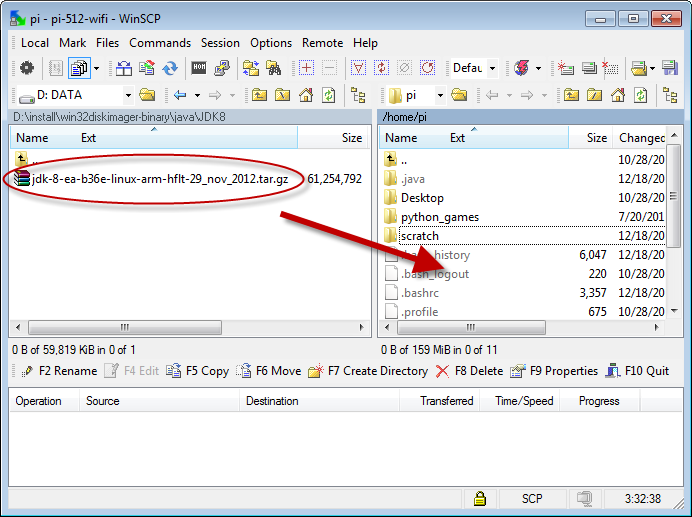
<p>After downloading the Oracle JDK to you desktop computer, we need to transfer it over to the Raspberry Pi. &nbsp;We will use SCP to transfer the file over the network. &nbsp;If you are running on a Windows desktop, then download and install <a class="offsite-link-inline" href="http://winscp.net/eng/download.php" target="_blank">WinSCP</a>.</p>
<blockquote>
<p>&nbsp;If you are using Mac OSX, you can download and install <a class="offsite-link-inline" href="http://cyberduck.ch/" target="_blank">Cyberduck</a>. &nbsp;The screens will look different but the goals are the same.</p>
</blockquote>
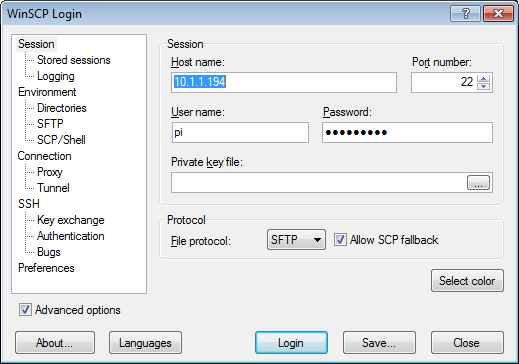
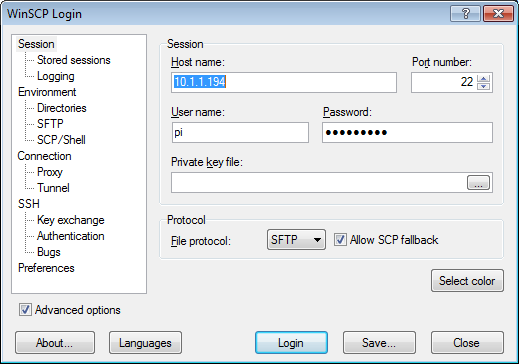
<p>Create a new session in WinSCP using the IP address of you Raspberry Pi. &nbsp;The default authentication credentials for the Debian Squeeze image is username "<em>pi</em>" and password "<em>raspberry</em>". &nbsp;Save the session and then login. &nbsp;You may be prompted to accept the SSH fingerprint, choose "Yes" to accept and continue.</p>
<p><span class="ssNonEditable full-image-block"><img src="http://www.savagehomeautomation.com/storage/post-images/raspberrypi/raspi-winscp-settings.png?__SQUARESPACE_CACHEVERSION=1345088737082" alt="" /></span></p>
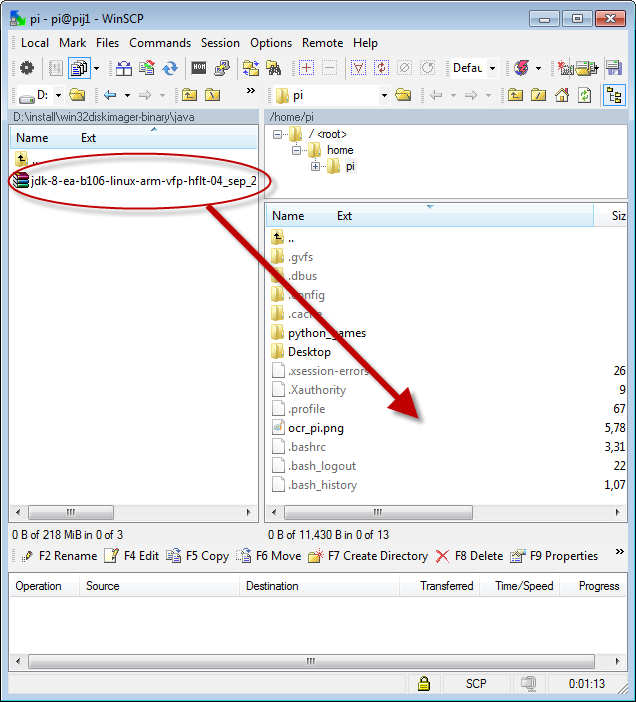
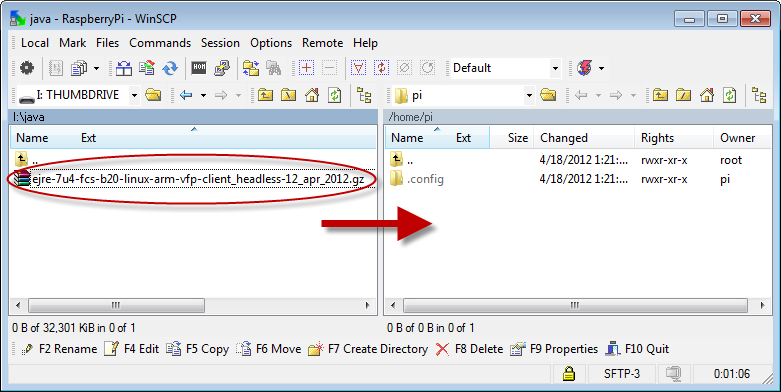
<p>After successfully establishing a connection, select the drive and folder location in the left pane where you download the Oracle JDK file to on your local desktop system. &nbsp;In the right pane is the file system on the Raspberry Pi, we will leave it in it's default location in the "pi" user's home directory. &nbsp;Drag and drop the Oracle JDK file from the left pane to the right pane and WinSCP will start the file transfer process. &nbsp;You will be prompted with a transfer dialog, just click the "<strong>Copy</strong>" button to start the transfer. &nbsp;</p>
<p><span class="full-image-block ssNonEditable"><span><img src="http://www.savagehomeautomation.com/storage/raspi-java-8-1.png?__SQUARESPACE_CACHEVERSION=1355880375914" alt="" /></span></span><br />When the file transfer is complete, you can close WinSCP (<em>or CyberDuck</em>).</p>
<h3>Installation Procedure on Raspberry Pi</h3>
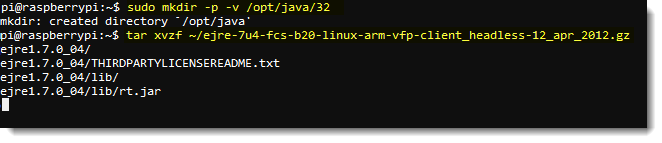
<p>The remaining steps should be performed directly on the console of the Raspberry Pi or using a SSH terminal connection with shell access. &nbsp;In the last step, we transfered the Oracle JDK file to the "pi" user's home directory. &nbsp;We should be logged in as the "pi" user and already in the user's home directory.</p>
<p>Lets create a new directory where we will install the JDK files to.&nbsp;</p>
<pre>sudo mkdir -p -v /opt/java</pre>
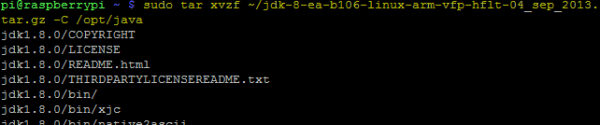
<p>Next, lets unpack the Oracle JDK .gz file using this command</p>
<pre>tar xvzf ~/jdk-8-ea-b36e-linux-arm-hflt-29_nov_2012.tar.gz</pre>
<p><span class="full-image-block ssNonEditable"><span><img src="http://www.savagehomeautomation.com/storage/post-images/raspberrypi/raspi-java-8-2.png?__SQUARESPACE_CACHEVERSION=1355880763506" alt="" /></span></span>The unpacking process will take a few seconds to complete. &nbsp;It unpacks all the contents of the Oracle JDK tz file to a new directory named "jdk1.8.0" located in the user's home directory.</p>
<p>With the unpack complete its now time to move the new unpacked directory to the Java install location that we created earlier under "opt/java". &nbsp;</p>
<pre>sudo mv -v ~/jdk1.8.0 /opt/java</pre>
<p>We can also delete the original .gz file as it is no longer needed&nbsp;</p>
<pre>rm ~/jdk-8-ea-b36e-linux-arm-hflt-29_nov_2012.tar.gz</pre>
<p>To complete the JDK installation we need to let the system know there is a new JVM installed and where it is located. &nbsp;Use the following command to perform this task.</p>
<pre><span style="font-size: 90%;">sudo update-alternatives --install "/usr/bin/java" "java" "/opt/java/jdk1.8.0/bin/java" 1</span></pre>
<p>And finally we also need to tell the system that we want this JDK to be the default Java runtime for the system. The following command will perform this action.</p>
<pre>sudo update-alternatives --set java /opt/java/jdk1.8.0/bin/java</pre>
<p><span class="full-image-block ssNonEditable"><span><a href="javascript:showFullImage('/display/ShowImage?imageUrl=%2Fstorage%2Fpost-images%2Fraspberrypi%2Fraspi-jre-install-2.png%3F__SQUARESPACE_CACHEVERSION%3D1345096887183',129,816);"><img src="http://www.savagehomeautomation.com/storage/post-images/raspberrypi/raspi-java-8-3.png?__SQUARESPACE_CACHEVERSION=1355880930025" alt="" /></a></span></span></p>
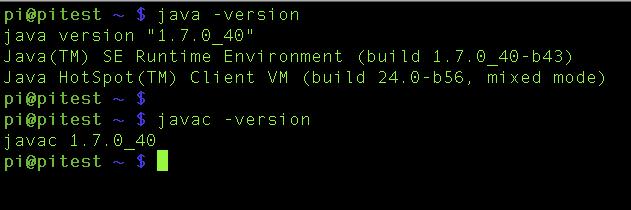
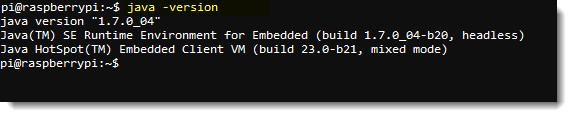
<p>Now java is installed. &nbsp;To test and verify we can execute the java command using the version argument.</p>
<pre>java -version</pre>
<p>You should get the following response:</p>
<p><span class="full-image-block ssNonEditable"><span><img src="http://www.savagehomeautomation.com/storage/post-images/raspberrypi/raspi-java-8-4.png?__SQUARESPACE_CACHEVERSION=1355881005490" alt="" /></span></span></p>
<p>That's it the Oracle JDK is installed and ready for use.</p>
<h3>Add JAVA_HOME Environment Variable</h3>
<p>Some Java programs require a JAVA_HOME environment variable to be configured on the system. &nbsp;Add the following line to you "/etc/environment" using your favorite text editor.</p>
<pre>JAVA_HOME="/opt/java/jdk1.8.0"</pre>
<p><br />Also, edit your "~/.bashrc" file using this command</p>
<pre>nano ~/.bashrc</pre>
<p>and add the following two lines to the bottom of the file and save.</p>
<pre>export JAVA_HOME="/opt/java/jdk1.8.0"<br />export PATH=$PATH:$JAVA_HOME/bin&nbsp;</pre>
<p><br />Reboot or re-login to apply the export to your environment. &nbsp;</p>
<p><span style="font-size: 80%;">* Raspberry Pi is a trademark of the Raspberry Pi foundation.<br /></span><span style="font-size: 80%;">* Oracle and Java are registered trademarks of Oracle.</span></p>]]></content></entry><entry><title>Raspberry Pi - Installing Oracle Java Development Kit (JDK 1.7.0u10)</title><category term="Embedded Computing"/><category term="Java"/><category term="Raspberry Pi"/><category term="Raspberry Pi"/><category term="java"/><category term="jdk"/><category term="jre"/><category term="pi"/><category term="raspberry"/><id>http://www.savagehomeautomation.com/projects/raspberry-pi-installing-oracle-java-development-kit-jdk-170u-1.html</id><link rel="alternate" type="text/html" href="http://www.savagehomeautomation.com/projects/raspberry-pi-installing-oracle-java-development-kit-jdk-170u-1.html"/><author><name>Robert Savage</name></author><published>2012-12-19T00:35:37Z</published><updated>2012-12-19T00:35:37Z</updated><content type="html" xml:lang="en-US"><![CDATA[<p><span class="ssNonEditable full-image-block"><img src="http://www.savagehomeautomation.com/storage/post-images/raspberrypi/raspi-banner680.png?__SQUARESPACE_CACHEVERSION=1344866873551" alt="" /></span></p>
<p style="text-align: left;">The Oracle JDK for ARM is now available! &nbsp;This article will provide the necessary instructions on how to install the Oracle Java Development Kit (JDK) on your Raspberry Pi. &nbsp;</p>
<p style="text-align: center;"><span class="thumbnail-image-inline ssNonEditable"><span><a href="javascript:showFullImage('/display/ShowImage?imageUrl=%2Fstorage%2Fpost-images%2Fraspberrypi%2Fraspi.jpg%3F__SQUARESPACE_CACHEVERSION%3D1344866408187',406,600);"><img style="width: 650px;" src="http://www.savagehomeautomation.com/storage/post-images/raspberrypi/piandcoffee.png?__SQUARESPACE_CACHEVERSION=1355877408472" alt="" /></a></span></span></p>
<h3>Prerequisites</h3>
<ul>
<li>Install and boot the Raspberry Pi using the Debian "Wheezy" (2012-08-08 soft-float) image. &nbsp;<br />(<em>The Oracle JDK is not currently compatible with the Raspian "Wheezy" image</em>)&nbsp;</li>
<li>Enable the Raspberry Pi for SSH remote network connections. &nbsp;<br /><strong>Update</strong>: &nbsp;The Debian "Wheezy" image comes with SSH access enabled in the default image.<br /><span style="font-size: 90%;">(<a href="http://www.savagehomeautomation.com/projects/raspberry-pi-enabling-ssh-for-remote-access.html">Here is an article on how to enable SSH in the Debian Squeeze distribution</a>)</span></li>
<li>Get the Raspberry Pi's IP address.</li>
</ul>
<h3>Tools &amp; Downloads:</h3>
<p>All:</p>
<ul>
<li><a class="offsite-link-inline" href="http://downloads.raspberrypi.org/download.php?file=/images/debian/7/2012-08-08-wheezy-armel/2012-08-08-wheezy-armel.zip" target="_blank">Raspberry Pi Debian "Wheezy" image</a>&nbsp;(2012-08-08)</li>
<li><a class="offsite-link-inline" href="http://www.oracle.com/technetwork/java/javase/downloads/index.html" target="_blank">Oracle Java SE Development Kit</a>&nbsp;(Select <em>JDK Download</em>, then Linux ARM - jdk-7u10-linux-arm-sfp.tar.gz)</li>
</ul>
<p>Windows:</p>
<ul>
<li><a class="offsite-link-inline" href="http://winscp.net/eng/download.php" target="_blank">WinSCP</a></li>
</ul>
<p>Mac-OSX:</p>
<ul>
<li><a class="offsite-link-inline" href="http://cyberduck.ch/" target="_blank">Cyberduck</a></li>
</ul>
<h3>Download the Oracle JDK for the Raspberry Pi</h3>
<p>You can download the Oracle Java SE Development Kit 7u10 on this page:<br /><a class="offsite-link-inline" href="http://www.oracle.com/technetwork/java/javase/downloads/index.html" target="_blank">http://www.oracle.com/technetwork/java/javase/downloads/index.html</a></p>
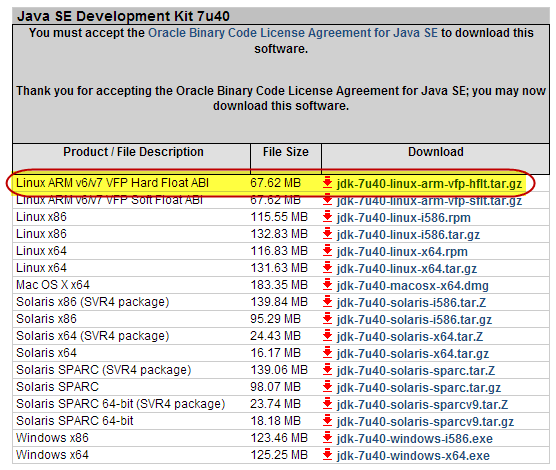
<p>First, select <em>JDK Download </em>button&nbsp;under JDK SE 7, then select the Linux ARM JDK7 SE distribution (jdk-7u10-linux-arm-sfp.gz).&nbsp;</p>
<h3>Transfer the Oracle JDK to the Raspberry Pi</h3>
<p>After downloading the Oracle JDK to you desktop computer, we need to transfer it over to the Raspberry Pi. &nbsp;We will use SCP to transfer the file over the network. &nbsp;If you are running on a Windows desktop, then download and install <a class="offsite-link-inline" href="http://winscp.net/eng/download.php" target="_blank">WinSCP</a>.</p>
<blockquote>
<p>&nbsp;If you are using Mac OSX, you can download and install <a class="offsite-link-inline" href="http://cyberduck.ch/" target="_blank">Cyberduck</a>. &nbsp;The screens will look different but the goals are the same.</p>
</blockquote>
<p>Create a new session in WinSCP using the IP address of you Raspberry Pi. &nbsp;The default authentication credentials for the Debian Squeeze image is username "<em>pi</em>" and password "<em>raspberry</em>". &nbsp;Save the session and then login. &nbsp;You may be prompted to accept the SSH fingerprint, choose "Yes" to accept and continue.</p>
<p><span class="ssNonEditable full-image-block"><img src="http://www.savagehomeautomation.com/storage/post-images/raspberrypi/raspi-winscp-settings.png?__SQUARESPACE_CACHEVERSION=1345088737082" alt="" /></span></p>
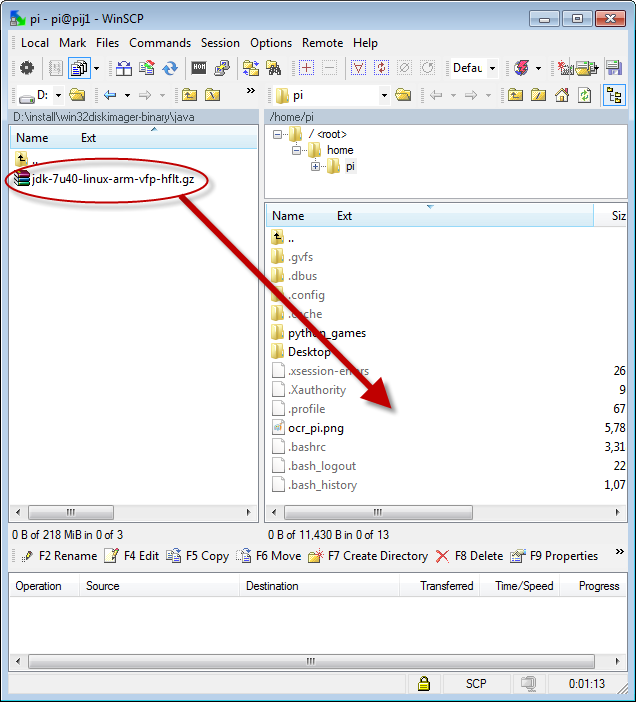
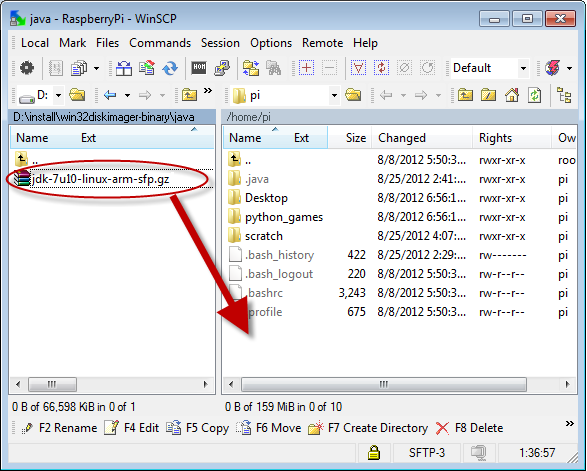
<p>After successfully establishing a connection, select the drive and folder location in the left pane where you download the Oracle JDK file to on your local desktop system. &nbsp;In the right pane is the file system on the Raspberry Pi, we will leave it in it's default location in the "pi" user's home directory. &nbsp;Drag and drop the Oracle JDK file from the left pane to the right pane and WinSCP will start the file transfer process. &nbsp;You will be prompted with a transfer dialog, just click the "<strong>Copy</strong>" button to start the transfer. &nbsp;</p>
<p><span class="full-image-block ssNonEditable"><span><img src="http://www.savagehomeautomation.com/storage/post-images/raspberrypi/raspi-java-7u10-1.png?__SQUARESPACE_CACHEVERSION=1355878373666" alt="" /></span></span><br />When the file transfer is complete, you can close WinSCP (<em>or CyberDuck</em>).</p>
<h3>Installation Procedure on Raspberry Pi</h3>
<p>The remaining steps should be performed directly on the console of the Raspberry Pi or using a SSH terminal connection with shell access. &nbsp;In the last step, we transfered the Oracle JDK file to the "pi" user's home directory. &nbsp;We should be logged in as the "pi" user and already in the user's home directory.</p>
<p>Lets create a new directory where we will install the JDK files to.&nbsp;</p>
<pre>sudo mkdir -p -v /opt/java</pre>
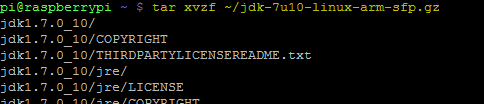
<p>Next, lets unpack the Oracle JDK .gz file using this command</p>
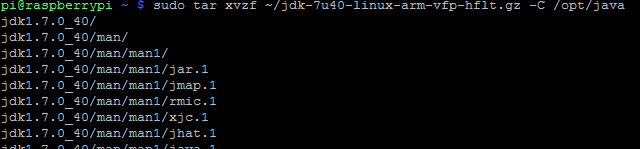
<pre>tar xvzf ~/jdk-7u10-linux-arm-sfp.gz</pre>
<p><span class="full-image-block ssNonEditable"><span><img src="http://www.savagehomeautomation.com/storage/post-images/raspberrypi/raspi-java-7u10-2.png?__SQUARESPACE_CACHEVERSION=1355878705262" alt="" /></span></span>The unpacking process will take a few seconds to complete. &nbsp;It unpacks all the contents of the Oracle JDK tz file to a new directory named "jdk1.7.0_10" located in the user's home directory.</p>
<p>With the unpack complete its now time to move the new unpacked directory to the Java install location that we created earlier under "opt/java". &nbsp;</p>
<pre>sudo mv -v ~/jdk1.7.0_10 /opt/java</pre>
<p>We can also delete the original .tz file as it is no longer needed&nbsp;</p>
<pre>rm ~/jdk-7u10-linux-arm-sfp.gz</pre>
<p>To complete the JDK installation we need to let the system know there is a new JVM installed and where it is located. &nbsp;Use the following command to perform this task.</p>
<pre><span style="font-size: 90%;">sudo update-alternatives --install "/usr/bin/java" "java" "/opt/java/jdk1.7.0_10/bin/java" 1</span></pre>
<p>And finally we also need to tell the system that we want this JDK to be the default Java runtime for the system. The following command will perform this action.</p>
<pre>sudo update-alternatives --set java /opt/java/jdk1.7.0_10/bin/java</pre>
<p><span class="full-image-block ssNonEditable"><span><a href="javascript:showFullImage('/display/ShowImage?imageUrl=%2Fstorage%2Fpost-images%2Fraspberrypi%2Fraspi-jre-install-2.png%3F__SQUARESPACE_CACHEVERSION%3D1345096887183',129,816);"><img src="http://www.savagehomeautomation.com/storage/post-images/raspberrypi/raspi-java-7u10-3.png?__SQUARESPACE_CACHEVERSION=1355878902847" alt="" /></a></span></span></p>
<p>Now java is installed. &nbsp;To test and verify we can execute the java command using the version argument.</p>
<pre>java -version</pre>
<p>You should get the following response:</p>
<p><span class="full-image-block ssNonEditable"><span><img src="http://www.savagehomeautomation.com/storage/post-images/raspberrypi/raspi-java-7u10-4.png?__SQUARESPACE_CACHEVERSION=1355879307982" alt="" /></span></span></p>
<p>That's it the Oracle JDK is installed and ready for use.</p>
<h3>Add JAVA_HOME Environment Variable</h3>
<p>Some Java programs require a JAVA_HOME environment variable to be configured on the system. &nbsp;Add the following line to you "/etc/environment" using your favorite text editor.</p>
<pre>JAVA_HOME="/opt/java/jdk1.7.0_10"</pre>
<p><br />Also, edit your "~/.bashrc" file using this command</p>
<pre>nano ~/.bashrc</pre>
<p>and add the following two lines to the bottom of the file and save.</p>
<pre>export JAVA_HOME="/opt/java/jdk1.7.0_10"<br />export PATH=$PATH:$JAVA_HOME/bin&nbsp;</pre>
<p><br />Reboot or re-login to apply the export to your environment. &nbsp;</p>
<p>&nbsp;</p>
<p><span style="font-size: 80%;">* Raspberry Pi is a trademark of the Raspberry Pi foundation.<br /></span><span style="font-size: 80%;">* Oracle and Java are registered trademarks of Oracle.</span></p>]]></content></entry><entry><title>Pi4J - Version 0.0.4 Released!</title><category term="Embedded Computing"/><category term="Pi4J"/><category term="Raspberry Pi"/><category term="Raspberry Pi"/><category term="pi4"/><category term="raspberry"/><category term="raspi"/><id>http://www.savagehomeautomation.com/projects/pi4j-version-004-released.html</id><link rel="alternate" type="text/html" href="http://www.savagehomeautomation.com/projects/pi4j-version-004-released.html"/><author><name>Robert Savage</name></author><published>2012-12-18T01:52:49Z</published><updated>2012-12-18T01:52:49Z</updated><content type="html" xml:lang="en-US"><![CDATA[<p style="text-align: left;"><span class="full-image-inline ssNonEditable"><a href="http://pi4j.com/" target="_blank"><img src="http://www.savagehomeautomation.com/storage/post-images/raspberrypi/pi4j-header-small3.png?__SQUARESPACE_CACHEVERSION=1355799443185" alt="" /></a></span></p>
<p><span style="font-size: 110%;"><strong>Announcing the release of&nbsp;</strong><strong>Version 0.0.4 of the&nbsp;<strong><a href="http://pi4j.com/" target="_blank">Pi4J</a></strong>&nbsp;project!</strong></span></p>
<p>Version 0.0.4 is the first "official" release of the <a class="offsite-link-inline" href="http://www.pi4j.com" target="_blank">Pi4J</a> project. &nbsp;Development snapshot builds have been available since September but now an official release is available complete with an installer and a number of sample projects to help you get started. &nbsp; &nbsp;</p>
<blockquote>
<p><strong><span style="font-size: 90%;"><em>Project Summary</em></span></strong></p>
<p><span style="font-size: 90%;">This project is intended to provide a bridge between the native hardware and Java for full access to the Raspberry Pi in with a Java-friendly object-oriented approach. &nbsp;Pi4J provides a set of advanced features that make working with the Raspberry&nbsp;Pi an easy to implement and more convenient&nbsp;experience for Java developers. &nbsp;</span>&nbsp;</p>
<p style="text-align: right;">&gt;&gt;&nbsp;<a class="offsite-link-inline" style="font-size: 90%;" href="http://www.savagehomeautomation.com/projects/pi4j-connecting-java-to-the-raspberry-pi.html" target="_blank">View original project announcement.</a></p>
</blockquote>
<h3><strong>Pi4J Project Website</strong></h3>
<p>The Pi4J website content has been updated with instructions and examples for 0.0.4.</p>
<ul>
<li><a class="offsite-link-inline" href="http://pi4j.com/" target="_blank">http://www.pi4j.com</a></li>
</ul>
<h3><strong>Follow @Pi4J on Twitter</strong></h3>
<p><span class="full-image-float-right ssNonEditable"><span><img src="http://www.savagehomeautomation.com/storage/images/twitter-logo.jpg?__SQUARESPACE_CACHEVERSION=1355801298763" alt="" /></span></span>The Pi4J project now posts announcements on Twitter. &nbsp;<br />Follow us to get the latest Pi4J release notices and other Pi4J news.</p>
<p><a class="twitter-follow-button" href="https://twitter.com/pi4j">Follow @pi4j</a> <script>!function(d,s,id){var js,fjs=d.getElementsByTagName(s)[0];if(!d.getElementById(id)){js=d.createElement(s);js.id=id;js.src="http://www.savagehomeautomation.com//platform.twitter.com/widgets.js";fjs.parentNode.insertBefore(js,fjs);}}(document,"script","twitter-wjs");</script>&nbsp;</p>
<h3><strong>Pi4J Google Groups - Forums</strong></h3>
<p><span class="full-image-float-right ssNonEditable"><span><img src="http://www.savagehomeautomation.com/storage/images/google-groups-logo.jpg?__SQUARESPACE_CACHEVERSION=1355801672282" alt="" /></span></span>The Pi4J project has started a&nbsp;<a href="https://groups.google.com/forum/#!forum/pi4j" target="_blank">Pi4J Google Groups</a>&nbsp;forum for community discussions on Pi4J project development.</p>
<ul>
<li><a class="offsite-link-inline" href="https://groups.google.com/forum/#!forum/pi4j" target="_blank">https://groups.google.com/forum/#!forum/pi4j</a>&nbsp;&nbsp;</li>
</ul>
<h3>Raspberry Pi Java Forums</h3>
<p>For general questions and support try posting to the Java topic on the Raspberry Pi community forums:</p>
<ul>
<li><a class="offsite-link-inline" href="http://www.raspberrypi.org/phpBB3/viewforum.php?f=81&amp;sid=302db3998ba9402cef0957008683b269" target="_blank">Raspberry Pi &gt; Programming &gt; Java</a>&nbsp;</li>
</ul>
<h3>New Installation Package</h3>
<p>Version 0.0.4 introduces a new installer package that makes it easy to install the Pi4J libraries and examples on a Raspbian / Debian OS distribution. &nbsp;See the link below for instructions on downloading and installing Pi4J.</p>
<ul>
<li><a class="offsite-link-inline" href="http://pi4j.com/install.html" target="_blank">http://pi4j.com/install.html</a></li>
</ul>
<h3>Maven Central</h3>
<p>With the release of 0.0.4, the Pi4J project artifacts are now available on Maven Central:</p>
<ul>
<li><a class="offsite-link-inline" href="http://search.maven.org/#search|ga|1|pi4j" target="_blank">http://search.maven.org/#search|ga|1|pi4j</a></li>
</ul>
<h3>Release Notes - Version 0.0.4</h3>
<p>2012-12-16 :: 0.0.4</p>
<ul>
<li>Added support for building a Pi4J .deb installer package for Debian/Raspian Linux distribution. (BETA)</li>
<li>Modified NetworkInfo static methods to permit empty array return values when a network property cannot be obtained.<a class="offsite-link-inline" href="https://github.com/Pi4J/pi4j/issues/3" target="_blank">https://github.com/Pi4J/pi4j/issues/3</a></li>
<li>Fixed issue in newer Raspberry Pi 512mb firmware where Pi4J was not compiled against latest wiringPi library and thus not detecting the hardware properly.&nbsp;<a class="offsite-link-inline" href="https://github.com/Pi4J/pi4j/issues/3" target="_blank">https://github.com/Pi4J/pi4j/issues/3</a></li>
<li>Fixed defect where Pi4J library prevented consuming program from exiting properly.&nbsp;<a class="offsite-link-inline" href="https://github.com/Pi4J/pi4j/issues/4" target="_blank">https://github.com/Pi4J/pi4j/issues/4</a>&nbsp;|&nbsp;<a class="offsite-link-inline" href="https://github.com/Pi4J/pi4j/issues/6" target="_blank">https://github.com/Pi4J/pi4j/issues/6</a></li>
<li>Added support for MCP23008 GPIO Provider using I2C bus.</li>
<li>Added support for MCP23017 GPIO Provider using I2C bus.</li>
<li>Modified build script to support concurrent soft-float and hard-float native library builds</li>
<li>Modified build script to include pulling wiringPi sources and compiling when building native library</li>
<li>Added power controller device interface, base impl, and reference impl</li>
<li>Added GpioController.provisionXXXPin methods that allow name to be optional</li>
<li>Relocated project downloads location to google code site; github deprecated downloads.</li>
<li>Added Google Groups discussion forum to project docs.</li>
<li>Added getTag() and setTag() to GpioPin interface and impl.</li>
<li>Added TemperatureConversion utility.</li>
<li>Added optional blocking argument to GpioPin pulse method to support blocking pulse invocations</li>
</ul>
<p>&gt;&gt; Click here to see the full:&nbsp;<a class="offsite-link-inline" href="https://github.com/Pi4J/pi4j/blob/d77134c39c1f81df723771544f12dcd5b4e2ff42/README.md" target="_blank">Release Notes</a></p>
<h3><strong>Getting Started</strong><a name="Getting_Started"></a></h3>
<p>To get started using the Pi4J library, please see the&nbsp;<a class="offsite-link-inline" href="http://pi4j.com/usage.html" target="_blank">Usage</a>&nbsp;page and review each of the examples to explore the functionality provided by the Pi4j library.</p>]]></content></entry><entry><title>Twine - Garage Door Monitor (Revisit)</title><category term="Embedded Computing"/><category term="Home Automation"/><category term="Home Security"/><category term="Twine"/><category term="Twine"/><category term="garage"/><category term="garage door"/><category term="notification"/><category term="sms"/><category term="text message"/><id>http://www.savagehomeautomation.com/projects/twine-garage-door-monitor-revisit.html</id><link rel="alternate" type="text/html" href="http://www.savagehomeautomation.com/projects/twine-garage-door-monitor-revisit.html"/><author><name>Robert Savage</name></author><published>2012-12-09T18:54:29Z</published><updated>2012-12-09T18:54:29Z</updated><content type="html" xml:lang="en-US"><![CDATA[<h3>Overview</h3>
<p>In a <a href="http://www.savagehomeautomation.com/projects/twine-garage-door-monitor.html" target="_blank">previous article</a> we discussed how to use the Twine to monitor the state of a garage door and send alert notifications via text (SMS) or email if the door had been left open for a certain period of time. &nbsp;In that article/project we used the built-in orientation sensor in the Twine and the Twine mounted directly to the garage door to determine garage door state. &nbsp;While this was a simple and elegant solution there a certain practical issues for a long term garage monitoring solution that this project did not really address. &nbsp;</p>
<p>The number one issue is battery life. &nbsp;Mounting the Twine directly to the garage door forces the Twine to run solely on batteries and the battery life on the Twine may be too short to be practical for a permanent installation. &nbsp;Personally, I prefer a physically connected powered solution so that I don't have to concern myself with battery replacements. &nbsp;The second practical need for my installation was the need to monitor more than one garage door. &nbsp;Using the previous project concept, it would require 2 Twines to pull this off. &nbsp;Finally, it may not be practical to mount the Twine directly to the garage door for all installations. &nbsp;</p>
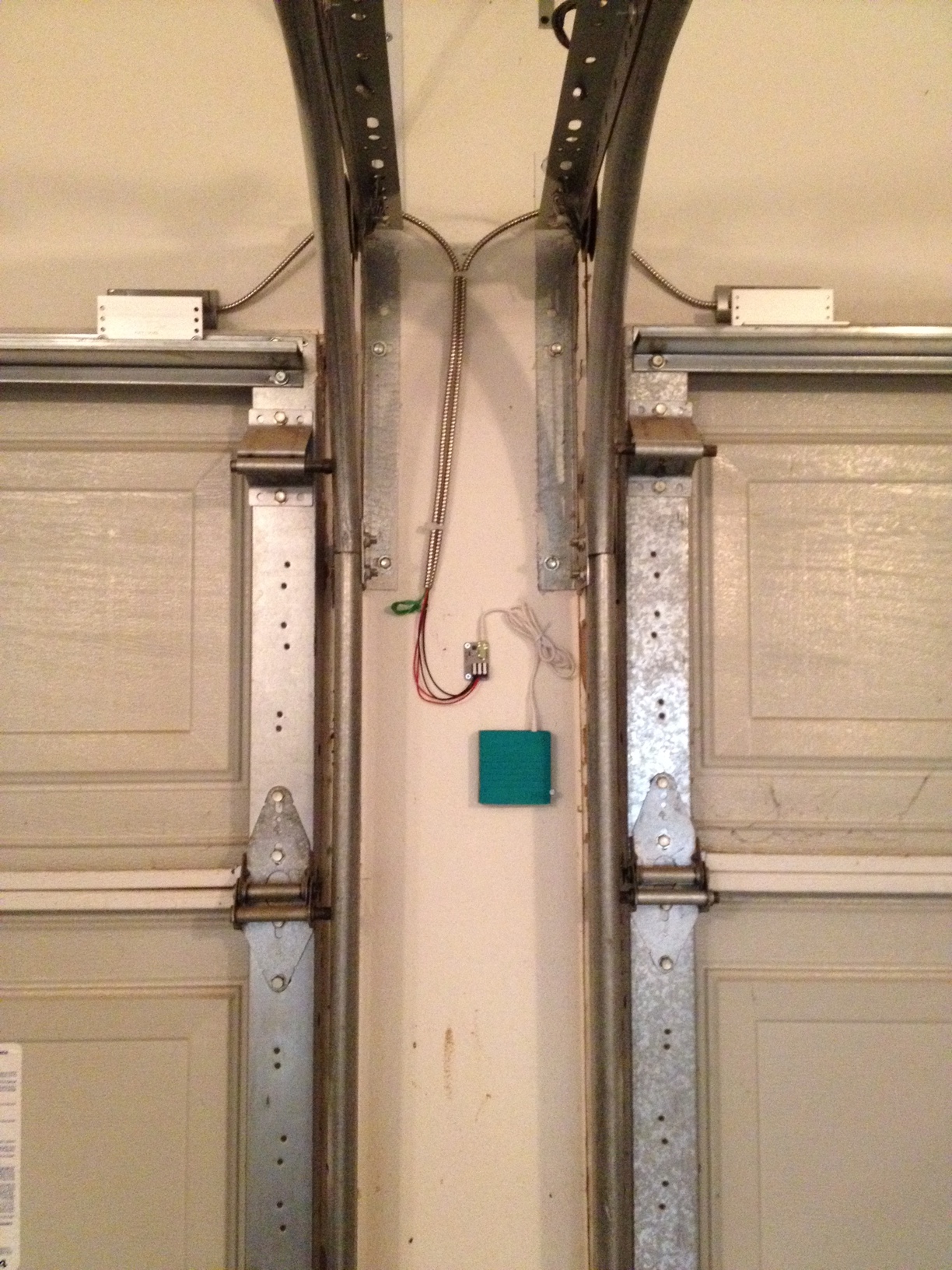
<p>In this article we will address these limitations by installing the Twine to the garage wall and not directly to the door. &nbsp;We will use external magnetic sensors designed for garage doors and we will connect two door sensors to a single Twine unit to monitor the state of both garage doors. &nbsp;</p>
<div><span class="ssNonEditable full-image-block"><img src="http://www.savagehomeautomation.com/storage/post-images/twine/twine-plus-garage-door.png?__SQUARESPACE_CACHEVERSION=1353602795429" alt="" /></span></div>
<div>
<h3>Shopping List</h3>
<div>
<ul>
<li>1 @&nbsp;<a class="offsite-link-inline" href="http://www.amazon.com/exec/obidos/ASIN/B009YWTNFI/savagehomeaut-20" target="_blank">Twine&nbsp;Portable Wi-Fi Sensor</a>&nbsp;&nbsp;<br />&nbsp; (or)&nbsp;<a class="offsite-link-inline" href="http://www.amazon.com/exec/obidos/ASIN/B009YWTPNS/savagehomeaut-20" target="_blank">Twine Portable Wi-Fi Sensor + Full Sensor Package<br /></a>&nbsp; (or)&nbsp;<a class="offsite-link-inline" href="http://www.amazon.com/exec/obidos/ASIN/B009YWTP2E/savagehomeaut-20" target="_blank">Twine Portable Wi-Fi Sensor + Magnetic Switch<br /></a>&nbsp; (or)&nbsp;<a class="offsite-link-inline" href="http://www.amazon.com/exec/obidos/ASIN/B009YWTOF2/savagehomeaut-20" target="_blank">Twine Portable Wi-Fi Sensor + Moisture Sensor</a>&nbsp;&nbsp;</li>
</ul>
<ul>
<li>1 @&nbsp;<a class="offsite-link-inline" href="http://supermechanical.com/twine/" target="_blank">Twine Breakout Board</a>&nbsp;(<em>sensor interface</em>)</li>
<li>2 @ <a class="offsite-link-inline" href="http://www.amazon.com/exec/obidos/ASIN/B0058M0UZA/savagehomeaut-20" target="_blank">Seco-Larm Overhead Door Alarm Switch (NC/NO Contact 3 Wire)<br /></a>&nbsp; (or) &nbsp;<a class="offsite-link-inline" href="http://www.amazon.com/exec/obidos/ASIN/B000Q64NS8/savagehomeaut-20" target="_blank">Garage Contact Normally Opened or Closed</a></li>
<li>1 @ <a class="offsite-link-inline" href="http://www.amazon.com/exec/obidos/ASIN/B0049IE70I/savagehomeaut-20" target="_blank">Micro-USB Power Supply</a></li>
</ul>
</div>
<h3>Installation</h3>
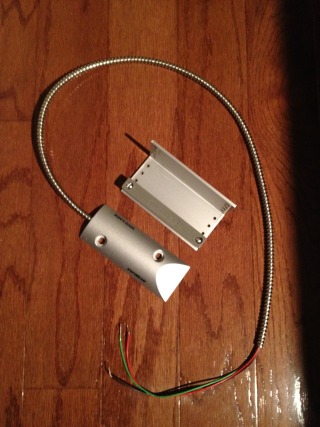
<p>The installation time took about 30 minutes for this project. &nbsp;We start with opening the garage door sensors from their packaging. &nbsp;These sensors support both a normally-open (NO) and normally-closed (NC) mode of operation. &nbsp;In this project we will use the normally-closed (NC) behavior and contacts. &nbsp;(<em>Normally-closed in this application means that when the magnet is not near the sensor, the circuit is closed. &nbsp;When the magnet is brought in range to the sensor, the circuit becomes open.</em>)</p>
<p><span class="thumbnail-image-float-left ssNonEditable"><span><a href="javascript:showFullImage('/display/ShowImage?imageUrl=%2Fstorage%2Fpost-images%2Ftwine%2Ftwine-garage-1.jpg%3F__SQUARESPACE_CACHEVERSION%3D1355080211452',1632,1224);"><img src="http://www.savagehomeautomation.com/storage/thumbnails/13113340-21215007-thumbnail.jpg?__SQUARESPACE_CACHEVERSION=1355080211455" alt="" /></a></span></span><span class="full-image-block ssNonEditable"><span><img src="http://www.savagehomeautomation.com/storage/post-images/twine/twine-garage-2.jpg?__SQUARESPACE_CACHEVERSION=1355080268164" alt="" /></span></span></p>
</div>
<p>The advantage of using a sensor that is designed for use with a garage/overhead door is that its sensor range is much greater and thus more tolerant than a traditional security system door magnetic sensor. &nbsp;The sensor range is 3 to 4 inches. &nbsp; These garage door sensors are designed to be installed on a concrete floor, but in my installation, I decided to install them on the wall above the door and not go through the effort of drilling into the concrete.&nbsp;</p>
<p><span class="thumbnail-image-float-left ssNonEditable"><span><a href="javascript:showFullImage('/display/ShowImage?imageUrl=%2Fstorage%2Fpost-images%2Ftwine%2Ftwine-garage-3.jpg%3F__SQUARESPACE_CACHEVERSION%3D1355080467564',1224,1632);"><img src="http://www.savagehomeautomation.com/storage/thumbnails/13113340-21215026-thumbnail.jpg?__SQUARESPACE_CACHEVERSION=1355080467566" alt="" /></a></span></span></p>
<p><span class="thumbnail-image-block ssNonEditable"><span><a href="javascript:showFullImage('/display/ShowImage?imageUrl=%2Fstorage%2Fpost-images%2Ftwine%2Ftwine-garage-4.jpg%3F__SQUARESPACE_CACHEVERSION%3D1355080671252',1224,1632);"><img src="http://www.savagehomeautomation.com/storage/thumbnails/13113340-21215028-thumbnail.jpg?__SQUARESPACE_CACHEVERSION=1355080671255" alt="" /></a></span></span></p>
<p>Install the sensor directly to the wall or floor and route the wires such that they will not interfere with the garage door as it travels up/down. &nbsp;Install the magnet and adjustable plate directly to the garage door so that the magnet is within a couple of inches of the sensor when the garage door is fully shut. &nbsp;I have two garage doors that I want to monitor so I installed a duplicate sensor on the adjacent garage door. (<em>see photo</em>)</p>
<p><span class="thumbnail-image-float-left ssNonEditable"><span><a href="javascript:showFullImage('/display/ShowImage?imageUrl=%2Fstorage%2Fpost-images%2Ftwine%2Ftwine-garage-5.jpg%3F__SQUARESPACE_CACHEVERSION%3D1355080916857',1224,1632);"><img src="http://www.savagehomeautomation.com/storage/thumbnails/13113340-21215030-thumbnail.jpg?__SQUARESPACE_CACHEVERSION=1355080916859" alt="" /></a></span></span><span class="thumbnail-image-block ssNonEditable"><span><a href="javascript:showFullImage('/display/ShowImage?imageUrl=%2Fstorage%2Fpost-images%2Ftwine%2Ftwine-garage-6.jpg%3F__SQUARESPACE_CACHEVERSION%3D1355081004068',1224,1632);"><img src="http://www.savagehomeautomation.com/storage/thumbnails/13113340-21215010-thumbnail.jpg?__SQUARESPACE_CACHEVERSION=1355081004070" alt="" /></a></span></span></p>
<p>Route the wires to the location where you want to install the Twine. &nbsp;You may need to use nylon cable ties to hold the wires in position to prevent getting in the way of the garage door travel. &nbsp;I installed mine in a location where I could easily access the Twine for battery replacement or maintenance. &nbsp;You may also want to consider a location that can easily access a power outlet so the Twine can be powered locally and not rely on battery power.&nbsp;</p>
<p><span class="full-image-float-left ssNonEditable"><span><img style="width: 320px;" src="http://www.savagehomeautomation.com/storage/post-images/twine/twine-garage-7.jpg?__SQUARESPACE_CACHEVERSION=1355081320807" alt="" /></span></span><span class="thumbnail-image-block ssNonEditable"><span><a href="javascript:showFullImage('/display/ShowImage?imageUrl=%2Fstorage%2Fpost-images%2Ftwine%2Ftwine-garage-8.jpg%3F__SQUARESPACE_CACHEVERSION%3D1355081447490',1632,1224);"><img src="http://www.savagehomeautomation.com/storage/thumbnails/13113340-21215014-thumbnail.jpg?__SQUARESPACE_CACHEVERSION=1355081447493" alt="" /></a></span></span></p>
<p>I used a 4D finish nail to hang the Twine on and a 6D common nail on the right-hand side of the Twine to hold it in place. &nbsp;The Twine breakout sensor board is also required and should be installed along with the Twine using the provided 1/8" stereo wire. &nbsp;The magnetic sensors can be wired directly to the Twine breakout board or you can extend them with additional wire if you need to install the Twine in a location that is a further distance than the existing sensor wires can reach. &nbsp;The black wires (<em>common</em>) from the sensors should be attached to the GND pin on the Twine breakout board. &nbsp;The red wires (<em>NC</em>) from the sensors should be attached to the IN pin on the Twine breakout board. &nbsp;The green wires (<em>NO</em>) from the sensors are not used in this project. &nbsp;Both garage doors are attached to the single Twine so that both doors can be monitored. &nbsp;Note, they are not monitored individually or discretely, but rather as one.</p>
<p><span class="thumbnail-image-float-left ssNonEditable"><span><a href="javascript:showFullImage('/display/ShowImage?imageUrl=%2Fstorage%2Fpost-images%2Ftwine%2Ftwine-garage-9.jpg%3F__SQUARESPACE_CACHEVERSION%3D1355081687333',1632,1224);"><img src="http://www.savagehomeautomation.com/storage/thumbnails/13113340-21215019-thumbnail.jpg?__SQUARESPACE_CACHEVERSION=1355081687335" alt="" /></a></span></span><span class="thumbnail-image-block ssNonEditable"><span><a href="javascript:showFullImage('/display/ShowImage?imageUrl=%2Fstorage%2Fpost-images%2Ftwine%2Ftwine-garage-10.jpg%3F__SQUARESPACE_CACHEVERSION%3D1355081783567',1632,1224);"><img src="http://www.savagehomeautomation.com/storage/thumbnails/13113340-21215023-thumbnail.jpg?__SQUARESPACE_CACHEVERSION=1355081783569" alt="" /></a></span></span></p>
<p>The last step is to use a micro-USB power supply to power the Twine locally. &nbsp;This will then use the mains power to power the Twine and the batteries will only be used for backup in the event of a power failure. &nbsp;</p>
<p><span class="thumbnail-image-float-left ssNonEditable"><span><a href="javascript:showFullImage('/display/ShowImage?imageUrl=%2Fstorage%2Fpost-images%2Ftwine%2Ftwine-garage-13.jpg%3F__SQUARESPACE_CACHEVERSION%3D1355086569789',1632,1224);"><img src="http://www.savagehomeautomation.com/storage/thumbnails/13113340-21216315-thumbnail.jpg?__SQUARESPACE_CACHEVERSION=1355086569791" alt="" /></a></span></span><span class="thumbnail-image-block ssNonEditable"><span><a href="javascript:showFullImage('/display/ShowImage?imageUrl=%2Fstorage%2Fpost-images%2Ftwine%2Ftwine-garage-14.jpg%3F__SQUARESPACE_CACHEVERSION%3D1355086627683',1632,1224);"><img style="width: 320px;" src="http://www.savagehomeautomation.com/storage/post-images/twine/twine-garage-14.jpg?__SQUARESPACE_CACHEVERSION=1355086772411" alt="" /></a></span></span></p>
<h3>Configuring Twine&nbsp;</h3>
<blockquote>
<p>If you have not previously performed the initial setup configuration on your Twine, then please&nbsp;<a href="http://www.savagehomeautomation.com/projects/twine-unboxing-setup-and-first-impressions.html" target="_blank">visit this article</a>&nbsp;and perform the configuration steps before continuing.</p>
</blockquote>
<p>Open a web browser and login to the Twine management web application:<br /><a class="offsite-link-inline" href="https://twine.supermechanical.com/" target="_blank">https://twine.supermechanical.com/</a>&nbsp;</p>
<p>Next, select the specific Twine device that you are working with from the drop-down menu at the top of the screen.</p>
<p><span class="ssNonEditable thumbnail-image-block"><a href="javascript:showFullImage('/display/ShowImage?imageUrl=%2Fstorage%2Fpost-images%2Ftwine%2Ftwine-select.png%3F__SQUARESPACE_CACHEVERSION%3D1353521130821',561,968);"><img src="http://www.savagehomeautomation.com/storage/thumbnails/13113340-21043524-thumbnail.jpg?__SQUARESPACE_CACHEVERSION=1353521130822" alt="" /></a></span></p>
<p>Next, we are going to create a new&nbsp;<strong>RULE</strong>&nbsp;to issue notifications when the Twine's breakout sensor is in the closed position for at least 15 minutes indicating that one of the the garage doors is open. &nbsp;(<em>If you have any existing rules defined, you may want to delete them first.</em>) &nbsp;Use the&nbsp;<strong>Add Rule&nbsp;</strong>button to create a new rule. &nbsp;</p>
<p>The new rule should be applied as follows:</p>
<p><strong>WHEN</strong><br />&gt; "breakout"&nbsp;<em>changes to</em>&nbsp;"is closed" after "900" seconds</p>
<p><strong>THEN</strong><br />&gt; send SMS text message (<em>and/or email</em>)</p>
<p>Also make sure to define the number of seconds for the trigger time and reset time under the "Options" section of the "When" trigger. &nbsp;I am using 900 seconds which is 15 minutes. &nbsp;So the garage door must be open for 15 minutes before triggering the notification.</p>
<p>Below is rule I am using:</p>
<p><span class="thumbnail-image-block ssNonEditable"><span><a href="javascript:showFullImage('/display/ShowImage?imageUrl=%2Fstorage%2Fpost-images%2Ftwine%2Ftwine-garage-rule.png%3F__SQUARESPACE_CACHEVERSION%3D1355081952755',770,715);"><img src="http://www.savagehomeautomation.com/storage/thumbnails/13113340-21215002-thumbnail.jpg?__SQUARESPACE_CACHEVERSION=1355081952756" alt="" /></a></span></span></p>
<p>&nbsp;</p>
<h3>Testing</h3>
<p>Now that we have installed the Twine and garage soor sensors to the garage doors and configured the logic rule, let's test the system. &nbsp;Simply open one of the garage doors and wait the configured delay time, fifteen minutes in my case, and you should receive the text notification (<em>and/</em><em>or email)</em>.</p>
<p><span class="thumbnail-image-float-left ssNonEditable"><span><a href="javascript:showFullImage('/display/ShowImage?imageUrl=%2Fstorage%2Fpost-images%2Ftwine%2Ftwine-garage-11.png%3F__SQUARESPACE_CACHEVERSION%3D1355082055183',480,320);"><img src="http://www.savagehomeautomation.com/storage/thumbnails/13113340-21215088-thumbnail.jpg?__SQUARESPACE_CACHEVERSION=1355082055185" alt="" /></a></span></span><span class="thumbnail-image-block ssNonEditable"><span><a href="javascript:showFullImage('/display/ShowImage?imageUrl=%2Fstorage%2Fpost-images%2Ftwine%2Ftwine-garage-12.png%3F__SQUARESPACE_CACHEVERSION%3D1355082111749',480,320);"><img src="http://www.savagehomeautomation.com/storage/thumbnails/13113340-21215089-thumbnail.jpg?__SQUARESPACE_CACHEVERSION=1355082111751" alt="" /></a></span></span></p>
<h3>Final Thoughts</h3>
<p>While this project was a little more complex and involved than the <a href="http://www.savagehomeautomation.com/projects/twine-garage-door-monitor.html" target="_blank">first Twine garage door project</a>, I believe that this is truly a better approach for a permanent installation. &nbsp;Using this approach, the Twine can be powered locally and you can monitor multiple doors with a single Twine. &nbsp;Have fun automating your home with the Twine.&nbsp;</p>
<p>&nbsp;</p>]]></content></entry><entry><title>Raspberry Pi - John Jay's 8 LED &amp; Button Breakout Board</title><category term="Embedded Computing"/><category term="Raspberry Pi"/><category term="Raspberry Pi"/><category term="pi"/><category term="raspberry"/><category term="raspi"/><id>http://www.savagehomeautomation.com/projects/raspberry-pi-john-jays-8-led-button-breakout-board.html</id><link rel="alternate" type="text/html" href="http://www.savagehomeautomation.com/projects/raspberry-pi-john-jays-8-led-button-breakout-board.html"/><author><name>Robert Savage</name></author><published>2012-12-06T00:10:37Z</published><updated>2012-12-06T00:10:37Z</updated><content type="html" xml:lang="en-US"><![CDATA[<div></div>
<h3>Overview</h3>
<div>
<div>In a previous article I demonstrated how to build your own <a href="http://www.savagehomeautomation.com/projects/raspberry-pi-build-a-gpio-testing-board.html" target="_blank">Raspberry Pi GPIO testing board</a>&nbsp;that included buttons, slide switches, and LEDs. &nbsp;Since that time, I learned about a retired engineer in Georgia named John Jay who is producing awesome little companion electronic boards and kits for the Raspberry Pi. &nbsp;The boards are available as DIY kits and/or fully assembled boards. &nbsp; The kits are very reasonably priced and are available now on eBay. &nbsp;<a class="offsite-link-inline" href="http://cgi.ebay.com/ws/eBayISAPI.dll?ViewItem&amp;item=251197102538" target="_blank">Click here to see John Jay's eBay listings</a>. &nbsp;One of Mr. Jay's kits is an 8 button / 8 LED GPIO button breakout board. &nbsp;Using this kit is certainly easier than acquiring all the individual electronic components and building the board on your own. &nbsp;</div>
<div></div>
<div>I made one slight modification to the kit so that I could connect the breakout board to my Raspberry Pi via a 26 pin ribbon cable.&nbsp;</div>
<div>
<h3>Shopping List</h3>
<div>
<ul>
<li>1 @&nbsp;<a class="offsite-link-inline" href="http://www.raspberrypi.org/" target="_blank">Raspberry Pi</a>&nbsp; (<em><a href="http://www.savagehomeautomation.com/projects/raspberry-pi-shopping-list.html">see this page for more Raspberry Pi related supplies</a></em>)</li>
<li>1 @&nbsp;<a class="offsite-link-inline" href="http://cgi.ebay.com/ws/eBayISAPI.dll?ViewItem&amp;item=251197102538" target="_blank">John Jay's 8 Button / 8 LED Breakout Board (kit)</a></li>
</ul>
</div>
<p style="padding-left: 30px;">Parts for Optional Ribbon Cable &amp; Connector (<em>below</em>)</p>
<div>
<ul>
<li>1 @&nbsp;<a class="offsite-link-inline" href="http://www.amazon.com/exec/obidos/ASIN/B007R2JJUG/savagehomeaut-20" target="_blank">26P ribbon cable</a>&nbsp;(1 meter or less)</li>
<li>2 @&nbsp;<a class="offsite-link-inline" href="http://www.amazon.com/exec/obidos/ASIN/B007R2JEMY/savagehomeaut-20" target="_blank">26P female IDC connectors&nbsp;</a>(press-fit)</li>
<li>1 @&nbsp;<a class="offsite-link-inline" href="http://www.amazon.com/exec/obidos/ASIN/B006Z8M7KM/savagehomeaut-20" target="_blank">26P box header IDC male sockets</a>&nbsp;(right angle or straight)                                              
<ul>
</ul>
</li>
</ul>
</div>
<h3>Tools</h3>
<ul>
<li>Wire snips (<a class="offsite-link-inline" href="http://www.amazon.com/exec/obidos/ASIN/B0000WT6FI/savagehomeaut-20" target="_blank">Hakko CHP170 Micro Cutter, 16AWG Clean Cut</a>)</li>
<li>Solder Iron (<a class="offsite-link-inline" href="http://www.amazon.com/exec/obidos/ASIN/B000AS28UC/savagehomeaut-20" target="_blank">Weller WLC100 40-Watt Soldering Station</a>)</li>
<li>Solder (lead-free)</li>
</ul>
<div></div>
<h3>Assembly</h3>
<blockquote>
<p><br /><em>Assembly instructions can also be found on John's website: </em><a class="offsite-link-inline" href="http://mypishop.com/Pi%208%20LED%20&amp;%208%20Button.html" target="_blank">http://mypishop.com/Pi%208%20LED%20&amp;%208%20Button.html</a></p>
</blockquote>
<ul>
</ul>
<p><span class="thumbnail-image-float-right ssNonEditable"><a href="javascript:showFullImage('/display/ShowImage?imageUrl=%2Fstorage%2Fpost-images%2Fjj-kit%2Fbb-parts.JPG%3F__SQUARESPACE_CACHEVERSION%3D1354756690261',1224,1632);"><img style="width: 400px;" src="http://www.savagehomeautomation.com/storage/thumbnails/13113340-21185135-thumbnail.jpg?__SQUARESPACE_CACHEVERSION=1354757344429" alt="" /></a></span></p>
<p>The kit includes the following components:</p>
<ul>
<li>1 @ printed circuit board</li>
</ul>
</div>
<div>
<ul>
<li>8 @ green LEDs</li>
</ul>
</div>
<div>
<ul>
<li>8 @ momentary/normally-open pushbutton micro-switches</li>
</ul>
</div>
<div>
<ul>
<li>2 @ resistor networks</li>
</ul>
</div>
<div>
<ul>
<li>1 @ 26 pin PCB mount female header <br />(<em>not pictured)</em></li>
</ul>
</div>
<div>
<ul>
<li>1 @ peel-and-stick on rubber bumper&nbsp;<br />(<em>not pictured)</em>&nbsp;</li>
</ul>
</div>
<p>&nbsp;</p>
<div>
<p><span class="full-image-float-right ssNonEditable"><img style="width: 150px;" src="http://www.savagehomeautomation.com/storage/post-images/jj-kit/bb-box-header.jpg?__SQUARESPACE_CACHEVERSION=1354757006156" alt="" /></span></p>
<p>&nbsp;In addition to the parts provided in the kit, I also used a right-angle 26P male box header socket for connecting a 26P ribbon cable to the Raspberry Pi.</p>
<p>&nbsp;</p>
<p>&nbsp;</p>
<blockquote>
<p><strong><br />TIP</strong>: &nbsp;<em>Click any image to enlarge and view a high-resolution photo.</em>&nbsp;</p>
</blockquote>
<p><strong>STEP 1 &gt; </strong>Insert the 26P male header socket in the position at the edge of the board and then solder the pins in place on the bottom side of the board. <strong>&nbsp;<em>NOTE: &nbsp;</em></strong><em>If you are not using this optional IDC box socket connector and you are using the supplied female header, then be aware that it should be mounted to the bottom of the board and soldered in place on the top.</em></p>
<p><span class="thumbnail-image-float-left ssNonEditable"><a href="javascript:showFullImage('/display/ShowImage?imageUrl=%2Fstorage%2Fpost-images%2Fjj-kit%2Fbb-1.jpg%3F__SQUARESPACE_CACHEVERSION%3D1354758396426',979,1306);"><img src="http://www.savagehomeautomation.com/storage/thumbnails/13113340-21185479-thumbnail.jpg?__SQUARESPACE_CACHEVERSION=1354758396428" alt="" /></a>&nbsp;&nbsp;</span><span class="thumbnail-image-block ssNonEditable"><a href="javascript:showFullImage('/display/ShowImage?imageUrl=%2Fstorage%2Fpost-images%2Fjj-kit%2Fbb-2.jpg%3F__SQUARESPACE_CACHEVERSION%3D1354758458980',979,1306);"><img src="http://www.savagehomeautomation.com/storage/thumbnails/13113340-21185477-thumbnail.jpg?__SQUARESPACE_CACHEVERSION=1354758458982" alt="" /></a></span></p>
<p>&nbsp;</p>
<p><strong>STEP 2 &gt;&nbsp;</strong>Insert one of the A102J resistor networks into the RP1 position on the top of the board. &nbsp;Solder in place on the bottom of the board. &nbsp;You can bend the pins over to help hold the component in place while you solder.&nbsp;</p>
<p><span class="thumbnail-image-float-left ssNonEditable"><a href="javascript:showFullImage('/display/ShowImage?imageUrl=%2Fstorage%2Fpost-images%2Fjj-kit%2Fbb-3.jpg%3F__SQUARESPACE_CACHEVERSION%3D1354758777659',979,1306);"><img src="http://www.savagehomeautomation.com/storage/thumbnails/13113340-21185476-thumbnail.jpg?__SQUARESPACE_CACHEVERSION=1354758777660" alt="" /></a></span><span class="thumbnail-image-block ssNonEditable"><a href="javascript:showFullImage('/display/ShowImage?imageUrl=%2Fstorage%2Fpost-images%2Fjj-kit%2Fbb-4.jpg%3F__SQUARESPACE_CACHEVERSION%3D1354758949606',979,1306);"><img src="http://www.savagehomeautomation.com/storage/thumbnails/13113340-21185473-thumbnail.jpg?__SQUARESPACE_CACHEVERSION=1354758949607" alt="" /></a></span></p>
<p>&nbsp;</p>
<p><strong>STEP 3 &gt;&nbsp;</strong>Insert the second A102J resistor network into the RP3 position on the top of the board. &nbsp;Solder in place on the bottom of the board. &nbsp;</p>
<p><span class="thumbnail-image-float-left ssNonEditable"><a href="javascript:showFullImage('/display/ShowImage?imageUrl=%2Fstorage%2Fpost-images%2Fjj-kit%2Fbb-5.jpg%3F__SQUARESPACE_CACHEVERSION%3D1354759098054',644,918);"><img src="http://www.savagehomeautomation.com/storage/thumbnails/13113340-21185472-thumbnail.jpg?__SQUARESPACE_CACHEVERSION=1354759098056" alt="" /></a></span><span class="thumbnail-image-block ssNonEditable"><a href="javascript:showFullImage('/display/ShowImage?imageUrl=%2Fstorage%2Fpost-images%2Fjj-kit%2Fbb-6.jpg%3F__SQUARESPACE_CACHEVERSION%3D1354759139875',979,1306);"><img style="width: 300px;" src="http://www.savagehomeautomation.com/storage/thumbnails/13113340-21185471-thumbnail.jpg?__SQUARESPACE_CACHEVERSION=1354759164978" alt="" /></a></span></p>
<p>&nbsp;</p>
<p><strong>STEP 4 &gt; &nbsp;</strong>Next we will install the 8 LEDs. &nbsp;The LEDs have a short lead (cathode) and long lead (anode). &nbsp;The long lead (anode) should be insterted into the hole closest to the 26 pin header connector. &nbsp;See the photos below to make sure you have them in the correct orientation.&nbsp;</p>
<p><span class="thumbnail-image-float-left ssNonEditable"><a href="javascript:showFullImage('/display/ShowImage?imageUrl=%2Fstorage%2Fpost-images%2Fjj-kit%2Fbb-7.jpg%3F__SQUARESPACE_CACHEVERSION%3D1354760042115',783,1392);"><img style="width: 315px;" src="http://www.savagehomeautomation.com/storage/thumbnails/13113340-21185875-thumbnail.jpg?__SQUARESPACE_CACHEVERSION=1354760349336" alt="" /></a></span><span class="thumbnail-image-block ssNonEditable"><a href="javascript:showFullImage('/display/ShowImage?imageUrl=%2Fstorage%2Fpost-images%2Fjj-kit%2Fbb-8.jpg%3F__SQUARESPACE_CACHEVERSION%3D1354760101159',561,1047);"><img style="width: 330px;" src="http://www.savagehomeautomation.com/storage/thumbnails/13113340-21185885-thumbnail.jpg?__SQUARESPACE_CACHEVERSION=1354760339000" alt="" /></a></span></p>
<p>&nbsp;</p>
<p>Insert the 8 LEDs in position and then carefully flip the board and solder each LED in place. &nbsp;TIP: &nbsp;You may find it easier to solder just one lead of each of the LEDs and then check the LEDs from the top and adjust any for final positioning. &nbsp; &nbsp;</p>
<p><span class="thumbnail-image-float-left ssNonEditable"><a href="javascript:showFullImage('/display/ShowImage?imageUrl=%2Fstorage%2Fpost-images%2Fjj-kit%2Fbb-9.jpg%3F__SQUARESPACE_CACHEVERSION%3D1354761145454',979,1306);"><img style="width: 335px;" src="http://www.savagehomeautomation.com/storage/thumbnails/13113340-21186024-thumbnail.jpg?__SQUARESPACE_CACHEVERSION=1354761260562" alt="" /></a></span><span class="thumbnail-image-block ssNonEditable"><a href="javascript:showFullImage('/display/ShowImage?imageUrl=%2Fstorage%2Fpost-images%2Fjj-kit%2Fbb-10.jpg%3F__SQUARESPACE_CACHEVERSION%3D1354761191651',844,964);"><img style="width: 290px;" src="http://www.savagehomeautomation.com/storage/thumbnails/13113340-21186022-thumbnail.jpg?__SQUARESPACE_CACHEVERSION=1354761237025" alt="" /></a></span></p>
<p>After soldering each of the LEDs use a pair of wire snips to trim the excess lead wires.&nbsp;</p>
<p><span class="thumbnail-image-float-left ssNonEditable"><a href="javascript:showFullImage('/display/ShowImage?imageUrl=%2Fstorage%2Fpost-images%2Fjj-kit%2Fbb-11.jpg%3F__SQUARESPACE_CACHEVERSION%3D1354761593927',979,1306);"><img src="http://www.savagehomeautomation.com/storage/thumbnails/13113340-21186021-thumbnail.jpg?__SQUARESPACE_CACHEVERSION=1354761593930" alt="" /></a></span><span class="thumbnail-image-block ssNonEditable"><a href="javascript:showFullImage('/display/ShowImage?imageUrl=%2Fstorage%2Fpost-images%2Fjj-kit%2Fbb-12.jpg%3F__SQUARESPACE_CACHEVERSION%3D1354761651397',979,1306);"><img src="http://www.savagehomeautomation.com/storage/thumbnails/13113340-21186019-thumbnail.jpg?__SQUARESPACE_CACHEVERSION=1354761651398" alt="" /></a></span></p>
<p>&nbsp;</p>
<p><strong>STEP 5 &gt; &nbsp;</strong>Next we will install the momentary buttons. &nbsp;Each button has four pins that will insert into the board. &nbsp;Press each switch in place firmly to fully seat the switch. &nbsp;</p>
<p><span class="thumbnail-image-float-left ssNonEditable"><a href="javascript:showFullImage('/display/ShowImage?imageUrl=%2Fstorage%2Fpost-images%2Fjj-kit%2Fbb-13.jpg%3F__SQUARESPACE_CACHEVERSION%3D1354763726203',979,1306);"><img src="http://www.savagehomeautomation.com/storage/thumbnails/13113340-21186389-thumbnail.jpg?__SQUARESPACE_CACHEVERSION=1354763726205" alt="" /></a></span><span class="thumbnail-image-block ssNonEditable"><a href="javascript:showFullImage('/display/ShowImage?imageUrl=%2Fstorage%2Fpost-images%2Fjj-kit%2Fbb-14.jpg%3F__SQUARESPACE_CACHEVERSION%3D1354763760620',979,1306);"><img src="http://www.savagehomeautomation.com/storage/thumbnails/13113340-21186388-thumbnail.jpg?__SQUARESPACE_CACHEVERSION=1354763760622" alt="" /></a></span><br />Once the switches are placed, flip the board and solder each of the pins on all the switches.&nbsp;</p>
<p><span class="thumbnail-image-block ssNonEditable"><a href="javascript:showFullImage('/display/ShowImage?imageUrl=%2Fstorage%2Fpost-images%2Fjj-kit%2Fbb-15.jpg%3F__SQUARESPACE_CACHEVERSION%3D1354763910664',979,1306);"><img src="http://www.savagehomeautomation.com/storage/thumbnails/13113340-21186387-thumbnail.jpg?__SQUARESPACE_CACHEVERSION=1354764347752" alt="" /></a></span></p>
<p>&nbsp;</p>
<p>That's it. &nbsp;Now you have a complete assembled board ready for use with your Raspberry Pi. &nbsp;</p>
<p><span class="thumbnail-image-float-left ssNonEditable"><a href="javascript:showFullImage('/display/ShowImage?imageUrl=%2Fstorage%2Fpost-images%2Fjj-kit%2Fbb-17.jpg%3F__SQUARESPACE_CACHEVERSION%3D1354764288410',843,1142);"><img src="http://www.savagehomeautomation.com/storage/thumbnails/13113340-21186383-thumbnail.jpg?__SQUARESPACE_CACHEVERSION=1354764447891" alt="" /></a></span></p>
<p><span class="thumbnail-image-block ssNonEditable"><a href="javascript:showFullImage('/display/ShowImage?imageUrl=%2Fstorage%2Fpost-images%2Fjj-kit%2Fbb-16.jpg%3F__SQUARESPACE_CACHEVERSION%3D1354764328810',909,1133);"><img src="http://www.savagehomeautomation.com/storage/thumbnails/13113340-21186385-thumbnail.jpg?__SQUARESPACE_CACHEVERSION=1354764433707" alt="" /></a></span></p>
<p><span class="thumbnail-image-float-left ssNonEditable"><a href="javascript:showFullImage('/display/ShowImage?imageUrl=%2Fstorage%2Fpost-images%2Fjj-kit%2Fbb-18.jpg%3F__SQUARESPACE_CACHEVERSION%3D1354764381780',979,1306);"><img src="http://www.savagehomeautomation.com/storage/thumbnails/13113340-21186382-thumbnail.jpg?__SQUARESPACE_CACHEVERSION=1354764381782" alt="" /></a></span></p>
<p><span class="thumbnail-image-block ssNonEditable"><a href="javascript:showFullImage('/display/ShowImage?imageUrl=%2Fstorage%2Fpost-images%2Fjj-kit%2Fbb-19.jpg%3F__SQUARESPACE_CACHEVERSION%3D1354764414992',979,1306);"><img src="http://www.savagehomeautomation.com/storage/thumbnails/13113340-21186381-thumbnail.jpg?__SQUARESPACE_CACHEVERSION=1354764414994" alt="" /></a></span></p>
<h3>Logic</h3>
<p>The 8 LEDs are controlled by positive 3.3 VDC TTL voltage on each of the corresponding GPIO pins. &nbsp;Setting a GPIO pin to HIGH will cause the LED to turn ON and setting a GPIO pin to LOW will turn the LED OFF.</p>
<p>When depressing one of the 8 input buttons, the closed circuit will provide a ground drain for the GPIO pin thus causing it to go LOW. &nbsp;When an input button is not depressed the circuit on the GPIO pin will remain floating; therefore, each of the GPIO pins used with these buttons should be configured to set their internal resistors to pull up. &nbsp;In software, this means that the button will remain in the HIGH state when it is not pressed and will go LOW while a button is pressed.</p>
<div></div>
<h3>LED Wiring Diagram</h3>
<p>The 8 LEDs are mapped to the P1 header on the Raspberry Pi as depicted in the diagram below.</p>
<p><span class="thumbnail-image-block ssNonEditable"><a href="javascript:showFullImage('/display/ShowImage?imageUrl=%2Fstorage%2Fpost-images%2Fjj-kit%2Fjj8led-wiring-led.png%3F__SQUARESPACE_CACHEVERSION%3D1355005490097',968,1254);"><img src="http://www.savagehomeautomation.com/storage/thumbnails/13113340-21211870-thumbnail.jpg?__SQUARESPACE_CACHEVERSION=1355005490098" alt="" /></a></span></p>
<h3>Button Wiring Diagram</h3>
<p>The 8 buttons are mapped to the P1 header on the Raspberry Pi as depicted in the diagram below.</p>
<p><span class="thumbnail-image-block ssNonEditable"><a href="javascript:showFullImage('/display/ShowImage?imageUrl=%2Fstorage%2Fpost-images%2Fjj-kit%2Fjj8led-wiring-1.png%3F__SQUARESPACE_CACHEVERSION%3D1355004236044',925,1263);"><img src="http://www.savagehomeautomation.com/storage/thumbnails/13113340-21211748-thumbnail.jpg?__SQUARESPACE_CACHEVERSION=1355004236045" alt="" /></a></span></p>
<h3>GPIO Pin Cross-Reference Chart</h3>
<p style="text-align: center;">Below is a cross reference chart to better help define the GPIO pin numbers used for each button and LED.</p>
<p style="text-align: center;"><span class="thumbnail-image-block ssNonEditable"><span><a href="javascript:showFullImage('/display/ShowImage?imageUrl=%2Fstorage%2Fpost-images%2Fjj-kit%2Fjj-gpio-pin-map.png%3F__SQUARESPACE_CACHEVERSION%3D1355010570785',497,737);"><img src="http://www.savagehomeautomation.com/storage/thumbnails/13113340-21211942-thumbnail.jpg?__SQUARESPACE_CACHEVERSION=1355010570787" alt="" /></a></span></span></p>
<div></div>
<h3>C Sample Program</h3>
<p>If you are interested in native C sample code, please check out this article on Gordon's Project Blog:<br /><a class="offsite-link-inline" href="https://projects.drogon.net/more-buttons-and-leds/" target="_blank">https://projects.drogon.net/more-buttons-and-leds/</a>&nbsp;</p>
<p>Gordon provides a sample program based on the WiringPi library.</p>
<div></div>
<h3>Java Sample Programs using Pi4J</h3>
<p>Below is a sample Java program for monitoring the 8 buttons on this board.&nbsp;</p>
<p><iframe src="http://pastebin.com/embed_iframe.php?i=AS4hK68N" style="border:1px solid black;width:650px; height:500px;"></iframe></p>
<p>Below is a sample Java program for creating a cylon effect that cycles through the 8 LEDs on this board.&nbsp;</p>
<p><iframe src="http://pastebin.com/embed_iframe.php?i=tVm5Ka66" style="border:1px solid black;width:650px; height:500px;"></iframe></p>
<h3>Final Thoughts</h3>
<p>Assembling this kit was simple and takes about 30 minutes. &nbsp;This kit is a very convient tool to have on hand while testing and developing software for the Raspberry Pi. &nbsp;This kit is also a very good educational kit to begin interacting with the Raspberry Pi's GPIO pins. &nbsp;</p>
</div>
</div>
<div></div>]]></content></entry><entry><title>Raspberry Pi - Sunrise / Sunset Timer for Christmas Lights</title><category term="Christmas"/><category term="Embedded Computing"/><category term="Holiday"/><category term="Home Automation"/><category term="Pi4J"/><category term="Raspberry Pi"/><category term="Raspberry Pi"/><category term="pi"/><category term="power"/><category term="raspberry"/><category term="raspi"/><id>http://www.savagehomeautomation.com/projects/raspberry-pi-sunrise-sunset-timer-for-christmas-lights.html</id><link rel="alternate" type="text/html" href="http://www.savagehomeautomation.com/projects/raspberry-pi-sunrise-sunset-timer-for-christmas-lights.html"/><author><name>Robert Savage</name></author><published>2012-12-05T07:00:00Z</published><updated>2012-12-05T07:00:00Z</updated><content type="html" xml:lang="en-US"><![CDATA[<div><span class="full-image-float-right ssNonEditable"><img style="width: 220px;" src="http://www.savagehomeautomation.com/storage/post-images/raspberrypi/christmas-lights.png?__SQUARESPACE_CACHEVERSION=1354604480357" alt="" /></span>
<h3>Overview</h3>
Turkey day (<em>Thanksgiving Day for those reading outside the US</em>) is over and according to decades of holiday tradition, it's time to hang the exterior Christmas lights on the house. &nbsp; In the past I have always used simple mechanical timers to automatically turn on and off the lights based on fixed times. &nbsp;This year, armed with my Raspberry Pi, I wanted to create a simple DIY Raspi Christmas Lighting Timer that would control the power to the Christmas lights automatically based on sunrise and sunset times. &nbsp;</div>
<div></div>
<div>Of course you may find other useful applications for this project beyond holiday lighting. &nbsp;This article will demonstrate how simple it can be to use a Raspberry Pi to control 110/240 VAC circuits. &nbsp; Additionally the software (<em>open source</em>) will be provided to control the circuit based on sunrise and sunset times. &nbsp; &nbsp;&nbsp;</div>
<div><br />
<h3>Shopping List</h3>
<div>
<ul>
<li><a class="offsite-link-inline" href="http://www.raspberrypi.org/" target="_blank">Raspberry Pi</a>&nbsp; (<em><a href="http://www.savagehomeautomation.com/projects/raspberry-pi-shopping-list.html">see this page for more Raspberry Pi related supplies</a></em>)          
<ul>
<li><a class="offsite-link-inline" href="http://www.amazon.com/exec/obidos/ASIN/B005LALOKY/savagehomeaut-20" target="_blank">5VDC 1A Micro USB Power Supply</a></li>
<li><a class="offsite-link-inline" href="http://www.amazon.com/exec/obidos/ASIN/B0058GH0LS/savagehomeaut-20" target="_blank">SD Memory Card (4GB or above)</a></li>
</ul>
</li>
<li><a class="offsite-link-inline" href="http://www.powerswitchtail.com/Pages/default.aspx" target="_blank">PowerSwitch Tail II</a>&nbsp;(US) / <a class="offsite-link-inline" href="http://www.powerswitchtail.com/Pages/PSTKKit.aspx" target="_blank">PowerSwitch Tail 240 Kit</a>&nbsp;(EU)</li>
<li><a href="http://www.amazon.com/exec/obidos/ASIN/B008MRZSH8/savagehomeaut-20">Jumper Wires (Male-to-Female)</a><br /><br /></li>
</ul>
</div>
<h3>Hardware</h3>
<p>The wiring for this project is quite simple. &nbsp;All we need are two wires to connect from the GPIO (P1) header on the Raspberry Pi to the PowerSwitch Tail power controller. &nbsp;Using male-to-female jumper wires make the task truly plug-n-play ... we don't need to solder or stip any wires. &nbsp;</p>
<p>The PowerSwitch Tail power controller works by turning on the high voltage AC circuit when a DC input of 3-12 VDC&nbsp;(3-30ma) is detected on its input terminal. &nbsp;When no input voltage is detected, the high voltage AC circuit turns off. &nbsp;</p>
<p><span class="full-image-float-left ssNonEditable"><a href="javascript:showFullImage('/display/ShowImage?imageUrl=%2Fstorage%2Fpost-images%2Fraspberrypi%2Fpowerswitch-on.png%3F__SQUARESPACE_CACHEVERSION%3D1354602664570',393,460);"><img src="http://www.savagehomeautomation.com/storage/thumbnails/13113340-21161727-thumbnail.jpg?__SQUARESPACE_CACHEVERSION=1354602801469" alt="" /></a></span><span class="thumbnail-image-block ssNonEditable"><a href="javascript:showFullImage('/display/ShowImage?imageUrl=%2Fstorage%2Fpost-images%2Fraspberrypi%2Fpowerswitch-off.png%3F__SQUARESPACE_CACHEVERSION%3D1354602697539',393,460);"><img src="http://www.savagehomeautomation.com/storage/thumbnails/13113340-21161737-thumbnail.jpg?__SQUARESPACE_CACHEVERSION=1354602773229" alt="" /></a></span></p>
<p>Fortunately the PowerSwitch Tail power controller input can be triggered directly by the&nbsp;Raspberry Pi's TTL 3.3 DC voltage supplied on its GPIO pins. &nbsp;This means that no additional transistors, relays, or other circuitry is needed to perform the switching.&nbsp;</p>
<p>In this project, we will use Raspberry Pi P1 header pin #12 (<em>which is GPIO #1 in the<a class="offsite-link-inline" href="http://pi4j.com/usage.html#Pin_Numbering" target="_blank"> Pi4J/WiringPi pin numbering scheme</a></em>)&nbsp;as the positive control signal and we will use Raspberry Pi P1 header pin #6 for GND (<em>ground</em>). &nbsp;See the wiring diagram below. &nbsp;Insert the female end of the jumper wire on the Raspberry Pi GPIO header pins and then insert the male end of the jumper wire in the PowerSwitch terminal and tighten the captive screw to secure the wire in place. &nbsp;Make sure that your Raspberry Pi is not plugged in while attaching wires to prevent accidental shorts. &nbsp;&nbsp;</p>
<p><span class="full-image-block ssNonEditable"><img src="http://www.savagehomeautomation.com/storage/post-images/raspberrypi/raspi-powerswitch.png?__SQUARESPACE_CACHEVERSION=1354601592171" alt="" /></span></p>
<p>Below are photos of the completed and assembled project. &nbsp;Click any image to enlarge.</p>
<p><span class="full-image-float-left ssNonEditable"><a href="javascript:showFullImage('/display/ShowImage?imageUrl=%2Fstorage%2Fpost-images%2Fraspberrypi%2Fraspi-powerswitch-1.jpg%3F__SQUARESPACE_CACHEVERSION%3D1354604834435',1351,1190);"><img src="http://www.savagehomeautomation.com/storage/thumbnails/13113340-21161864-thumbnail.jpg?__SQUARESPACE_CACHEVERSION=1354604989833" alt="" /></a></span></p>
<p><span class="full-image-float-left ssNonEditable"><a href="javascript:showFullImage('/display/ShowImage?imageUrl=%2Fstorage%2Fpost-images%2Fraspberrypi%2Fraspi-powerswitch-2.jpg%3F__SQUARESPACE_CACHEVERSION%3D1354604206901',1632,1224);"><img style="width: 174px;" src="http://www.savagehomeautomation.com/storage/thumbnails/13113340-21161867-thumbnail.jpg?__SQUARESPACE_CACHEVERSION=1354604878125" alt="" /></a></span><span class="thumbnail-image-block ssNonEditable"><a href="javascript:showFullImage('/display/ShowImage?imageUrl=%2Fstorage%2Fpost-images%2Fraspberrypi%2Fraspi-powerswitch-3.jpg%3F__SQUARESPACE_CACHEVERSION%3D1354604948174',1632,1224);"><img src="http://www.savagehomeautomation.com/storage/thumbnails/13113340-21161870-thumbnail.jpg?__SQUARESPACE_CACHEVERSION=1354604948175" alt="" /></a></span></p>
<h3>Software</h3>
<p>The software that determines sunrise and sunset times and controls the GPIO pins is Java based, therefore you must install a Java runtime to use this software.</p>
<p>To install the OpenJDK, simply enter this command via the Raspberry Pi's console:</p>
<pre>&gt; sudo apt-get install openjdk-7-jdk</pre>
<p><em>(If you would prefer to install the Oracle JDK, please <a href="http://www.savagehomeautomation.com/pi-jdk" target="_blank">click here</a> and read this article.)</em></p>
<p>&nbsp;</p>
<p>The source code is provided as open source software and you can download the entire project from Github.</p>
<ul>
<li><a class="offsite-link-inline" href="https://github.com/savagehomeautomation/raspi-sspc" target="_blank">Github - Source Code</a></li>
<li><a class="offsite-link-inline" href="https://github.com/savagehomeautomation/raspi-sspc/downloads" target="_blank">Github - Precompiled JAR Download</a></li>
</ul>
<p>To run the software, a pre-compiled JAR is made available so that you don't have to compile the software on your own. &nbsp;Simply use the following command on the Raspberry Pi console to download the software to the current working directory on your Raspberry Pi.</p>
<pre><span style="font-size: 90%;">&gt; wget https://github.com/downloads/savagehomeautomation/raspi-sspc/raspi-sspc-1.0.0.jar</span></pre>
<p>This software program also uses the Pi4J Project to manipulate the GPIO pin states on the Raspberry Pi; therefore, you must also download this prerequisite library to your working directory.</p>
<pre>&gt; wget https://github.com/downloads/Pi4J/pi4j/pi4j-core-0.0.3-SNAPSHOT.jar</pre>
<p>&nbsp;</p>
<p>To launch the program, use the following command:</p>
<pre>&gt; sudo java -classpath classes:./'*' SSPC</pre>
<p>When the program starts it will prompt you for your longitude and latitude. &nbsp;These coordinates are used to calculate the sunrise and sunset times for your specific geographical location. &nbsp;You can use this web page to determine your specific longitude and latitude: &nbsp;<strong><a href="http://itouchmap.com/latlong.html">http://itouchmap.com/latlong.html</a>&nbsp;</strong>&nbsp;</p>
<p><span class="full-image-block ssNonEditable"><img src="http://www.savagehomeautomation.com/storage/post-images/raspberrypi/prompt-coordinates.png?__SQUARESPACE_CACHEVERSION=1354609311335" alt="" /></span></p>
<p>At this point the program will continue to run and it will turn the power controller ON or OFF depending on the current time and it will schedule the next power event on the next available sunrise or sunset time.</p>
<p>&nbsp;</p>
<p>Re-entering the longitude and latitude coordinates every time would be annoying, so you can also use &nbsp;command line arguments to start the program with specified coordinates. &nbsp;You could include this in a shell script to launch the program with the proper command line argument every time.</p>
<pre><span style="font-size: 90%;">&gt; sudo java -classpath classes:./'*' SSPC -longitude=-73.985538 -latitude=40.748362</span></pre>
<p><span class="thumbnail-image-block ssNonEditable"><a href="javascript:showFullImage('/display/ShowImage?imageUrl=%2Fstorage%2Fpost-images%2Fraspberrypi%2Fcoordinate-arguments.png%3F__SQUARESPACE_CACHEVERSION%3D1354686194077',19,856);"><img src="http://www.savagehomeautomation.com/storage/thumbnails/13113340-21162234-thumbnail.jpg?__SQUARESPACE_CACHEVERSION=1354686436523" alt="" /></a><span class="thumbnail-caption" style="width: 680px;">(click to enlarge)</span></span></p>
<p>&nbsp;</p>
<p>Also note that while the program is running, you can manually force the power controller power state ON or OFF using the "<em>on</em>" or "<em>off</em>" commands via terminal.</p>
<p>The "<em>help</em>" command will display all the supported command options provided by the software:</p>
<p><span class="full-image-block ssNonEditable">&nbsp;<img src="http://www.savagehomeautomation.com/storage/post-images/raspberrypi/command-options.png?__SQUARESPACE_CACHEVERSION=1354609745431" alt="" /></span></p>
<p>Just leave the program running and it will automatically turn ON and OFF the power controller at the sunrise and sunset times for your location. &nbsp;</p>
<p>&nbsp;</p>
<h3><span class="thumbnail-image-float-right ssNonEditable"><span><a href="javascript:showFullImage('/display/ShowImage?imageUrl=%2Fstorage%2Fpost-images%2Fraspberrypi%2Fchristmas-lights-11.jpg%3F__SQUARESPACE_CACHEVERSION%3D1355217905727',236,396);"><img src="http://www.savagehomeautomation.com/storage/thumbnails/13113340-21234175-thumbnail.jpg?__SQUARESPACE_CACHEVERSION=1355217905728" alt="" /></a></span></span>Final Thoughts</h3>
<p>As you can see this is a very simple project to build and the software can be easily modified if you need some unique behavior. &nbsp;You can additionally take steps to include launching this program with a startup script if you want to ensure that it is automatically restarted each time the Raspberry Pi boots up.</p>
<p>This is an excellent example of an embedded Java application running on the Raspberry Pi and making use of the <a class="offsite-link-inline" href="http://pi4j.com/" target="_blank">Pi4J project</a> to control the hardware. &nbsp;&nbsp;This Java project includes a Maven build so you can easily re-build the project directly on the Raspberry Pi or your desktop if needed using Maven commands.</p>
<p>I hope you enjoyed this article and maybe thought of a few creative modifications that you can do in your home. &nbsp;Please add a comment if you find this project helpful or would like to share any modifications that you add to it. &nbsp; &nbsp; &nbsp;</p>
<p><strong>Merry Christmas!</strong></p>
<blockquote>
<p><br /><strong><em>Related Holiday Projects:</em></strong></p>
<p>&gt;&gt; <a href="http://www.savagehomeautomation.com/projects/twine-monitor-christmas-tree-water-level.html" target="_blank">Electronically Monitor Christmas Tree Water Level<br /><br /><span class="full-image-float-left ssNonEditable"><span>&nbsp;</span></span></a><span class="full-image-float-left ssNonEditable"><span><a href="javascript:showFullImage('/display/ShowImage?imageUrl=%2Fstorage%2Fpost-images%2Ftwine%2Ftwine-christmas-water-sensor.png%3F__SQUARESPACE_CACHEVERSION%3D1355217387303',1003,1238);"><img src="http://www.savagehomeautomation.com/storage/thumbnails/13113340-21048679-thumbnail.jpg?__SQUARESPACE_CACHEVERSION=1355217576613" alt="" /></a></span></span><span class="thumbnail-image-float-left ssNonEditable"><span><a href="javascript:showFullImage('/display/ShowImage?imageUrl=%2Fstorage%2Fpost-images%2Ftwine%2Ftwine-xmas-2.jpg%3F__SQUARESPACE_CACHEVERSION%3D1355217465251',1632,1224);"><img style="width: 121px;" src="http://www.savagehomeautomation.com/storage/thumbnails/13113340-21048851-thumbnail.jpg?__SQUARESPACE_CACHEVERSION=1355217496650" alt="" /></a></span></span><span class="thumbnail-image-block ssNonEditable"><span><a href="javascript:showFullImage('/display/ShowImage?imageUrl=%2Fstorage%2Fpost-images%2Ftwine%2Ftwine-xmas-6.jpg%3F__SQUARESPACE_CACHEVERSION%3D1355217566481',1224,1632);"><img style="width: 216px;" src="http://www.savagehomeautomation.com/storage/thumbnails/13113340-21048856-thumbnail.jpg?__SQUARESPACE_CACHEVERSION=1355217598707" alt="" /></a></span></span>&nbsp;</p>
</blockquote>
<blockquote>
<p><span class="full-image-float-right ssNonEditable"><span><a href="javascript:showFullImage('/display/ShowImage?imageUrl=%2Fstorage%2Fpost-images%2Fraspberrypi%2Fpislice.png%3F__SQUARESPACE_CACHEVERSION%3D1355218649104',276,375);"><img style="width: 175px;" src="http://www.savagehomeautomation.com/storage/thumbnails/13113340-20017607-thumbnail.jpg?__SQUARESPACE_CACHEVERSION=1355218811874" alt="" /></a></span></span><br /><strong>More Raspberry Pi &nbsp;Projects and Articles</strong></p>
<p><a href="http://www.savagehomeautomation.com/pi-slices/" target="_blank">http://www.pislices.com</a></p>
<p><span>This page lists the articles posted on this blog about the Raspberry Pi</span></p>
</blockquote>
</div>]]></content></entry><entry><title>Oracle JDK for ARM Hard-Float EA Expected By Year End</title><category term="Embedded Computing"/><category term="Java"/><category term="Raspberry Pi"/><category term="Raspberry Pi"/><category term="java"/><category term="jdk"/><category term="jre"/><category term="oracle"/><category term="pi"/><category term="raspberry"/><category term="raspi"/><id>http://www.savagehomeautomation.com/projects/oracle-jdk-for-arm-hard-float-ea-expected-by-year-end.html</id><link rel="alternate" type="text/html" href="http://www.savagehomeautomation.com/projects/oracle-jdk-for-arm-hard-float-ea-expected-by-year-end.html"/><author><name>Robert Savage</name></author><published>2012-12-04T23:40:00Z</published><updated>2012-12-04T23:40:00Z</updated><content type="html" xml:lang="en-US"><![CDATA[<p>Oracle announces plans to have early access (EA) builds of JDK for Linux ARM hard float ABI by end of 2012 in a <a class="offsite-link-inline" href="https://twitter.com/java/status/276048273305915393" target="_blank">Twitter post</a>. &nbsp;</p>
<blockquote class="twitter-tweet tw-align-center">
<p>Oracle announces EA builds for Linux ARM hard float ABI will be available by the end of the year. <a href="https://twitter.com/search/%23javaonebrasil">#javaonebrasil</a></p>
&mdash; Java (@java) <a href="https://twitter.com/java/status/276048273305915393">December 4, 2012</a></blockquote>
<p><script src="http://www.savagehomeautomation.com//platform.twitter.com/widgets.js" charset="utf-8"></script></p>
<p>&nbsp;</p>
<p>This is great news for Java programmers on the Raspberry Pi! &nbsp;See this earlier post on <a href="http://www.savagehomeautomation.com/projects/raspberry-pi-java-virtual-machine-benchmarks.html">JVM benchmarks</a> using the current Oracle JDK for soft-float.</p>
<p>I will post updates to the <a href="http://www.savagehomeautomation.com/pi-jdk">Oracle JVM installation instructions</a> and <a href="http://www.savagehomeautomation.com/projects/raspberry-pi-java-virtual-machine-benchmarks.html">benchmarks</a> articles when the new JVM for hard-float becomes available.</p>]]></content></entry><entry><title>Twine - Garage Door Monitor</title><category term="Home Automation"/><category term="Home Security"/><category term="Twine"/><category term="Twine"/><category term="alert"/><category term="garage"/><category term="garage door"/><category term="notification"/><id>http://www.savagehomeautomation.com/projects/twine-garage-door-monitor.html</id><link rel="alternate" type="text/html" href="http://www.savagehomeautomation.com/projects/twine-garage-door-monitor.html"/><author><name>Robert Savage</name></author><published>2012-11-22T22:01:41Z</published><updated>2012-11-22T22:01:41Z</updated><content type="html" xml:lang="en-US"><![CDATA[<h3>Overview</h3>
<div>In <a href="http://www.savagehomeautomation.com/twine">previous articles</a>&nbsp;we used the the&nbsp;<a class="offsite-link-inline" href="http://www.savagehomeautomation.com/projects/twine-unboxing-setup-and-first-impressions.html" target="_blank">Twine</a>&nbsp;device to issue notification email alerts and SMS text messages for water leaks and low water level conditions by using external sensors. &nbsp;In this project we will use the twine to send SMS text alert messages if a garage door is left open for an extended period of time. &nbsp;This project can serve as an electronic reminder that the garage door has been left open. &nbsp; This project uses only the twine with its built in sensors, no external sensors needed.&nbsp;&nbsp; &nbsp; &nbsp;&nbsp;</div>
<div><span class="full-image-block ssNonEditable"><span><img src="http://www.savagehomeautomation.com/storage/post-images/twine/twine-plus-garage-door.png?__SQUARESPACE_CACHEVERSION=1353602795429" alt="" /></span></span></div>
<div>
<h3>Shopping List</h3>
<div>
<ul>
<li>1 @ <a class="offsite-link-inline" href="http://www.amazon.com/exec/obidos/ASIN/B009YWTNFI/savagehomeaut-20" target="_blank">Twine&nbsp;Portable Wi-Fi Sensor</a>&nbsp;&nbsp;<br />&nbsp; (or) <a class="offsite-link-inline" href="http://www.amazon.com/exec/obidos/ASIN/B009YWTPNS/savagehomeaut-20" target="_blank">Twine Portable Wi-Fi Sensor + Full Sensor Package</a>&nbsp;&nbsp;&nbsp;<br />&nbsp; (or)&nbsp;<a class="offsite-link-inline" href="http://www.amazon.com/exec/obidos/ASIN/B009YWTP2E/savagehomeaut-20" target="_blank">Twine Portable Wi-Fi Sensor + Magnetic Switch&nbsp;<br /></a>&nbsp; (or)&nbsp;<a class="offsite-link-inline" href="http://www.amazon.com/exec/obidos/ASIN/B009YWTOF2/savagehomeaut-20" target="_blank">Twine Portable Wi-Fi Sensor + Moisture Sensor</a>&nbsp;&nbsp;&nbsp;&nbsp;</li>
<li>1 @ 6-32 x 1-1/2" machine screw</li>
<li>1 @ 6-32 flat washer</li>
<li>1 @ 6-32 machine screw nut</li>
</ul>
</div>
<h3>Installation</h3>
<p>The installation is quite simple. &nbsp;All you need to do is attach the Twine unit to the garage door. &nbsp;I used the hole that is provided on the twine and a single 6-32 x 1-1/2" machine screw to attach the twine to the garage door just under the garage door opener connector arm. &nbsp;</p>
<p><span class="thumbnail-image-block ssNonEditable"><span><a href="javascript:showFullImage('/display/ShowImage?imageUrl=%2Fstorage%2Fpost-images%2Ftwine%2Ftwine-garage-door-1.png%3F__SQUARESPACE_CACHEVERSION%3D1353603951853',1089,1632);"><img src="http://www.savagehomeautomation.com/storage/thumbnails/13113340-21052313-thumbnail.jpg?__SQUARESPACE_CACHEVERSION=1353603951855" alt="" /></a></span></span></p>
<p><span class="thumbnail-image-float-left ssNonEditable"><span><a href="javascript:showFullImage('/display/ShowImage?imageUrl=%2Fstorage%2Fpost-images%2Ftwine%2Ftwine-garage-door-2.png%3F__SQUARESPACE_CACHEVERSION%3D1353604447013',1632,1224);"><img src="http://www.savagehomeautomation.com/storage/thumbnails/13113340-21052367-thumbnail.jpg?__SQUARESPACE_CACHEVERSION=1353604447015" alt="" /></a></span></span><span class="thumbnail-image-block ssNonEditable"><span><a href="javascript:showFullImage('/display/ShowImage?imageUrl=%2Fstorage%2Fpost-images%2Ftwine%2Ftwine-garage-door-3.png%3F__SQUARESPACE_CACHEVERSION%3D1353604571644',1632,1224);"><img src="http://www.savagehomeautomation.com/storage/thumbnails/13113340-21052372-thumbnail.jpg?__SQUARESPACE_CACHEVERSION=1353604571645" alt="" /></a></span></span></p>
<p>I placed my Twine on the top panel of the garage door; however, if you open leave the garage door slightly open for your pets to come and go, then you may prefer to place the Twine on a lower panel.</p>
<p><span class="full-image-float-right ssNonEditable"><span><img src="http://www.savagehomeautomation.com/storage/post-images/twine/twine-orientation-back.png?__SQUARESPACE_CACHEVERSION=1353605292074" alt="" /></span></span></p>
<p>&nbsp;</p>
<p>So, basically the way this will work is than when the garage door is shut, the twine will have an <strong>orientation</strong> of "BACK". &nbsp;</p>
<p><span class="full-image-block ssNonEditable"><span><img style="width: 150px;" src="http://www.savagehomeautomation.com/storage/post-images/twine/closed.jpg?__SQUARESPACE_CACHEVERSION=1353605796242" alt="" /></span></span></p>
<p>&nbsp;</p>
<p>&nbsp;</p>
<p>&nbsp;</p>
<p>&nbsp;</p>
<p><span class="full-image-float-right ssNonEditable"><span><img src="http://www.savagehomeautomation.com/storage/post-images/twine/twine-orientation-bottom.png?__SQUARESPACE_CACHEVERSION=1353605505082" alt="" /></span></span></p>
<p>&nbsp;</p>
<p>And when the Twine has an&nbsp;<strong>orientation</strong>&nbsp;of "BOTTOM", this indicates that the garage door is open.&nbsp;</p>
<p><span class="full-image-block ssNonEditable"><span><img style="width: 150px;" src="http://www.savagehomeautomation.com/storage/post-images/twine/open.jpg?__SQUARESPACE_CACHEVERSION=1353605813762" alt="" /></span></span></p>
<p>&nbsp;</p>
<p>&nbsp;</p>
<p>&nbsp;</p>
<p>&nbsp;</p>
<p><span class="thumbnail-image-float-left ssNonEditable"><span><a href="javascript:showFullImage('/display/ShowImage?imageUrl=%2Fstorage%2Fpost-images%2Ftwine%2Ftwine-garage-door-4.jpg%3F__SQUARESPACE_CACHEVERSION%3D1353606320197',1632,1224);"><img style="width: 222px;" src="http://www.savagehomeautomation.com/storage/thumbnails/13113340-21052542-thumbnail.jpg?__SQUARESPACE_CACHEVERSION=1353606392679" alt="" /></a></span></span><span class="thumbnail-image-block ssNonEditable"><span><a href="javascript:showFullImage('/display/ShowImage?imageUrl=%2Fstorage%2Fpost-images%2Ftwine%2Ftwine-garage-door-5.jpg%3F__SQUARESPACE_CACHEVERSION%3D1353606366308',1224,1632);"><img style="width: 396px;" src="http://www.savagehomeautomation.com/storage/thumbnails/13113340-21052547-thumbnail.jpg?__SQUARESPACE_CACHEVERSION=1353606412378" alt="" /></a></span></span></p>
<h3>Configuring Twine&nbsp;</h3>
<blockquote>
<p>If you have not previously performed the initial setup configuration on your Twine, then please&nbsp;<a href="http://www.savagehomeautomation.com/projects/twine-unboxing-setup-and-first-impressions.html" target="_blank">visit this article</a>&nbsp;and perform the configuration steps before continuing.</p>
</blockquote>
<p>Open a web browser and login to the Twine management web application:<br /><a class="offsite-link-inline" href="https://twine.supermechanical.com/" target="_blank">https://twine.supermechanical.com/</a>&nbsp;</p>
<p>Next, select the specific Twine device that you have connected to the water level sensor from the drop-down menu at the top of the screen.</p>
<p><span class="thumbnail-image-block ssNonEditable"><a href="javascript:showFullImage('/display/ShowImage?imageUrl=%2Fstorage%2Fpost-images%2Ftwine%2Ftwine-select.png%3F__SQUARESPACE_CACHEVERSION%3D1353521130821',561,968);"><img src="http://www.savagehomeautomation.com/storage/thumbnails/13113340-21043524-thumbnail.jpg?__SQUARESPACE_CACHEVERSION=1353521130822" alt="" /></a></span></p>
<p>Next, we are going to create a new&nbsp;<strong>RULE</strong>&nbsp;to issue notifications when the twine's orientation is on "bottom" for at least 5 minutes indicating that the garage door is open. &nbsp;(<em>If you have any existing rules defined, you may want to delete them first.</em>) &nbsp;Use the&nbsp;<strong>Add Rule&nbsp;</strong>button to create a new rule. &nbsp;</p>
<p>The new rule should be applied as follows:</p>
<p><strong>WHEN</strong><br />&gt; "orientation" <em>changes to</em> "bottom"</p>
<p><strong>THEN</strong><br />&gt; send SMS text message (<em>and/or email and/or twitter post</em>)</p>
<p>Also make sure to define the number of seconds for the trigger time and reset time under the "Options" section of the "When" trigger. &nbsp;I am using 300 seconds which is 5 minutes. &nbsp;So the garage door must be open for 5 minutes before triggering the notification.</p>
<p>Below is rule I am using:</p>
<p><span class="thumbnail-image-block ssNonEditable"><span><a href="javascript:showFullImage('/display/ShowImage?imageUrl=%2Fstorage%2Fpost-images%2Ftwine%2Ftwine-garage-door-rule.png%3F__SQUARESPACE_CACHEVERSION%3D1353611729381',542,726);"><img src="http://www.savagehomeautomation.com/storage/thumbnails/13113340-21052931-thumbnail.jpg?__SQUARESPACE_CACHEVERSION=1353611729382" alt="" /></a></span></span></p>
<p>&nbsp;</p>
<p>After creating the rules, make sure to click the&nbsp;<strong>Save to Twine</strong>&nbsp;button at the bottom of the screen. &nbsp;It will prompt you to flip the twine on its back to immediately save the new rule to the Twine unit. &nbsp;Now just wait until the save is complete. &nbsp;It takes around 20-30 seconds to complete.</p>
<p>You are done, that's all that is needed to setup notifications from the Twine. We will now move on to testing.</p>
<h3>Testing</h3>
<p>Now that we have mounted the Twine to the garage door and configured the logic rule, let's test the system. &nbsp;Simply open the garage door and wait the configured delay time, five minutes in my case, and you should receive the text notification (<em>or email / or tweet</em>).</p>
<p><span class="thumbnail-image-float-left ssNonEditable"><span><a href="javascript:showFullImage('/display/ShowImage?imageUrl=%2Fstorage%2Fpost-images%2Ftwine%2FIMG_1497.PNG%3F__SQUARESPACE_CACHEVERSION%3D1353621303475',960,640);"><img src="http://www.savagehomeautomation.com/storage/thumbnails/13113340-21053732-thumbnail.jpg?__SQUARESPACE_CACHEVERSION=1353621303476" alt="" /></a></span></span><span class="thumbnail-image-block ssNonEditable"><span><a href="javascript:showFullImage('/display/ShowImage?imageUrl=%2Fstorage%2Fpost-images%2Ftwine%2FIMG_1498.PNG%3F__SQUARESPACE_CACHEVERSION%3D1353621344997',960,640);"><img src="http://www.savagehomeautomation.com/storage/thumbnails/13113340-21053739-thumbnail.jpg?__SQUARESPACE_CACHEVERSION=1353621344998" alt="" /></a></span></span></p>
<h3>Final Thoughts</h3>
<p>This project was the simplest Twine project I have put together thus far. &nbsp;The fact that the only needed sensor is already embedded inside the Twine hardware meant that the only installation step required was just to mount the Twine on the garage door. &nbsp;This project is a very useful electronic reminder for your garage door. &nbsp;</p>
<p>You could also add (<em>with the Twine breakout board</em>) an external switch to act as an override for the cases when you purposefully want to leave the garage door open for an extended period of time. &nbsp;Just add the switch and add an "AND" condition to the "WHEN" part of your rule to include the breakout condition.</p>
</div>]]></content></entry></feed>