<?xml version="1.0" encoding="UTF-8"?>
<!--Generated by Squarespace V5 Site Server v5.13.594-SNAPSHOT-1 (http://www.squarespace.com) on Wed, 16 Sep 2026 15:33:25 GMT--><rdf:RDF xmlns:rdf="http://www.w3.org/1999/02/22-rdf-syntax-ns#" xmlns:rss="http://purl.org/rss/1.0/" xmlns:dc="http://purl.org/dc/elements/1.1/" xmlns:sy="http://purl.org/rss/1.0/modules/syndication/" xmlns:admin="http://webns.net/mvcb/" xmlns:content="http://purl.org/rss/1.0/modules/content/" xmlns:cc="http://web.resource.org/cc/"><rss:channel rdf:about="http://www.savagehomeautomation.com/projects/"><rss:title>Articles - Twine</rss:title><rss:link>http://www.savagehomeautomation.com/projects/</rss:link><rss:description>Do-It-Yourself Home Automation Projects</rss:description><dc:language>en-US</dc:language><dc:date>2026-09-16T15:33:25Z</dc:date><admin:generatorAgent rdf:resource="http://www.squarespace.com/">Squarespace V5 Site Server v5.13.594-SNAPSHOT-1 (http://www.squarespace.com)</admin:generatorAgent><rss:items><rdf:Seq><rdf:li rdf:resource="http://www.savagehomeautomation.com/projects/twine-garage-door-monitor-revisit.html"/><rdf:li rdf:resource="http://www.savagehomeautomation.com/projects/twine-garage-door-monitor.html"/><rdf:li rdf:resource="http://www.savagehomeautomation.com/projects/twine-monitor-christmas-tree-water-level.html"/><rdf:li rdf:resource="http://www.savagehomeautomation.com/projects/twine-floodstop-alert-me-when-a-water-leak-is-detected.html"/><rdf:li rdf:resource="http://www.savagehomeautomation.com/projects/twine-unboxing-setup-and-first-impressions.html"/></rdf:Seq></rss:items></rss:channel><rss:item rdf:about="http://www.savagehomeautomation.com/projects/twine-garage-door-monitor-revisit.html"><rss:title>Twine - Garage Door Monitor (Revisit)</rss:title><rss:link>http://www.savagehomeautomation.com/projects/twine-garage-door-monitor-revisit.html</rss:link><dc:creator>Robert Savage</dc:creator><dc:date>2012-12-09T18:54:29Z</dc:date><dc:subject>Embedded Computing Home Automation Home Security Twine Twine garage garage door notification sms text message</dc:subject><content:encoded><![CDATA[<h3>Overview</h3>
<p>In a <a href="http://www.savagehomeautomation.com/projects/twine-garage-door-monitor.html" target="_blank">previous article</a> we discussed how to use the Twine to monitor the state of a garage door and send alert notifications via text (SMS) or email if the door had been left open for a certain period of time. &nbsp;In that article/project we used the built-in orientation sensor in the Twine and the Twine mounted directly to the garage door to determine garage door state. &nbsp;While this was a simple and elegant solution there a certain practical issues for a long term garage monitoring solution that this project did not really address. &nbsp;</p>
<p>The number one issue is battery life. &nbsp;Mounting the Twine directly to the garage door forces the Twine to run solely on batteries and the battery life on the Twine may be too short to be practical for a permanent installation. &nbsp;Personally, I prefer a physically connected powered solution so that I don't have to concern myself with battery replacements. &nbsp;The second practical need for my installation was the need to monitor more than one garage door. &nbsp;Using the previous project concept, it would require 2 Twines to pull this off. &nbsp;Finally, it may not be practical to mount the Twine directly to the garage door for all installations. &nbsp;</p>
<p>In this article we will address these limitations by installing the Twine to the garage wall and not directly to the door. &nbsp;We will use external magnetic sensors designed for garage doors and we will connect two door sensors to a single Twine unit to monitor the state of both garage doors. &nbsp;</p>
<div><span class="ssNonEditable full-image-block"><img src="http://www.savagehomeautomation.com/storage/post-images/twine/twine-plus-garage-door.png?__SQUARESPACE_CACHEVERSION=1353602795429" alt="" /></span></div>
<div>
<h3>Shopping List</h3>
<div>
<ul>
<li>1 @&nbsp;<a class="offsite-link-inline" href="http://www.amazon.com/exec/obidos/ASIN/B009YWTNFI/savagehomeaut-20" target="_blank">Twine&nbsp;Portable Wi-Fi Sensor</a>&nbsp;&nbsp;<br />&nbsp; (or)&nbsp;<a class="offsite-link-inline" href="http://www.amazon.com/exec/obidos/ASIN/B009YWTPNS/savagehomeaut-20" target="_blank">Twine Portable Wi-Fi Sensor + Full Sensor Package<br /></a>&nbsp; (or)&nbsp;<a class="offsite-link-inline" href="http://www.amazon.com/exec/obidos/ASIN/B009YWTP2E/savagehomeaut-20" target="_blank">Twine Portable Wi-Fi Sensor + Magnetic Switch<br /></a>&nbsp; (or)&nbsp;<a class="offsite-link-inline" href="http://www.amazon.com/exec/obidos/ASIN/B009YWTOF2/savagehomeaut-20" target="_blank">Twine Portable Wi-Fi Sensor + Moisture Sensor</a>&nbsp;&nbsp;</li>
</ul>
<ul>
<li>1 @&nbsp;<a class="offsite-link-inline" href="http://supermechanical.com/twine/" target="_blank">Twine Breakout Board</a>&nbsp;(<em>sensor interface</em>)</li>
<li>2 @ <a class="offsite-link-inline" href="http://www.amazon.com/exec/obidos/ASIN/B0058M0UZA/savagehomeaut-20" target="_blank">Seco-Larm Overhead Door Alarm Switch (NC/NO Contact 3 Wire)<br /></a>&nbsp; (or) &nbsp;<a class="offsite-link-inline" href="http://www.amazon.com/exec/obidos/ASIN/B000Q64NS8/savagehomeaut-20" target="_blank">Garage Contact Normally Opened or Closed</a></li>
<li>1 @ <a class="offsite-link-inline" href="http://www.amazon.com/exec/obidos/ASIN/B0049IE70I/savagehomeaut-20" target="_blank">Micro-USB Power Supply</a></li>
</ul>
</div>
<h3>Installation</h3>
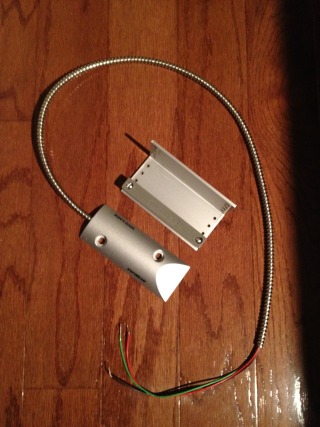
<p>The installation time took about 30 minutes for this project. &nbsp;We start with opening the garage door sensors from their packaging. &nbsp;These sensors support both a normally-open (NO) and normally-closed (NC) mode of operation. &nbsp;In this project we will use the normally-closed (NC) behavior and contacts. &nbsp;(<em>Normally-closed in this application means that when the magnet is not near the sensor, the circuit is closed. &nbsp;When the magnet is brought in range to the sensor, the circuit becomes open.</em>)</p>
<p><span class="thumbnail-image-float-left ssNonEditable"><span><a href="javascript:showFullImage('/display/ShowImage?imageUrl=%2Fstorage%2Fpost-images%2Ftwine%2Ftwine-garage-1.jpg%3F__SQUARESPACE_CACHEVERSION%3D1355080211452',1632,1224);"><img src="http://www.savagehomeautomation.com/storage/thumbnails/13113340-21215007-thumbnail.jpg?__SQUARESPACE_CACHEVERSION=1355080211455" alt="" /></a></span></span><span class="full-image-block ssNonEditable"><span><img src="http://www.savagehomeautomation.com/storage/post-images/twine/twine-garage-2.jpg?__SQUARESPACE_CACHEVERSION=1355080268164" alt="" /></span></span></p>
</div>
<p>The advantage of using a sensor that is designed for use with a garage/overhead door is that its sensor range is much greater and thus more tolerant than a traditional security system door magnetic sensor. &nbsp;The sensor range is 3 to 4 inches. &nbsp; These garage door sensors are designed to be installed on a concrete floor, but in my installation, I decided to install them on the wall above the door and not go through the effort of drilling into the concrete.&nbsp;</p>
<p><span class="thumbnail-image-float-left ssNonEditable"><span><a href="javascript:showFullImage('/display/ShowImage?imageUrl=%2Fstorage%2Fpost-images%2Ftwine%2Ftwine-garage-3.jpg%3F__SQUARESPACE_CACHEVERSION%3D1355080467564',1224,1632);"><img src="http://www.savagehomeautomation.com/storage/thumbnails/13113340-21215026-thumbnail.jpg?__SQUARESPACE_CACHEVERSION=1355080467566" alt="" /></a></span></span></p>
<p><span class="thumbnail-image-block ssNonEditable"><span><a href="javascript:showFullImage('/display/ShowImage?imageUrl=%2Fstorage%2Fpost-images%2Ftwine%2Ftwine-garage-4.jpg%3F__SQUARESPACE_CACHEVERSION%3D1355080671252',1224,1632);"><img src="http://www.savagehomeautomation.com/storage/thumbnails/13113340-21215028-thumbnail.jpg?__SQUARESPACE_CACHEVERSION=1355080671255" alt="" /></a></span></span></p>
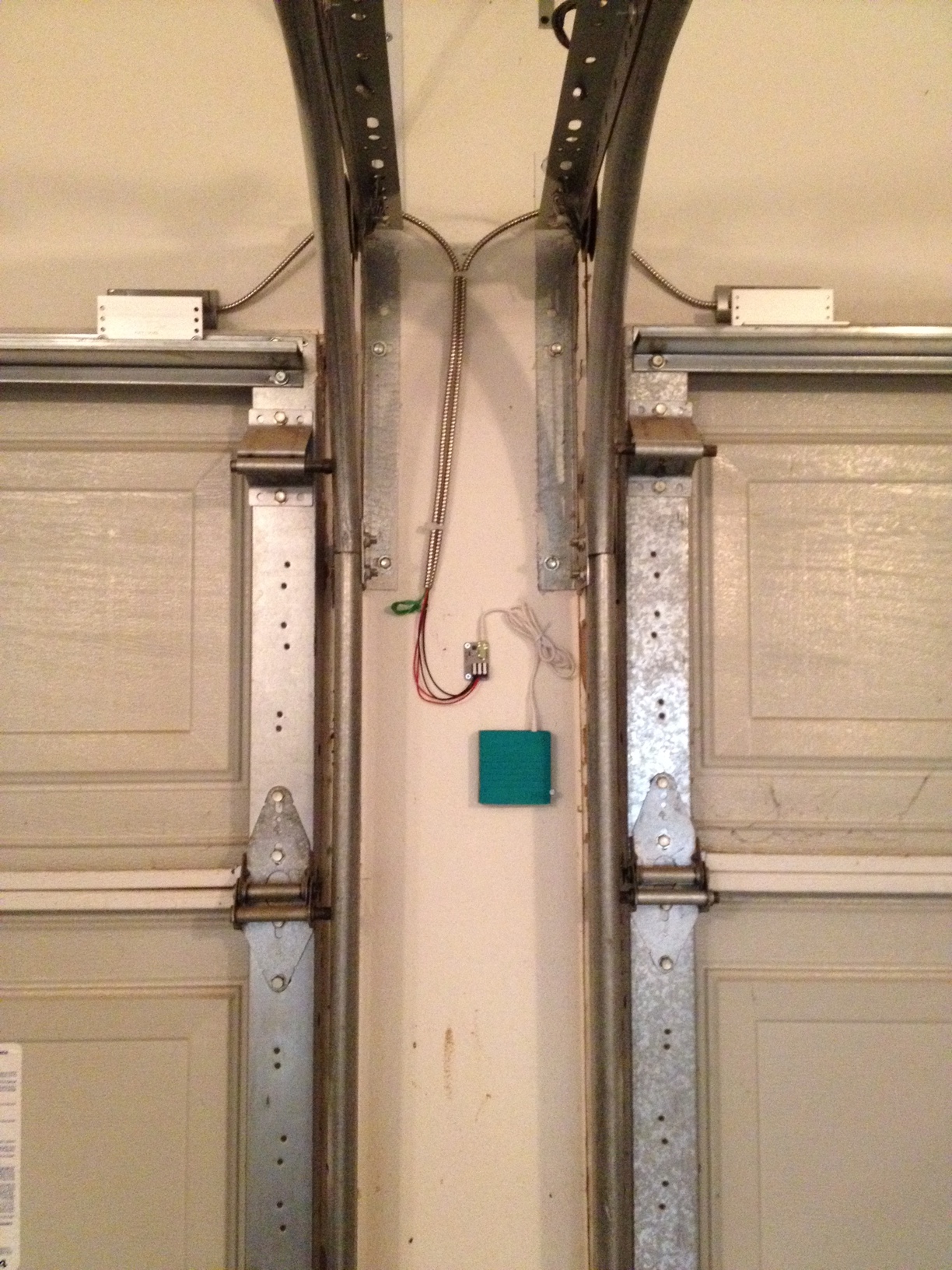
<p>Install the sensor directly to the wall or floor and route the wires such that they will not interfere with the garage door as it travels up/down. &nbsp;Install the magnet and adjustable plate directly to the garage door so that the magnet is within a couple of inches of the sensor when the garage door is fully shut. &nbsp;I have two garage doors that I want to monitor so I installed a duplicate sensor on the adjacent garage door. (<em>see photo</em>)</p>
<p><span class="thumbnail-image-float-left ssNonEditable"><span><a href="javascript:showFullImage('/display/ShowImage?imageUrl=%2Fstorage%2Fpost-images%2Ftwine%2Ftwine-garage-5.jpg%3F__SQUARESPACE_CACHEVERSION%3D1355080916857',1224,1632);"><img src="http://www.savagehomeautomation.com/storage/thumbnails/13113340-21215030-thumbnail.jpg?__SQUARESPACE_CACHEVERSION=1355080916859" alt="" /></a></span></span><span class="thumbnail-image-block ssNonEditable"><span><a href="javascript:showFullImage('/display/ShowImage?imageUrl=%2Fstorage%2Fpost-images%2Ftwine%2Ftwine-garage-6.jpg%3F__SQUARESPACE_CACHEVERSION%3D1355081004068',1224,1632);"><img src="http://www.savagehomeautomation.com/storage/thumbnails/13113340-21215010-thumbnail.jpg?__SQUARESPACE_CACHEVERSION=1355081004070" alt="" /></a></span></span></p>
<p>Route the wires to the location where you want to install the Twine. &nbsp;You may need to use nylon cable ties to hold the wires in position to prevent getting in the way of the garage door travel. &nbsp;I installed mine in a location where I could easily access the Twine for battery replacement or maintenance. &nbsp;You may also want to consider a location that can easily access a power outlet so the Twine can be powered locally and not rely on battery power.&nbsp;</p>
<p><span class="full-image-float-left ssNonEditable"><span><img style="width: 320px;" src="http://www.savagehomeautomation.com/storage/post-images/twine/twine-garage-7.jpg?__SQUARESPACE_CACHEVERSION=1355081320807" alt="" /></span></span><span class="thumbnail-image-block ssNonEditable"><span><a href="javascript:showFullImage('/display/ShowImage?imageUrl=%2Fstorage%2Fpost-images%2Ftwine%2Ftwine-garage-8.jpg%3F__SQUARESPACE_CACHEVERSION%3D1355081447490',1632,1224);"><img src="http://www.savagehomeautomation.com/storage/thumbnails/13113340-21215014-thumbnail.jpg?__SQUARESPACE_CACHEVERSION=1355081447493" alt="" /></a></span></span></p>
<p>I used a 4D finish nail to hang the Twine on and a 6D common nail on the right-hand side of the Twine to hold it in place. &nbsp;The Twine breakout sensor board is also required and should be installed along with the Twine using the provided 1/8" stereo wire. &nbsp;The magnetic sensors can be wired directly to the Twine breakout board or you can extend them with additional wire if you need to install the Twine in a location that is a further distance than the existing sensor wires can reach. &nbsp;The black wires (<em>common</em>) from the sensors should be attached to the GND pin on the Twine breakout board. &nbsp;The red wires (<em>NC</em>) from the sensors should be attached to the IN pin on the Twine breakout board. &nbsp;The green wires (<em>NO</em>) from the sensors are not used in this project. &nbsp;Both garage doors are attached to the single Twine so that both doors can be monitored. &nbsp;Note, they are not monitored individually or discretely, but rather as one.</p>
<p><span class="thumbnail-image-float-left ssNonEditable"><span><a href="javascript:showFullImage('/display/ShowImage?imageUrl=%2Fstorage%2Fpost-images%2Ftwine%2Ftwine-garage-9.jpg%3F__SQUARESPACE_CACHEVERSION%3D1355081687333',1632,1224);"><img src="http://www.savagehomeautomation.com/storage/thumbnails/13113340-21215019-thumbnail.jpg?__SQUARESPACE_CACHEVERSION=1355081687335" alt="" /></a></span></span><span class="thumbnail-image-block ssNonEditable"><span><a href="javascript:showFullImage('/display/ShowImage?imageUrl=%2Fstorage%2Fpost-images%2Ftwine%2Ftwine-garage-10.jpg%3F__SQUARESPACE_CACHEVERSION%3D1355081783567',1632,1224);"><img src="http://www.savagehomeautomation.com/storage/thumbnails/13113340-21215023-thumbnail.jpg?__SQUARESPACE_CACHEVERSION=1355081783569" alt="" /></a></span></span></p>
<p>The last step is to use a micro-USB power supply to power the Twine locally. &nbsp;This will then use the mains power to power the Twine and the batteries will only be used for backup in the event of a power failure. &nbsp;</p>
<p><span class="thumbnail-image-float-left ssNonEditable"><span><a href="javascript:showFullImage('/display/ShowImage?imageUrl=%2Fstorage%2Fpost-images%2Ftwine%2Ftwine-garage-13.jpg%3F__SQUARESPACE_CACHEVERSION%3D1355086569789',1632,1224);"><img src="http://www.savagehomeautomation.com/storage/thumbnails/13113340-21216315-thumbnail.jpg?__SQUARESPACE_CACHEVERSION=1355086569791" alt="" /></a></span></span><span class="thumbnail-image-block ssNonEditable"><span><a href="javascript:showFullImage('/display/ShowImage?imageUrl=%2Fstorage%2Fpost-images%2Ftwine%2Ftwine-garage-14.jpg%3F__SQUARESPACE_CACHEVERSION%3D1355086627683',1632,1224);"><img style="width: 320px;" src="http://www.savagehomeautomation.com/storage/post-images/twine/twine-garage-14.jpg?__SQUARESPACE_CACHEVERSION=1355086772411" alt="" /></a></span></span></p>
<h3>Configuring Twine&nbsp;</h3>
<blockquote>
<p>If you have not previously performed the initial setup configuration on your Twine, then please&nbsp;<a href="http://www.savagehomeautomation.com/projects/twine-unboxing-setup-and-first-impressions.html" target="_blank">visit this article</a>&nbsp;and perform the configuration steps before continuing.</p>
</blockquote>
<p>Open a web browser and login to the Twine management web application:<br /><a class="offsite-link-inline" href="https://twine.supermechanical.com/" target="_blank">https://twine.supermechanical.com/</a>&nbsp;</p>
<p>Next, select the specific Twine device that you are working with from the drop-down menu at the top of the screen.</p>
<p><span class="ssNonEditable thumbnail-image-block"><a href="javascript:showFullImage('/display/ShowImage?imageUrl=%2Fstorage%2Fpost-images%2Ftwine%2Ftwine-select.png%3F__SQUARESPACE_CACHEVERSION%3D1353521130821',561,968);"><img src="http://www.savagehomeautomation.com/storage/thumbnails/13113340-21043524-thumbnail.jpg?__SQUARESPACE_CACHEVERSION=1353521130822" alt="" /></a></span></p>
<p>Next, we are going to create a new&nbsp;<strong>RULE</strong>&nbsp;to issue notifications when the Twine's breakout sensor is in the closed position for at least 15 minutes indicating that one of the the garage doors is open. &nbsp;(<em>If you have any existing rules defined, you may want to delete them first.</em>) &nbsp;Use the&nbsp;<strong>Add Rule&nbsp;</strong>button to create a new rule. &nbsp;</p>
<p>The new rule should be applied as follows:</p>
<p><strong>WHEN</strong><br />&gt; "breakout"&nbsp;<em>changes to</em>&nbsp;"is closed" after "900" seconds</p>
<p><strong>THEN</strong><br />&gt; send SMS text message (<em>and/or email</em>)</p>
<p>Also make sure to define the number of seconds for the trigger time and reset time under the "Options" section of the "When" trigger. &nbsp;I am using 900 seconds which is 15 minutes. &nbsp;So the garage door must be open for 15 minutes before triggering the notification.</p>
<p>Below is rule I am using:</p>
<p><span class="thumbnail-image-block ssNonEditable"><span><a href="javascript:showFullImage('/display/ShowImage?imageUrl=%2Fstorage%2Fpost-images%2Ftwine%2Ftwine-garage-rule.png%3F__SQUARESPACE_CACHEVERSION%3D1355081952755',770,715);"><img src="http://www.savagehomeautomation.com/storage/thumbnails/13113340-21215002-thumbnail.jpg?__SQUARESPACE_CACHEVERSION=1355081952756" alt="" /></a></span></span></p>
<p>&nbsp;</p>
<h3>Testing</h3>
<p>Now that we have installed the Twine and garage soor sensors to the garage doors and configured the logic rule, let's test the system. &nbsp;Simply open one of the garage doors and wait the configured delay time, fifteen minutes in my case, and you should receive the text notification (<em>and/</em><em>or email)</em>.</p>
<p><span class="thumbnail-image-float-left ssNonEditable"><span><a href="javascript:showFullImage('/display/ShowImage?imageUrl=%2Fstorage%2Fpost-images%2Ftwine%2Ftwine-garage-11.png%3F__SQUARESPACE_CACHEVERSION%3D1355082055183',480,320);"><img src="http://www.savagehomeautomation.com/storage/thumbnails/13113340-21215088-thumbnail.jpg?__SQUARESPACE_CACHEVERSION=1355082055185" alt="" /></a></span></span><span class="thumbnail-image-block ssNonEditable"><span><a href="javascript:showFullImage('/display/ShowImage?imageUrl=%2Fstorage%2Fpost-images%2Ftwine%2Ftwine-garage-12.png%3F__SQUARESPACE_CACHEVERSION%3D1355082111749',480,320);"><img src="http://www.savagehomeautomation.com/storage/thumbnails/13113340-21215089-thumbnail.jpg?__SQUARESPACE_CACHEVERSION=1355082111751" alt="" /></a></span></span></p>
<h3>Final Thoughts</h3>
<p>While this project was a little more complex and involved than the <a href="http://www.savagehomeautomation.com/projects/twine-garage-door-monitor.html" target="_blank">first Twine garage door project</a>, I believe that this is truly a better approach for a permanent installation. &nbsp;Using this approach, the Twine can be powered locally and you can monitor multiple doors with a single Twine. &nbsp;Have fun automating your home with the Twine.&nbsp;</p>
<p>&nbsp;</p>]]></content:encoded></rss:item><rss:item rdf:about="http://www.savagehomeautomation.com/projects/twine-garage-door-monitor.html"><rss:title>Twine - Garage Door Monitor</rss:title><rss:link>http://www.savagehomeautomation.com/projects/twine-garage-door-monitor.html</rss:link><dc:creator>Robert Savage</dc:creator><dc:date>2012-11-22T22:01:41Z</dc:date><dc:subject>Home Automation Home Security Twine Twine alert garage garage door notification</dc:subject><content:encoded><![CDATA[<h3>Overview</h3>
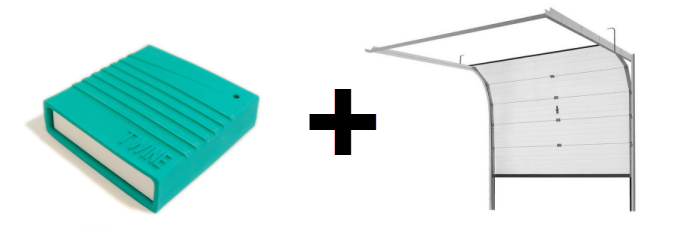
<div>In <a href="http://www.savagehomeautomation.com/twine">previous articles</a>&nbsp;we used the the&nbsp;<a class="offsite-link-inline" href="http://www.savagehomeautomation.com/projects/twine-unboxing-setup-and-first-impressions.html" target="_blank">Twine</a>&nbsp;device to issue notification email alerts and SMS text messages for water leaks and low water level conditions by using external sensors. &nbsp;In this project we will use the twine to send SMS text alert messages if a garage door is left open for an extended period of time. &nbsp;This project can serve as an electronic reminder that the garage door has been left open. &nbsp; This project uses only the twine with its built in sensors, no external sensors needed.&nbsp;&nbsp; &nbsp; &nbsp;&nbsp;</div>
<div><span class="full-image-block ssNonEditable"><span><img src="http://www.savagehomeautomation.com/storage/post-images/twine/twine-plus-garage-door.png?__SQUARESPACE_CACHEVERSION=1353602795429" alt="" /></span></span></div>
<div>
<h3>Shopping List</h3>
<div>
<ul>
<li>1 @ <a class="offsite-link-inline" href="http://www.amazon.com/exec/obidos/ASIN/B009YWTNFI/savagehomeaut-20" target="_blank">Twine&nbsp;Portable Wi-Fi Sensor</a>&nbsp;&nbsp;<br />&nbsp; (or) <a class="offsite-link-inline" href="http://www.amazon.com/exec/obidos/ASIN/B009YWTPNS/savagehomeaut-20" target="_blank">Twine Portable Wi-Fi Sensor + Full Sensor Package</a>&nbsp;&nbsp;&nbsp;<br />&nbsp; (or)&nbsp;<a class="offsite-link-inline" href="http://www.amazon.com/exec/obidos/ASIN/B009YWTP2E/savagehomeaut-20" target="_blank">Twine Portable Wi-Fi Sensor + Magnetic Switch&nbsp;<br /></a>&nbsp; (or)&nbsp;<a class="offsite-link-inline" href="http://www.amazon.com/exec/obidos/ASIN/B009YWTOF2/savagehomeaut-20" target="_blank">Twine Portable Wi-Fi Sensor + Moisture Sensor</a>&nbsp;&nbsp;&nbsp;&nbsp;</li>
<li>1 @ 6-32 x 1-1/2" machine screw</li>
<li>1 @ 6-32 flat washer</li>
<li>1 @ 6-32 machine screw nut</li>
</ul>
</div>
<h3>Installation</h3>
<p>The installation is quite simple. &nbsp;All you need to do is attach the Twine unit to the garage door. &nbsp;I used the hole that is provided on the twine and a single 6-32 x 1-1/2" machine screw to attach the twine to the garage door just under the garage door opener connector arm. &nbsp;</p>
<p><span class="thumbnail-image-block ssNonEditable"><span><a href="javascript:showFullImage('/display/ShowImage?imageUrl=%2Fstorage%2Fpost-images%2Ftwine%2Ftwine-garage-door-1.png%3F__SQUARESPACE_CACHEVERSION%3D1353603951853',1089,1632);"><img src="http://www.savagehomeautomation.com/storage/thumbnails/13113340-21052313-thumbnail.jpg?__SQUARESPACE_CACHEVERSION=1353603951855" alt="" /></a></span></span></p>
<p><span class="thumbnail-image-float-left ssNonEditable"><span><a href="javascript:showFullImage('/display/ShowImage?imageUrl=%2Fstorage%2Fpost-images%2Ftwine%2Ftwine-garage-door-2.png%3F__SQUARESPACE_CACHEVERSION%3D1353604447013',1632,1224);"><img src="http://www.savagehomeautomation.com/storage/thumbnails/13113340-21052367-thumbnail.jpg?__SQUARESPACE_CACHEVERSION=1353604447015" alt="" /></a></span></span><span class="thumbnail-image-block ssNonEditable"><span><a href="javascript:showFullImage('/display/ShowImage?imageUrl=%2Fstorage%2Fpost-images%2Ftwine%2Ftwine-garage-door-3.png%3F__SQUARESPACE_CACHEVERSION%3D1353604571644',1632,1224);"><img src="http://www.savagehomeautomation.com/storage/thumbnails/13113340-21052372-thumbnail.jpg?__SQUARESPACE_CACHEVERSION=1353604571645" alt="" /></a></span></span></p>
<p>I placed my Twine on the top panel of the garage door; however, if you open leave the garage door slightly open for your pets to come and go, then you may prefer to place the Twine on a lower panel.</p>
<p><span class="full-image-float-right ssNonEditable"><span><img src="http://www.savagehomeautomation.com/storage/post-images/twine/twine-orientation-back.png?__SQUARESPACE_CACHEVERSION=1353605292074" alt="" /></span></span></p>
<p>&nbsp;</p>
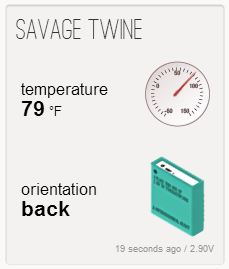
<p>So, basically the way this will work is than when the garage door is shut, the twine will have an <strong>orientation</strong> of "BACK". &nbsp;</p>
<p><span class="full-image-block ssNonEditable"><span><img style="width: 150px;" src="http://www.savagehomeautomation.com/storage/post-images/twine/closed.jpg?__SQUARESPACE_CACHEVERSION=1353605796242" alt="" /></span></span></p>
<p>&nbsp;</p>
<p>&nbsp;</p>
<p>&nbsp;</p>
<p>&nbsp;</p>
<p><span class="full-image-float-right ssNonEditable"><span><img src="http://www.savagehomeautomation.com/storage/post-images/twine/twine-orientation-bottom.png?__SQUARESPACE_CACHEVERSION=1353605505082" alt="" /></span></span></p>
<p>&nbsp;</p>
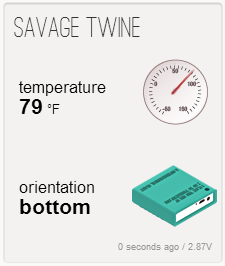
<p>And when the Twine has an&nbsp;<strong>orientation</strong>&nbsp;of "BOTTOM", this indicates that the garage door is open.&nbsp;</p>
<p><span class="full-image-block ssNonEditable"><span><img style="width: 150px;" src="http://www.savagehomeautomation.com/storage/post-images/twine/open.jpg?__SQUARESPACE_CACHEVERSION=1353605813762" alt="" /></span></span></p>
<p>&nbsp;</p>
<p>&nbsp;</p>
<p>&nbsp;</p>
<p>&nbsp;</p>
<p><span class="thumbnail-image-float-left ssNonEditable"><span><a href="javascript:showFullImage('/display/ShowImage?imageUrl=%2Fstorage%2Fpost-images%2Ftwine%2Ftwine-garage-door-4.jpg%3F__SQUARESPACE_CACHEVERSION%3D1353606320197',1632,1224);"><img style="width: 222px;" src="http://www.savagehomeautomation.com/storage/thumbnails/13113340-21052542-thumbnail.jpg?__SQUARESPACE_CACHEVERSION=1353606392679" alt="" /></a></span></span><span class="thumbnail-image-block ssNonEditable"><span><a href="javascript:showFullImage('/display/ShowImage?imageUrl=%2Fstorage%2Fpost-images%2Ftwine%2Ftwine-garage-door-5.jpg%3F__SQUARESPACE_CACHEVERSION%3D1353606366308',1224,1632);"><img style="width: 396px;" src="http://www.savagehomeautomation.com/storage/thumbnails/13113340-21052547-thumbnail.jpg?__SQUARESPACE_CACHEVERSION=1353606412378" alt="" /></a></span></span></p>
<h3>Configuring Twine&nbsp;</h3>
<blockquote>
<p>If you have not previously performed the initial setup configuration on your Twine, then please&nbsp;<a href="http://www.savagehomeautomation.com/projects/twine-unboxing-setup-and-first-impressions.html" target="_blank">visit this article</a>&nbsp;and perform the configuration steps before continuing.</p>
</blockquote>
<p>Open a web browser and login to the Twine management web application:<br /><a class="offsite-link-inline" href="https://twine.supermechanical.com/" target="_blank">https://twine.supermechanical.com/</a>&nbsp;</p>
<p>Next, select the specific Twine device that you have connected to the water level sensor from the drop-down menu at the top of the screen.</p>
<p><span class="thumbnail-image-block ssNonEditable"><a href="javascript:showFullImage('/display/ShowImage?imageUrl=%2Fstorage%2Fpost-images%2Ftwine%2Ftwine-select.png%3F__SQUARESPACE_CACHEVERSION%3D1353521130821',561,968);"><img src="http://www.savagehomeautomation.com/storage/thumbnails/13113340-21043524-thumbnail.jpg?__SQUARESPACE_CACHEVERSION=1353521130822" alt="" /></a></span></p>
<p>Next, we are going to create a new&nbsp;<strong>RULE</strong>&nbsp;to issue notifications when the twine's orientation is on "bottom" for at least 5 minutes indicating that the garage door is open. &nbsp;(<em>If you have any existing rules defined, you may want to delete them first.</em>) &nbsp;Use the&nbsp;<strong>Add Rule&nbsp;</strong>button to create a new rule. &nbsp;</p>
<p>The new rule should be applied as follows:</p>
<p><strong>WHEN</strong><br />&gt; "orientation" <em>changes to</em> "bottom"</p>
<p><strong>THEN</strong><br />&gt; send SMS text message (<em>and/or email and/or twitter post</em>)</p>
<p>Also make sure to define the number of seconds for the trigger time and reset time under the "Options" section of the "When" trigger. &nbsp;I am using 300 seconds which is 5 minutes. &nbsp;So the garage door must be open for 5 minutes before triggering the notification.</p>
<p>Below is rule I am using:</p>
<p><span class="thumbnail-image-block ssNonEditable"><span><a href="javascript:showFullImage('/display/ShowImage?imageUrl=%2Fstorage%2Fpost-images%2Ftwine%2Ftwine-garage-door-rule.png%3F__SQUARESPACE_CACHEVERSION%3D1353611729381',542,726);"><img src="http://www.savagehomeautomation.com/storage/thumbnails/13113340-21052931-thumbnail.jpg?__SQUARESPACE_CACHEVERSION=1353611729382" alt="" /></a></span></span></p>
<p>&nbsp;</p>
<p>After creating the rules, make sure to click the&nbsp;<strong>Save to Twine</strong>&nbsp;button at the bottom of the screen. &nbsp;It will prompt you to flip the twine on its back to immediately save the new rule to the Twine unit. &nbsp;Now just wait until the save is complete. &nbsp;It takes around 20-30 seconds to complete.</p>
<p>You are done, that's all that is needed to setup notifications from the Twine. We will now move on to testing.</p>
<h3>Testing</h3>
<p>Now that we have mounted the Twine to the garage door and configured the logic rule, let's test the system. &nbsp;Simply open the garage door and wait the configured delay time, five minutes in my case, and you should receive the text notification (<em>or email / or tweet</em>).</p>
<p><span class="thumbnail-image-float-left ssNonEditable"><span><a href="javascript:showFullImage('/display/ShowImage?imageUrl=%2Fstorage%2Fpost-images%2Ftwine%2FIMG_1497.PNG%3F__SQUARESPACE_CACHEVERSION%3D1353621303475',960,640);"><img src="http://www.savagehomeautomation.com/storage/thumbnails/13113340-21053732-thumbnail.jpg?__SQUARESPACE_CACHEVERSION=1353621303476" alt="" /></a></span></span><span class="thumbnail-image-block ssNonEditable"><span><a href="javascript:showFullImage('/display/ShowImage?imageUrl=%2Fstorage%2Fpost-images%2Ftwine%2FIMG_1498.PNG%3F__SQUARESPACE_CACHEVERSION%3D1353621344997',960,640);"><img src="http://www.savagehomeautomation.com/storage/thumbnails/13113340-21053739-thumbnail.jpg?__SQUARESPACE_CACHEVERSION=1353621344998" alt="" /></a></span></span></p>
<h3>Final Thoughts</h3>
<p>This project was the simplest Twine project I have put together thus far. &nbsp;The fact that the only needed sensor is already embedded inside the Twine hardware meant that the only installation step required was just to mount the Twine on the garage door. &nbsp;This project is a very useful electronic reminder for your garage door. &nbsp;</p>
<p>You could also add (<em>with the Twine breakout board</em>) an external switch to act as an override for the cases when you purposefully want to leave the garage door open for an extended period of time. &nbsp;Just add the switch and add an "AND" condition to the "WHEN" part of your rule to include the breakout condition.</p>
</div>]]></content:encoded></rss:item><rss:item rdf:about="http://www.savagehomeautomation.com/projects/twine-monitor-christmas-tree-water-level.html"><rss:title>Twine - Monitor Christmas Tree Water Level</rss:title><rss:link>http://www.savagehomeautomation.com/projects/twine-monitor-christmas-tree-water-level.html</rss:link><dc:creator>Robert Savage</dc:creator><dc:date>2012-11-22T04:52:36Z</dc:date><dc:subject>Christmas Holiday Home Automation Twine Twine alert float sensor level notification tree water</dc:subject><content:encoded><![CDATA[<h3>Overview</h3>
<div>In the <a href="http://www.savagehomeautomation.com/projects/floodstop-washing-machine.html" target="_blank">previous article</a>&nbsp;we used the the <a class="offsite-link-inline" href="http://www.savagehomeautomation.com/projects/twine-unboxing-setup-and-first-impressions.html" target="_blank">Twine</a>&nbsp;device to provide email alerts and SMS text messages when a water leak was detected in the laundry room. &nbsp;We will use the same basic concepts in this project except with a different input sensor attached to the Twine to send notifications when the water level in a Christmas tree stand gets too low and needs to be refilled. &nbsp;</div>
<div><span class="full-image-block ssNonEditable"><span><img src="http://www.savagehomeautomation.com/storage/post-images/twine/twine-plus-christmas-tree.png?__SQUARESPACE_CACHEVERSION=1353553983786" alt="" /></span></span>&nbsp;
<h3>Shopping List</h3>
<div>
<ul>
<li><a class="offsite-link-inline" href="http://www.amazon.com/exec/obidos/ASIN/B006Z968LK/savagehomeaut-20" target="_blank">Amico Water Level Liquid Level Stainless Steel Float Switch</a><br />&nbsp; (or) <a class="offsite-link-inline" href="http://www.amazon.com/exec/obidos/ASIN/B004UY5IPY/savagehomeaut-20" target="_blank">Curve Stainless Steel Water Level Liquid Sensor Switch</a>&nbsp;<br />&nbsp; (or) <a class="offsite-link-inline" href="http://www.amazon.com/exec/obidos/ASIN/B005NFWWLW/savagehomeaut-20" target="_blank">Amico Wired Liquid Level Sensor Dual Ball Stainless Steel Float Switch</a>&nbsp;<br />&nbsp; (or) <a class="offsite-link-inline" href="http://www.amazon.com/exec/obidos/ASIN/B0056EWADA/savagehomeaut-20" target="_blank">Liquid Water Level Horizontal Float Switch for Aquarium</a>&nbsp;<br />&nbsp; (or) <a class="offsite-link-inline" href="http://www.amazon.com/exec/obidos/ASIN/B005FDT02Q/savagehomeaut-20" target="_blank">Fish Tank Water Level Sensor Liquid Plastic Floating Switch</a>&nbsp;&nbsp;<br />&nbsp; (or) <a class="offsite-link-inline" href="http://www.amazon.com/exec/obidos/ASIN/B005FDPDDG/savagehomeaut-20" target="_blank">Liquid Water Level Control Stainless Steel Float Switch</a>&nbsp; &nbsp;</li>
<li><a class="offsite-link-inline" href="http://www.amazon.com/exec/obidos/ASIN/B009YWTNFI/savagehomeaut-20" target="_blank">Twine&nbsp;Portable Wi-Fi Sensor</a>&nbsp;&nbsp;<br />&nbsp; (or)&nbsp;<a class="offsite-link-inline" href="http://www.amazon.com/exec/obidos/ASIN/B009YWTPNS/savagehomeaut-20" target="_blank">Twine Portable Wi-Fi Sensor + Full Sensor Package</a>&nbsp;<br />&nbsp; (or)&nbsp;<a class="offsite-link-inline" href="http://www.amazon.com/exec/obidos/ASIN/B009YWTP2E/savagehomeaut-20" target="_blank">Twine Portable Wi-Fi Sensor + Magnetic Switch<br /></a>&nbsp; (or)&nbsp;<a class="offsite-link-inline" href="http://www.amazon.com/exec/obidos/ASIN/B009YWTOF2/savagehomeaut-20" target="_blank">Twine Portable Wi-Fi Sensor + Moisture Sensor</a>&nbsp;&nbsp;&nbsp;</li>
<li><a class="offsite-link-inline" href="http://supermechanical.com/twine/" target="_blank">Twine Breakout Board</a>&nbsp;(<em>sensor interface</em>)</li>
<li>Twine phono sensor connector cable (<em>comes with Twine Breakout Board</em>)</li>
</ul>
</div>
<h3>Installation</h3>
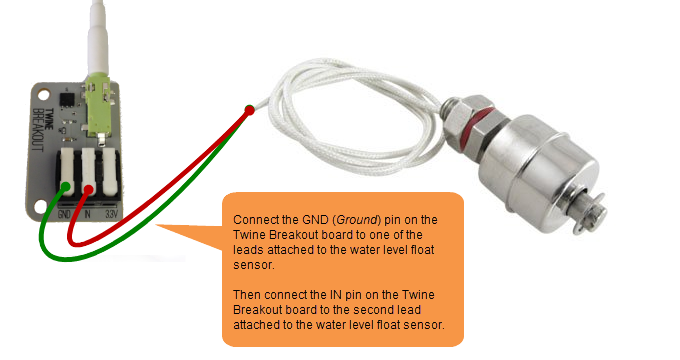
<p>First you will need a water level float sensor. &nbsp;I have included several links above to various models and styles of these sensors. &nbsp;You may need to look at your Christmas tree stand and determine what type of mounting bests suites your needs and which sensor will work best for you. &nbsp;The water float sensor that I am using is a part that I had laying around from an old water cooler that I had cannibalized. &nbsp;</p>
<p>These sensors work by completing a circuit or opening a circuitry depending on if the sensor is NO (<em>normally-open</em>) or NC (<em>normally-closed</em>). &nbsp;My sensor completes that circuit when the float is at its highest position meaning that the water level is full. &nbsp;If you sensor works in the opposite manner that is not a problem, you will just need to reverse the trigger condition logic of the rule in the Twine configuration section. &nbsp;You can use the continuity test on a digital multi-meter to determine the circuit behavior of your sensor.</p>
<p><span class="full-image-block ssNonEditable"><span><img src="http://www.savagehomeautomation.com/storage/post-images/twine/twine-christmas-wiring.png?__SQUARESPACE_CACHEVERSION=1353555414412" alt="" /></span></span></p>
<p>Below is a photograph of my Twine connected to my water level float sensor.</p>
<p><span class="thumbnail-image-block ssNonEditable"><span><a href="javascript:showFullImage('/display/ShowImage?imageUrl=%2Fstorage%2Fpost-images%2Ftwine%2Ftwine-christmas-water-sensor.png%3F__SQUARESPACE_CACHEVERSION%3D1353555900703',1003,1238);"><img src="http://www.savagehomeautomation.com/storage/thumbnails/13113340-21048679-thumbnail.jpg?__SQUARESPACE_CACHEVERSION=1353555900705" alt="" /></a></span></span></p>
<p>Next you will need to devise a method to attach the water level sensor to the Christmas tree stand. &nbsp;I used a metal "L" bracket and drilled a small hole in the Christmas tree stand (<em>above the water line</em>) and attached it with a screw.</p>
<p><span class="thumbnail-image-block ssNonEditable"><span><a href="javascript:showFullImage('/display/ShowImage?imageUrl=%2Fstorage%2Fpost-images%2Ftwine%2Ftwine-xmas-1.jpg%3F__SQUARESPACE_CACHEVERSION%3D1353557886748',1224,1632);"><img src="http://www.savagehomeautomation.com/storage/thumbnails/13113340-21048849-thumbnail.jpg?__SQUARESPACE_CACHEVERSION=1353557886749" alt="" /></a></span></span></p>
<p><span class="thumbnail-image-float-left ssNonEditable"><span><a href="javascript:showFullImage('/display/ShowImage?imageUrl=%2Fstorage%2Fpost-images%2Ftwine%2Ftwine-xmas-2.jpg%3F__SQUARESPACE_CACHEVERSION%3D1353558013099',1632,1224);"><img src="http://www.savagehomeautomation.com/storage/thumbnails/13113340-21048851-thumbnail.jpg?__SQUARESPACE_CACHEVERSION=1353558013100" alt="" /></a></span></span></p>
<p><span class="full-image-block ssNonEditable"><span><a href="javascript:showFullImage('/display/ShowImage?imageUrl=%2Fstorage%2Fpost-images%2Ftwine%2Ftwine-xmas-3.jpg%3F__SQUARESPACE_CACHEVERSION%3D1353557662831',1632,1224);"><img src="http://www.savagehomeautomation.com/storage/thumbnails/13113340-21048852-thumbnail.jpg?__SQUARESPACE_CACHEVERSION=1353557916714" alt="" /></a></span></span></p>
<p>You will need to make sure that you position the sensor such that the float descends from the top position at the water level where you want to be notified for a low level. &nbsp;Again, this make take some trial and error and experimentation to get the level right. &nbsp;</p>
<p><span class="thumbnail-image-float-left ssNonEditable"><span><a href="javascript:showFullImage('/display/ShowImage?imageUrl=%2Fstorage%2Fpost-images%2Ftwine%2Ftwine-xmas-4.jpg%3F__SQUARESPACE_CACHEVERSION%3D1353557701738',1632,1224);"><img src="http://www.savagehomeautomation.com/storage/thumbnails/13113340-21048854-thumbnail.jpg?__SQUARESPACE_CACHEVERSION=1353557701739" alt="" /></a></span></span><span class="thumbnail-image-block ssNonEditable"><span><a href="javascript:showFullImage('/display/ShowImage?imageUrl=%2Fstorage%2Fpost-images%2Ftwine%2Ftwine-xmas-5.jpg%3F__SQUARESPACE_CACHEVERSION%3D1353557801066',1632,1224);"><img src="http://www.savagehomeautomation.com/storage/thumbnails/13113340-21048855-thumbnail.jpg?__SQUARESPACE_CACHEVERSION=1353557801067" alt="" /></a></span></span></p>
<p>Below is a photo of the final product.</p>
<p><span class="thumbnail-image-block ssNonEditable"><span><a href="javascript:showFullImage('/display/ShowImage?imageUrl=%2Fstorage%2Fpost-images%2Ftwine%2Ftwine-xmas-6.jpg%3F__SQUARESPACE_CACHEVERSION%3D1353558110261',1224,1632);"><img src="http://www.savagehomeautomation.com/storage/thumbnails/13113340-21048856-thumbnail.jpg?__SQUARESPACE_CACHEVERSION=1353558110262" alt="" /></a></span></span></p>
<h3>Configuring Twine&nbsp;</h3>
<blockquote>
<p>If you have not previously performed the initial setup configuration on your Twine, then please&nbsp;<a href="http://www.savagehomeautomation.com/projects/twine-unboxing-setup-and-first-impressions.html" target="_blank">visit this article</a>&nbsp;and perform the configuration steps before continuing.</p>
<p>Also, your Breakout Board should already be connected to the Twine at this time.</p>
</blockquote>
<p>Open a web browser and login to the Twine management web application:<br /><a class="offsite-link-inline" href="https://twine.supermechanical.com/" target="_blank">https://twine.supermechanical.com/</a>&nbsp;</p>
<p>Next, select the specific Twine device that you have connected to the water level sensor from the drop-down menu at the top of the screen.</p>
<p><span class="ssNonEditable thumbnail-image-block"><a href="javascript:showFullImage('/display/ShowImage?imageUrl=%2Fstorage%2Fpost-images%2Ftwine%2Ftwine-select.png%3F__SQUARESPACE_CACHEVERSION%3D1353521130821',561,968);"><img src="http://www.savagehomeautomation.com/storage/thumbnails/13113340-21043524-thumbnail.jpg?__SQUARESPACE_CACHEVERSION=1353521130822" alt="" /></a></span></p>
<p>Next, we are going to create a new&nbsp;<strong>RULE</strong>&nbsp;to issue notifications when the water sensor opens the circuit indicating that the water level is below the target minimum level. &nbsp;(<em>If you have any existing rules defined, you may want to delete them first.</em>) &nbsp;Use the&nbsp;<strong>Add Rule&nbsp;</strong>button to create a new rule. &nbsp;We will define a Twine rule to take action when the circuit becomes open. &nbsp;</p>
<p>The new rule should be applied as follows:</p>
<p><strong>WHEN</strong><br />&gt; breakout &nbsp;= "is open"</p>
<p><strong>THEN</strong><br />&gt; send alert email (<em>and/or text messages and/or twitter post</em>)</p>
<p>An example of the rule I am using is displayed below.</p>
<p><span class="thumbnail-image-block ssNonEditable"><span><a href="javascript:showFullImage('/display/ShowImage?imageUrl=%2Fstorage%2Fpost-images%2Ftwine%2Ftwine-xmas-config-rule-1.jpg%3F__SQUARESPACE_CACHEVERSION%3D1353558819178',539,711);"><img src="http://www.savagehomeautomation.com/storage/thumbnails/13113340-21048935-thumbnail.jpg?__SQUARESPACE_CACHEVERSION=1353558819179" alt="" /></a></span></span></p>
<p>You may also want to include a second rule that sends notifications when the water level is restored. &nbsp;This second rule should be applied as follows:</p>
<p><strong>WHEN</strong><br />&gt; breakout &nbsp;= "is closed"</p>
<p><strong>THEN</strong><br />&gt; send OK email (<em>and/or text messages and/or twitter post</em>)</p>
<p>An example of this second rule is displayed below.</p>
<p><span class="thumbnail-image-block ssNonEditable"><span><a href="javascript:showFullImage('/display/ShowImage?imageUrl=%2Fstorage%2Fpost-images%2Ftwine%2Ftwine-xmas-config-rule-2.jpg%3F__SQUARESPACE_CACHEVERSION%3D1353558773879',385,712);"><img src="http://www.savagehomeautomation.com/storage/thumbnails/13113340-21048961-thumbnail.jpg?__SQUARESPACE_CACHEVERSION=1353558773880" alt="" /></a></span></span></p>
<p>After creating the rules, make sure to click the&nbsp;<strong>Save to Twine</strong>&nbsp;button at the bottom of the screen. &nbsp;It will prompt you to flip the twine on its back to immediately save the new rule to the Twine unit. &nbsp;Now just wait until the save is complete. &nbsp;It takes around 20-30 seconds to complete.</p>
<p>You are done, that's all that is needed to setup notifications from the Twine. We will now move on to testing.</p>
<h3>Testing</h3>
<p>Now that we have everything wired and configured, let's test the system. &nbsp;Fill the Christmas tree stand with water to the point where the water sensor float is in the high position and verify that you receive the water level OK email notification.</p>
<p><span class="thumbnail-image-block ssNonEditable"><span><a href="javascript:showFullImage('/display/ShowImage?imageUrl=%2Fstorage%2Fpost-images%2Ftwine%2Ftwine-xmas-email-1.jpg%3F__SQUARESPACE_CACHEVERSION%3D1353559307594',165,767);"><img src="http://www.savagehomeautomation.com/storage/thumbnails/13113340-21048993-thumbnail.jpg?__SQUARESPACE_CACHEVERSION=1353559307595" alt="" /></a></span></span>Next, drain some of the water from the Christmas tree stand to the point where the water sensor float is no longer in the high position and verify that you receive the water level ALERT email notification.</p>
<p><span class="thumbnail-image-block ssNonEditable"><span><a href="javascript:showFullImage('/display/ShowImage?imageUrl=%2Fstorage%2Fpost-images%2Ftwine%2Ftwine-xmas-email-2.jpg%3F__SQUARESPACE_CACHEVERSION%3D1353559388913',165,765);"><img src="http://www.savagehomeautomation.com/storage/thumbnails/13113340-21049005-thumbnail.jpg?__SQUARESPACE_CACHEVERSION=1353559388914" alt="" /></a></span></span></p>
<h3>Final Thoughts</h3>
<p>This project turned out to be a fun and simple project due to the simplicity of the Twine hardware and software. &nbsp;I also expect this to be a very useful project as we head into the Christmas season.</p>
<p>The most complex step was finding a means to mount the sensor and make sure that the water level and sensor float were calibrated appropriately. &nbsp;The Twine device is perfectly suited for this type of task. &nbsp;I will use it with batteries since it is a temporary/seasonal installation. &nbsp;Just remember to place the Twine device away from the water so that accidental spills don't get it wet. &nbsp;The Twine is not waterproof.</p>
<p><strong>Merry Christmas!</strong></p>
<p>&nbsp;</p>
<blockquote>
<p><br /><strong><em>Related Holiday Projects:</em></strong></p>
<p>&gt;&gt; <a href="http://www.savagehomeautomation.com/projects/raspberry-pi-sunrise-sunset-timer-for-christmas-lights.html" target="_blank">Sunrise / Sunset Timer for Christmas Lights</a><a href="http://www.savagehomeautomation.com/projects/twine-monitor-christmas-tree-water-level.html" target="_blank"><br /></a><br /><span class="thumbnail-image-float-left ssNonEditable"><span><a href="javascript:showFullImage('/display/ShowImage?imageUrl=%2Fstorage%2Fpost-images%2Fraspberrypi%2Fchristmas-lights-11.jpg%3F__SQUARESPACE_CACHEVERSION%3D1355218344657',236,396);"><img src="http://www.savagehomeautomation.com/storage/thumbnails/13113340-21234175-thumbnail.jpg?__SQUARESPACE_CACHEVERSION=1355218344658" alt="" /></a></span></span><span class="full-image-float-left ssNonEditable"><span><a href="javascript:showFullImage('/display/ShowImage?imageUrl=%2Fstorage%2Fpost-images%2Fraspberrypi%2Fraspi-powerswitch-1.jpg%3F__SQUARESPACE_CACHEVERSION%3D1355218160094',1351,1190);"><img style="width: 121px;" src="http://www.savagehomeautomation.com/storage/thumbnails/13113340-21161864-thumbnail.jpg?__SQUARESPACE_CACHEVERSION=1355218320476" alt="" /></a></span></span><span class="thumbnail-image-block ssNonEditable"><span><a href="javascript:showFullImage('/display/ShowImage?imageUrl=%2Fstorage%2Fpost-images%2Fraspberrypi%2Fraspi-powerswitch.png%3F__SQUARESPACE_CACHEVERSION%3D1355218314715',517,680);"><img src="http://www.savagehomeautomation.com/storage/thumbnails/13113340-21161613-thumbnail.jpg?__SQUARESPACE_CACHEVERSION=1355218314716" alt="" /></a></span></span>&nbsp;</p>
<div></div>
</blockquote>
</div>
<div></div>]]></content:encoded></rss:item><rss:item rdf:about="http://www.savagehomeautomation.com/projects/twine-floodstop-alert-me-when-a-water-leak-is-detected.html"><rss:title>Twine + Floodstop = Alert me when a water leak is detected</rss:title><rss:link>http://www.savagehomeautomation.com/projects/twine-floodstop-alert-me-when-a-water-leak-is-detected.html</rss:link><dc:creator>Robert Savage</dc:creator><dc:date>2012-11-22T00:48:00Z</dc:date><dc:subject>Floodstop Home Automation Home Systems Twine Twine alert email floodstop leak notification sms text message water</dc:subject><content:encoded><![CDATA[<div></div>
<h3>Overview</h3>
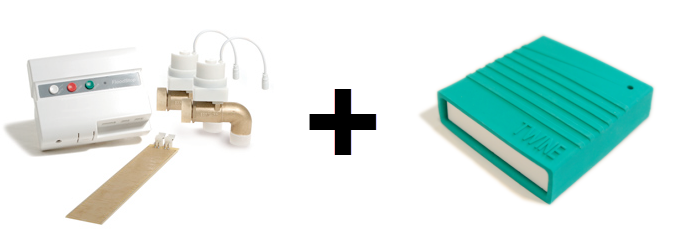
<div>In a <a href="http://www.savagehomeautomation.com/projects/floodstop-washing-machine.html" target="_blank">previous article</a> we used the output expansion port of the &nbsp;<a class="offsite-link-inline" href="http://www.amazon.com/exec/obidos/ASIN/B000GF5DR4/savagehomeaut-20" target="_blank">Floodstop Washing Machine Valve Shutoff Kit</a>&nbsp; to interface with a <a class="offsite-link-inline" href="http://www.amazon.com/exec/obidos/ASIN/B0002ITUVK/savagehomeaut-20" target="_blank">Furman MP-20</a>/<a class="offsite-link-inline" href="http://www.amazon.com/exec/obidos/ASIN/B0002CZQIC/savagehomeaut-20" target="_blank">MP-15</a> to not only shutdown the water supply, but also disconnect &nbsp;power to the washing machine when a leak is detected. &nbsp; Wouldn't it be additionally beneficial if we could be notified in real time when such a water leak condition occurs. &nbsp;In this article we will use that same IO capability on the Floodstop water leak detector and connect it to a <a class="offsite-link-inline" href="http://www.savagehomeautomation.com/projects/twine-unboxing-setup-and-first-impressions.html" target="_blank">Twine</a> device to provide email alerts, SMS text messages, and/or twitter notifications (<em>tweets</em>).</div>
<div><span class="full-image-block ssNonEditable"><img src="http://www.savagehomeautomation.com/storage/post-images/floodstop/floodstop-plus-twine.png?__SQUARESPACE_CACHEVERSION=1353519832826" alt="" /></span></div>
<h3>Shopping List</h3>
<div>
<ul>
<li>1 @&nbsp;<a class="offsite-link-inline" href="http://www.amazon.com/exec/obidos/ASIN/B000GF5DR4/savagehomeaut-20" target="_blank">Floodstop Washing Machine Valve Shutoff Kit<br /></a>&nbsp; (or) <a class="offsite-link-inline" href="http://www.amazon.com/exec/obidos/ASIN/B007SPPC9E/savagehomeaut-20" target="_blank">FloodStop Whole Home Wireless (with 1 Inch Valve)<br /></a>&nbsp; (or) <a class="offsite-link-inline" href="http://www.amazon.com/exec/obidos/ASIN/B000GF5DRO/savagehomeaut-20" target="_blank">FloodStop Whole House/Water Heater (with 1 1/4" Valve)<br /></a>&nbsp; (or) <a class="offsite-link-inline" href="http://www.amazon.com/exec/obidos/ASIN/B0041SBS4O/savagehomeaut-20" target="_blank">FloodStop Water Heater (with 1/2" Valve)</a><br />&nbsp; (or) <a class="offsite-link-inline" href="http://www.amazon.com/exec/obidos/ASIN/B000AQAQUS/savagehomeaut-20" target="_blank">FloodStop Water Heater (with 3/4" Valve)<br /></a>&nbsp; (or) <a class="offsite-link-inline" href="http://www.amazon.com/exec/obidos/ASIN/B000B9PS5C/savagehomeaut-20" target="_blank">FloodStop Water Heater (with 3/4" Compression Fit Valve)</a><br />&nbsp; (or) <a class="offsite-link-inline" href="http://www.amazon.com/exec/obidos/ASIN/B0019Y4UWU/savagehomeaut-20" target="_blank">FloodStop Sink (Hot and Cold) (with 3/8" Compression Valves)<br /></a>&nbsp; (or) <a class="offsite-link-inline" href="http://www.amazon.com/exec/obidos/ASIN/B000QZ6ALW/savagehomeaut-20" target="_blank">FloodStop for Dishwasher/Toilet (with 3/8" Valve)<br /></a>&nbsp; (or) <a class="offsite-link-inline" href="http://www.amazon.com/exec/obidos/ASIN/B002C3QUYI/savagehomeaut-20" target="_blank">FloodStop Washing Machine (with 3/4" Straight Valves)</a><br />&nbsp; (or) <a class="offsite-link-inline" href="http://www.amazon.com/exec/obidos/ASIN/B000GF0QAI/savagehomeaut-20" target="_blank">FloodStop Icemaker/Water Filter (with 1/4" Valve)</a>&nbsp;&nbsp;</li>
<li>1 @ <a class="offsite-link-inline" href="http://www.amazon.com/exec/obidos/ASIN/B009YWTNFI/savagehomeaut-20" target="_blank">Twine&nbsp;Portable Wi-Fi Sensor</a>&nbsp;&nbsp;<br />&nbsp; (or)&nbsp;<a class="offsite-link-inline" href="http://www.amazon.com/exec/obidos/ASIN/B009YWTPNS/savagehomeaut-20" target="_blank">Twine Portable Wi-Fi Sensor + Full Sensor Package<br /></a>&nbsp; (or)&nbsp;<a class="offsite-link-inline" href="http://www.amazon.com/exec/obidos/ASIN/B009YWTP2E/savagehomeaut-20" target="_blank">Twine Portable Wi-Fi Sensor + Magnetic Switch<br /></a>&nbsp; (or)&nbsp;<a class="offsite-link-inline" href="http://www.amazon.com/exec/obidos/ASIN/B009YWTOF2/savagehomeaut-20" target="_blank">Twine Portable Wi-Fi Sensor + Moisture Sensor</a>&nbsp;&nbsp;&nbsp;&nbsp;</li>
<li>1 @&nbsp;<a class="offsite-link-inline" href="http://supermechanical.com/twine/" target="_blank">Twine Breakout Board</a> (<em>sensor interface</em>)</li>
<li>1 @ Twine phono sensor connector cable (<em>comes with Twine Breakout Board</em>)</li>
</ul>
</div>
<h3>Wiring</h3>
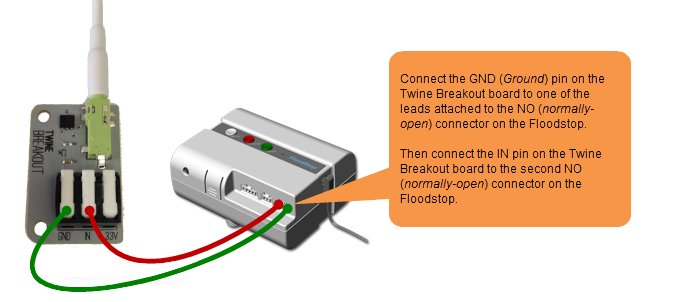
<p>Connecting the Floodstop to Twine is an extremely simple task. &nbsp;The Floodstop unit comes with a short connector lead that plugs directly into the NO (<em>normally-open</em>) or NC (<em>normally-closed</em>) output ports.</p>
<p>Attach the two wires from this connector lead to the IN and GND (<em>Ground</em>) pins on the Twine Breakout board. &nbsp;(It does not matter which lead wire is connected to which pin, either direction will work.) &nbsp;Then plug the connector into the NO (<em>normally-open</em>) output port of the Floodstop unit.</p>
<blockquote>
<p><strong>NOTE:</strong></p>
<p>If you are already using the NO (<em>normally-open</em>)&nbsp;port for use with the Furman power controller or for any other purpose, then alternatively use the NC (<em>normally-closed</em>)&nbsp;output port for the Twine connection and simply reverse the trigger condition logic of the rule in the Twine configuration section.</p>
</blockquote>
<p><span class="full-image-block ssNonEditable"><span><img src="http://www.savagehomeautomation.com/storage/post-images/floodstop/floodstop-twine-wiring.png?__SQUARESPACE_CACHEVERSION=1353527769910" alt="" /></span></span></p>
<p>Below is a photograph of my Twine connected to my Floodstop unit. &nbsp;</p>
<p><span class="thumbnail-image-block ssNonEditable"><span><a href="javascript:showFullImage('/display/ShowImage?imageUrl=%2Fstorage%2Fpost-images%2Ffloodstop%2Ffloodstop-twine.png%3F__SQUARESPACE_CACHEVERSION%3D1353529610865',1224,1632);"><img src="http://www.savagehomeautomation.com/storage/thumbnails/13113340-21045356-thumbnail.jpg?__SQUARESPACE_CACHEVERSION=1353529610867" alt="" /></a></span></span></p>
<h3>Configuring Twine&nbsp;</h3>
<blockquote>
<p>If you have not previously performed the initial setup configuration on your Twine, then please <a href="http://www.savagehomeautomation.com/projects/twine-unboxing-setup-and-first-impressions.html" target="_blank">visit this article</a> and perform the configuration steps before continuing.</p>
<p>Also, your Breakout Board should already be connected to the Twine at this time.</p>
</blockquote>
<p>Open a web browser and login to the Twine management web application:<br /><a class="offsite-link-inline" href="https://twine.supermechanical.com/" target="_blank">https://twine.supermechanical.com/</a>&nbsp;</p>
<p>Next, select the specific Twine device that you have connected to the Floodstop from the drop-down menu at the top of the screen.</p>
<p><span class="thumbnail-image-block ssNonEditable"><a href="javascript:showFullImage('/display/ShowImage?imageUrl=%2Fstorage%2Fpost-images%2Ftwine%2Ftwine-select.png%3F__SQUARESPACE_CACHEVERSION%3D1353521130821',561,968);"><img src="http://www.savagehomeautomation.com/storage/thumbnails/13113340-21043524-thumbnail.jpg?__SQUARESPACE_CACHEVERSION=1353521130822" alt="" /></a></span></p>
<p>Next, we are going to create a new <strong>RULE</strong> to issue notifications when the Floodstop detects a water leak. &nbsp;If you have any existing rules defined, you may want to delete them first. &nbsp;Use the <strong>Add Rule</strong> button to create a new rule. &nbsp;Since we used the NO (<em>normally-open</em>) output port on the Floodstop we will define a Twine rule to take action when the circuit becomes closed. &nbsp;The Floodstop will close the circuit when water is detected on its sensor pad.</p>
<p>The new rule should be applied as follows:</p>
<p><strong>WHEN</strong><br />&gt; breakout &nbsp;= "is closed"</p>
<p><strong>THEN</strong><br />&gt; send email and/or text messages and/or twitter post<span style="vertical-align: super;">1</span></p>
<p>( <span style="vertical-align: super;">1</span>&nbsp;<em>Twitter posts will be available in the next version of the Twine web application software</em>)&nbsp;</p>
<p>An example of the rule I am using is displayed below.</p>
<p><span class="thumbnail-image-block ssNonEditable"><a href="javascript:showFullImage('/display/ShowImage?imageUrl=%2Fstorage%2Fpost-images%2Ffloodstop%2Ffloodstop-twine-rule.png%3F__SQUARESPACE_CACHEVERSION%3D1353521298483',866,985);"><img src="http://www.savagehomeautomation.com/storage/thumbnails/13113340-21043558-thumbnail.jpg?__SQUARESPACE_CACHEVERSION=1353521298484" alt="" /></a></span></p>
<p>After creating the rule, make sure to click the <strong>Save to Twine</strong> button at the bottom of the screen. &nbsp;It will prompt you to flip the twine on its back to immediately save the new rule to the Twine unit. &nbsp;Now just wait until the save is complete. &nbsp;It takes around 20-30 seconds to complete.</p>
<p>You are done, that's all that is needed to setup notifications from the Twine. We will now move on to testing.</p>
<p><span class="thumbnail-image-float-right ssNonEditable"><span><a href="javascript:showFullImage('/display/ShowImage?imageUrl=%2Fstorage%2Fpost-images%2Ffloodstop%2Ffloodstop-test.jpg%3F__SQUARESPACE_CACHEVERSION%3D1353529464569',480,492);"><img src="http://www.savagehomeautomation.com/storage/thumbnails/13113340-21045328-thumbnail.jpg?__SQUARESPACE_CACHEVERSION=1353529464572" alt="" /></a></span></span></p>
<h3>Testing</h3>
<p>Now that we have everything wired and configured, let's test the system. &nbsp;Just drip a few water drops on the Floodstop sensor pad and the Floodstop should sound its audible alarm and close the water valves. &nbsp;Within a few minutes (<em>or less</em>) you should receive the email, text message, and/or twitter post from Twine. &nbsp;</p>
<p>&nbsp;</p>
<p>Verify that you received the SMS text message.<br /><span class="thumbnail-image-inline ssNonEditable"><span><a href="javascript:showFullImage('/display/ShowImage?imageUrl=%2Fstorage%2Fpost-images%2Ffloodstop%2FIMG_1419.PNG%3F__SQUARESPACE_CACHEVERSION%3D1353530172451',960,640);"></a></span></span></p>
<p style="text-align: center;"><span class="thumbnail-image-block ssNonEditable"><span><a href="javascript:showFullImage('/display/ShowImage?imageUrl=%2Fstorage%2Fpost-images%2Ffloodstop%2Ffloodstop-twine-sms.png%3F__SQUARESPACE_CACHEVERSION%3D1353534488966',300,640);"><img src="http://www.savagehomeautomation.com/storage/thumbnails/13113340-21046223-thumbnail.jpg?__SQUARESPACE_CACHEVERSION=1353534488968" alt="" /></a></span></span></p>
<p style="text-align: left;"><br />Verify that you received the email notitification.</p>
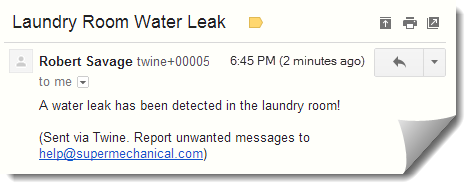
<p style="text-align: center;"><span class="full-image-inline ssNonEditable"><span><img src="http://www.savagehomeautomation.com/storage/post-images/floodstop/floodstop-twine-email.png?__SQUARESPACE_CACHEVERSION=1353531064693" alt="" /></span></span></p>
<h3>Final Thoughts</h3>
<p>This project turned out to be an extremely simple task due to the simplicity of the Twine hardware and software. &nbsp;For permanent installations, you may want to consider powering the Twine via its micro USB connection with a permanently plugged in power supply so that the system does not fail to notify you becuase of dead batteries in the Twine. &nbsp;I just don't like to rely on batteries for anything that is mission critical. &nbsp; (<em>Same goes for the Floodstop, power it locally in addition to the batteries.</em>) &nbsp;</p>
<p>&nbsp;</p>
<div></div>
<div></div>]]></content:encoded></rss:item><rss:item rdf:about="http://www.savagehomeautomation.com/projects/twine-unboxing-setup-and-first-impressions.html"><rss:title>Twine - Unboxing, Setup and First Impressions</rss:title><rss:link>http://www.savagehomeautomation.com/projects/twine-unboxing-setup-and-first-impressions.html</rss:link><dc:creator>Robert Savage</dc:creator><dc:date>2012-11-21T07:09:23Z</dc:date><dc:subject>Embedded Computing Home Automation Twine Twine unbox unboxing</dc:subject><content:encoded><![CDATA[<div></div>
<h3>Contents</h3>
<ul>
<li style="font-size: 12px; font-weight: normal;"><a href="#unboxing">Unboxing</a></li>
<li style="font-size: 12px; font-weight: normal;"><a href="#configuration">Configuration</a></li>
<li><span style="font-size: 12px; font-weight: normal;"><a href="#impression">First Impressions / Thoughts</a></span></li>
</ul>
<h3><a id="unboxing"></a>Unboxing</h3>
<p>Eleven months ago, I backed a startup project on Kickstarter called <a class="offsite-link-inline" href="http://www.kickstarter.com/projects/supermechanical/twine-listen-to-your-world-talk-to-the-internet?ref=live" target="_blank">Twine</a>. &nbsp;</p>
<blockquote>
<div id="_mcePaste"><strong>TWINE</strong></div>
<div></div>
<div id="_mcePaste"><br />Listen to your world, talk to the Internet</div>
<div id="_mcePaste"></div>
<div><br />Want to monitor things and environments remotely without a nerd degree? Maybe you want to get a tweet when your laundry's done, an email when the basement floods, or a text message when you left the garage door open.</div>
<div id="_mcePaste"></div>
<div><br />Twine is the simplest way to get the objects in your life texting, tweeting or emailing</div>
</blockquote>
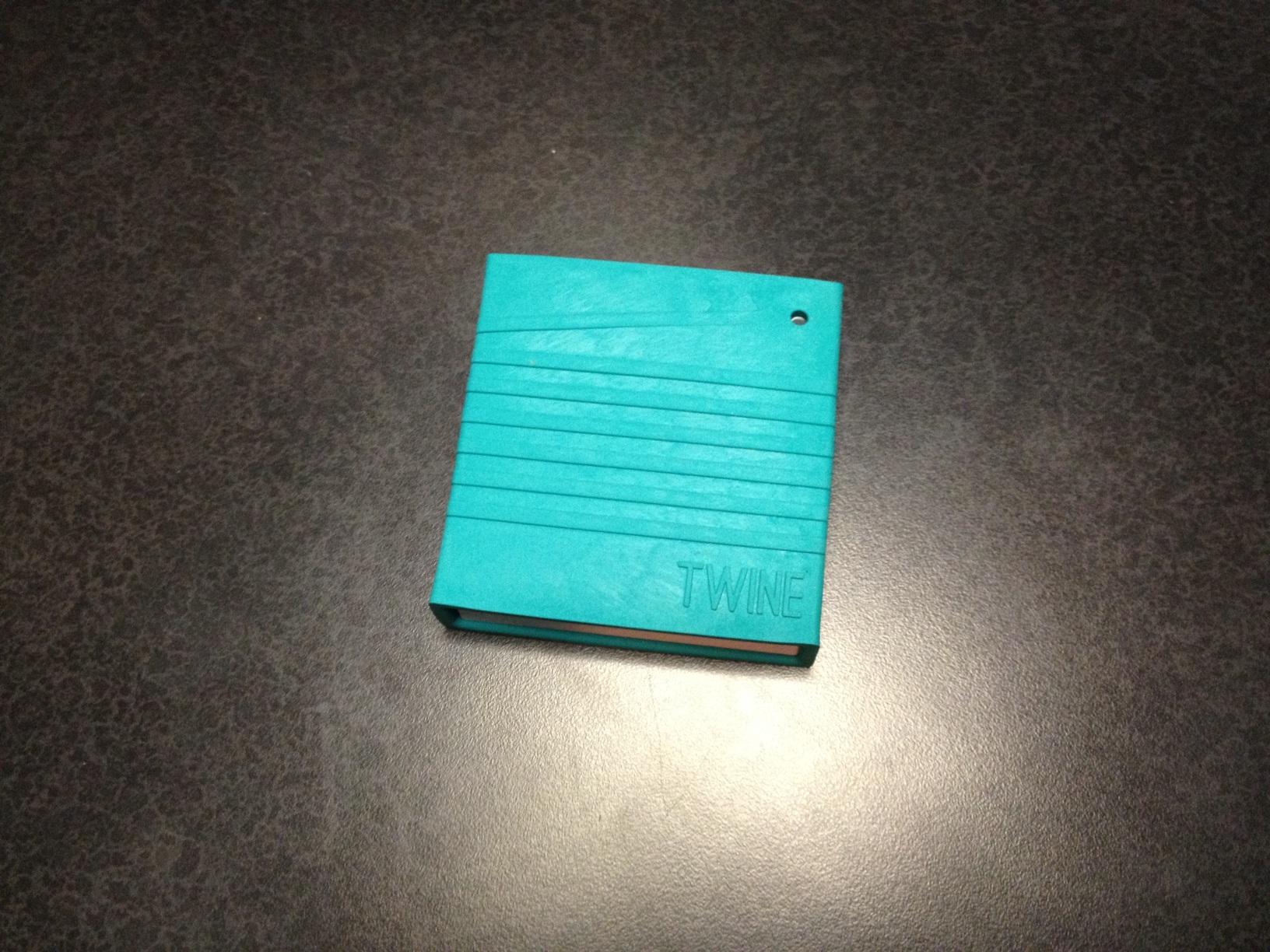
<p>My long awaited <a class="offsite-link-inline" href="http://www.amazon.com/exec/obidos/ASIN/B009YWTNFI/savagehomeaut-20" target="_blank">Twine</a>&nbsp;finally arrived today. &nbsp;</p>
<blockquote>
<p>You can order a&nbsp;<a class="offsite-link-inline" href="http://www.amazon.com/exec/obidos/ASIN/B009YWTNFI/savagehomeaut-20" target="_blank">Twine</a>&nbsp;device here:</p>
<ul>
<li><a class="offsite-link-inline" href="http://www.amazon.com/exec/obidos/ASIN/B009YWTNFI/savagehomeaut-20" target="_blank">Twine&nbsp;Portable Wi-Fi Sensor</a>&nbsp;</li>
<li><a class="offsite-link-inline" href="http://www.amazon.com/exec/obidos/ASIN/B009YWTPNS/savagehomeaut-20" target="_blank">Twine Portable Wi-Fi Sensor + Full Sensor Package</a></li>
<li><a class="offsite-link-inline" href="http://www.amazon.com/exec/obidos/ASIN/B009YWTP2E/savagehomeaut-20" target="_blank">Twine Portable Wi-Fi Sensor + Magnetic Switch</a></li>
<li><a class="offsite-link-inline" href="http://www.amazon.com/exec/obidos/ASIN/B009YWTOF2/savagehomeaut-20" target="_blank">Twine Portable Wi-Fi Sensor + Moisture Sensor</a>&nbsp;&nbsp;</li>
</ul>
</blockquote>
<p>It came packaged in an unassuming and simple cardboard box.</p>
<p><span class="thumbnail-image-float-left ssNonEditable"><span><a href="javascript:showFullImage('/display/ShowImage?imageUrl=%2Fstorage%2Fpost-images%2Ftwine%2FIMG_1381.JPG%3F__SQUARESPACE_CACHEVERSION%3D1353474367948',1224,1632);"><img style="width: 320px;" src="http://www.savagehomeautomation.com/storage/thumbnails/13113340-21038243-thumbnail.jpg?__SQUARESPACE_CACHEVERSION=1353474461519" alt="" /></a></span></span><span class="thumbnail-image-block ssNonEditable"><span><a href="javascript:showFullImage('/display/ShowImage?imageUrl=%2Fstorage%2Fpost-images%2Ftwine%2FIMG_1382.JPG%3F__SQUARESPACE_CACHEVERSION%3D1353474527107',1224,1632);"><img src="http://www.savagehomeautomation.com/storage/thumbnails/13113340-21038244-thumbnail.jpg?__SQUARESPACE_CACHEVERSION=1353474527109" alt="" /></a></span>&nbsp; &nbsp;</span></p>
<p><span class="thumbnail-image-float-left ssNonEditable"><span><a href="javascript:showFullImage('/display/ShowImage?imageUrl=%2Fstorage%2Fpost-images%2Ftwine%2FIMG_1383.JPG%3F__SQUARESPACE_CACHEVERSION%3D1353474561264',1224,1632);"><img src="http://www.savagehomeautomation.com/storage/thumbnails/13113340-21038245-thumbnail.jpg?__SQUARESPACE_CACHEVERSION=1353474563474" alt="" /></a></span></span><span class="thumbnail-image-inline ssNonEditable"><span><a href="javascript:showFullImage('/display/ShowImage?imageUrl=%2Fstorage%2Fpost-images%2Ftwine%2FIMG_1384.JPG%3F__SQUARESPACE_CACHEVERSION%3D1353474589938',1224,1632);"></a></span></span> <span class="full-image-block ssNonEditable"><span><a href="javascript:showFullImage('/display/ShowImage?imageUrl=%2Fstorage%2Fpost-images%2Ftwine%2FIMG_1384.JPG%3F__SQUARESPACE_CACHEVERSION%3D1353474589938',1224,1632);"><img src="http://www.savagehomeautomation.com/storage/thumbnails/13113340-21038246-thumbnail.jpg?__SQUARESPACE_CACHEVERSION=1353474589940" alt="" /></a></span></span></p>
<p>Upon opening the cardboard box, the Twine hardware device was revealed in a top compartment.&nbsp;</p>
<p><span class="thumbnail-image-block ssNonEditable"><span><a href="javascript:showFullImage('/display/ShowImage?imageUrl=%2Fstorage%2Fpost-images%2Ftwine%2FIMG_1386.JPG%3F__SQUARESPACE_CACHEVERSION%3D1353475267413',1224,1632);"><img src="http://www.savagehomeautomation.com/storage/thumbnails/13113340-21038247-thumbnail.jpg?__SQUARESPACE_CACHEVERSION=1353475267414" alt="" /></a></span></span></p>
<p>Lifting the Twine hardware out of the box reveals a finger hole to remove the upper compartment divider.</p>
<p><span class="thumbnail-image-float-left ssNonEditable"><span><a href="javascript:showFullImage('/display/ShowImage?imageUrl=%2Fstorage%2Fpost-images%2Ftwine%2FIMG_1389.JPG%3F__SQUARESPACE_CACHEVERSION%3D1353475441413',1224,1632);"><img src="http://www.savagehomeautomation.com/storage/thumbnails/13113340-21038250-thumbnail.jpg?__SQUARESPACE_CACHEVERSION=1353475445001" alt="" /></a></span></span><span class="thumbnail-image-block ssNonEditable"><span><a href="javascript:showFullImage('/display/ShowImage?imageUrl=%2Fstorage%2Fpost-images%2Ftwine%2FIMG_1390.JPG%3F__SQUARESPACE_CACHEVERSION%3D1353475475851',1224,1632);"><img src="http://www.savagehomeautomation.com/storage/thumbnails/13113340-21038251-thumbnail.jpg?__SQUARESPACE_CACHEVERSION=1353475475852" alt="" /></a></span></span></p>
<p>The lower compartment holds the supplied AAA batteries and any additional sensor accessories that were included in the order. &nbsp;My order only included the Breakout Board accessory. &nbsp;A mini phono cable is also included to connect the sensor board to the Twine hardware.&nbsp;</p>
<p><span class="thumbnail-image-float-left ssNonEditable"><span><a href="javascript:showFullImage('/display/ShowImage?imageUrl=%2Fstorage%2Fpost-images%2Ftwine%2FIMG_1394.JPG%3F__SQUARESPACE_CACHEVERSION%3D1353475709078',1224,1632);"><img src="http://www.savagehomeautomation.com/storage/thumbnails/13113340-21038253-thumbnail.jpg?__SQUARESPACE_CACHEVERSION=1353475712873" alt="" /></a></span></span><span class="thumbnail-image-block ssNonEditable"><span><a href="javascript:showFullImage('/display/ShowImage?imageUrl=%2Fstorage%2Fpost-images%2Ftwine%2FIMG_1392.JPG%3F__SQUARESPACE_CACHEVERSION%3D1353475752002',1224,1632);"><img src="http://www.savagehomeautomation.com/storage/thumbnails/13113340-21038252-thumbnail.jpg?__SQUARESPACE_CACHEVERSION=1353475752003" alt="" /></a></span></span></p>
<p>Install the AAA batteries and then slide the Twine cover shut. &nbsp;</p>
<p><span class="thumbnail-image-float-left ssNonEditable"><span><a href="javascript:showFullImage('/display/ShowImage?imageUrl=%2Fstorage%2Fpost-images%2Ftwine%2FIMG_1397.JPG%3F__SQUARESPACE_CACHEVERSION%3D1353475857899',1224,1632);"><img src="http://www.savagehomeautomation.com/storage/thumbnails/13113340-21038255-thumbnail.jpg?__SQUARESPACE_CACHEVERSION=1353475862049" alt="" /></a></span></span><span class="thumbnail-image-block ssNonEditable"><span><a href="javascript:showFullImage('/display/ShowImage?imageUrl=%2Fstorage%2Fpost-images%2Ftwine%2FIMG_1400.JPG%3F__SQUARESPACE_CACHEVERSION%3D1353475910207',1224,1632);"><img src="http://www.savagehomeautomation.com/storage/thumbnails/13113340-21038256-thumbnail.jpg?__SQUARESPACE_CACHEVERSION=1353475910208" alt="" /></a></span></span></p>
<p><span class="full-image-float-left ssNonEditable"><span><img style="width: 320px;" src="http://www.savagehomeautomation.com/storage/post-images/twine/IMG_1402.JPG?__SQUARESPACE_CACHEVERSION=1353476097719" alt="" /></span></span><span class="thumbnail-image-block ssNonEditable"><span><a href="javascript:showFullImage('/display/ShowImage?imageUrl=%2Fstorage%2Fpost-images%2Ftwine%2FIMG_1403.JPG%3F__SQUARESPACE_CACHEVERSION%3D1353476137095',1224,1632);"><img src="http://www.savagehomeautomation.com/storage/thumbnails/13113340-21038258-thumbnail.jpg?__SQUARESPACE_CACHEVERSION=1353476137096" alt="" /></a></span></span></p>
<p>Once the batteries are installed place the Twine upside down on a flat surface and the white LED should remain on. &nbsp;This prepares the Twine to be configured for network access. &nbsp;Proceed to <a class="offsite-link-inline" href="http://twinesetup.com" target="_blank">twinesetup.com</a> to begin the configuration process.</p>
<p><span class="thumbnail-image-float-left ssNonEditable"><span><a href="javascript:showFullImage('/display/ShowImage?imageUrl=%2Fstorage%2Fpost-images%2Ftwine%2FIMG_1407.JPG%3F__SQUARESPACE_CACHEVERSION%3D1353476350132',1224,1632);"><img src="http://www.savagehomeautomation.com/storage/thumbnails/13113340-21038260-thumbnail.jpg?__SQUARESPACE_CACHEVERSION=1353476352010" alt="" /></a></span></span><span class="thumbnail-image-block ssNonEditable"><span><a href="javascript:showFullImage('/display/ShowImage?imageUrl=%2Fstorage%2Fpost-images%2Ftwine%2FIMG_1405.JPG%3F__SQUARESPACE_CACHEVERSION%3D1353476387338',1224,1632);"><img src="http://www.savagehomeautomation.com/storage/thumbnails/13113340-21038259-thumbnail.jpg?__SQUARESPACE_CACHEVERSION=1353476387339" alt="" /></a></span></span></p>
<h3><a id="configuration"></a>Configuration</h3>
<blockquote>
<p><strong>PREREQUSITE:</strong></p>
<p><em>You will need to perform these steps from a computer with a wireless network card/adapter installed.</em></p>
</blockquote>
<p><strong>STEP 1</strong> : Open a web browser to&nbsp;<a class="offsite-link-inline" href="http://twinesetup.com" target="_blank">twinesetup.com</a>&nbsp;to begin the configuration process. &nbsp;Once the web page is displayed, place the Twine upside down on a flat surface. &nbsp;Click the "I can see the light" button when the white LED light is on solid and not blinking.</p>
<p><span class="thumbnail-image-block ssNonEditable"><span><a href="javascript:showFullImage('/display/ShowImage?imageUrl=%2Fstorage%2Fpost-images%2Ftwine%2FScreen%2520Shot%25202012-11-20%2520at%25205.06.19%2520PM.png%3F__SQUARESPACE_CACHEVERSION%3D1353479392525',820,1440);"><img src="http://www.savagehomeautomation.com/storage/thumbnails/13113340-21038268-thumbnail.jpg?__SQUARESPACE_CACHEVERSION=1353479392526" alt="" /></a></span></span></p>
<p><strong>STEP 2</strong>&nbsp;: Next, change your computer's wireless connection to connect to the "\\||| Twine" access point.</p>
<p><span class="thumbnail-image-block ssNonEditable"><span><a href="javascript:showFullImage('/display/ShowImage?imageUrl=%2Fstorage%2Fpost-images%2Ftwine%2FScreen%2520Shot%25202012-11-20%2520at%25205.07.04%2520PM.png%3F__SQUARESPACE_CACHEVERSION%3D1353479521234',860,1280);"><img src="http://www.savagehomeautomation.com/storage/thumbnails/13113340-21038270-thumbnail.jpg?__SQUARESPACE_CACHEVERSION=1353479521235" alt="" /></a></span></span></p>
<p>Once connected, the web page will display a "Success" message and then automatically load the next page.</p>
<p><span class="thumbnail-image-block ssNonEditable"><span><a href="javascript:showFullImage('/display/ShowImage?imageUrl=%2Fstorage%2Fpost-images%2Ftwine%2FScreen%2520Shot%25202012-11-20%2520at%25205.07.31%2520PM.png%3F__SQUARESPACE_CACHEVERSION%3D1353479562461',860,1280);"><img src="http://www.savagehomeautomation.com/storage/thumbnails/13113340-21038271-thumbnail.jpg?__SQUARESPACE_CACHEVERSION=1353479562462" alt="" /></a></span></span></p>
<p><strong>STEP 3</strong>&nbsp;: Next, select the wireless network that you want the Twine to connect to and provide a password if required. &nbsp;<br />(<em>You must connect to an access point that is broadcasting an SSID</em>)</p>
<p><span class="thumbnail-image-block ssNonEditable"><span><a href="javascript:showFullImage('/display/ShowImage?imageUrl=%2Fstorage%2Fpost-images%2Ftwine%2FScreen%2520Shot%25202012-11-20%2520at%25205.09.55%2520PM.png%3F__SQUARESPACE_CACHEVERSION%3D1353479607276',860,1280);"><img src="http://www.savagehomeautomation.com/storage/thumbnails/13113340-21038272-thumbnail.jpg?__SQUARESPACE_CACHEVERSION=1353479607277" alt="" /></a></span></span></p>
<p><strong>STEP 4</strong>&nbsp;: After the wireless network connection has been configured flip the Twine and set it on its back on a flat surface. &nbsp;<br />(<em>The "TWINE" logo should be facing up.</em>)</p>
<p><span class="thumbnail-image-block ssNonEditable"><span><a href="javascript:showFullImage('/display/ShowImage?imageUrl=%2Fstorage%2Fpost-images%2Ftwine%2FScreen%2520Shot%25202012-11-20%2520at%25205.16.11%2520PM.png%3F__SQUARESPACE_CACHEVERSION%3D1353479666022',840,1280);"><img src="http://www.savagehomeautomation.com/storage/thumbnails/13113340-21038273-thumbnail.jpg?__SQUARESPACE_CACHEVERSION=1353479666023" alt="" /></a></span></span></p>
<p><strong>STEP 5</strong>&nbsp;: Next, change your computer's wireless connection back to your private wireless access point/router.</p>
<p><span class="thumbnail-image-block ssNonEditable"><span><a href="javascript:showFullImage('/display/ShowImage?imageUrl=%2Fstorage%2Fpost-images%2Ftwine%2FScreen%2520Shot%25202012-11-20%2520at%25205.16.26%2520PM.png%3F__SQUARESPACE_CACHEVERSION%3D1353479702190',840,1280);"><img src="http://www.savagehomeautomation.com/storage/thumbnails/13113340-21038274-thumbnail.jpg?__SQUARESPACE_CACHEVERSION=1353479702191" alt="" /></a></span></span></p>
<p>Once connected back to your private wireless network (<em>with Internet access</em>), the configuration page will display an "Excellent!" message and then automatically load the next configuration page.</p>
<p><span class="thumbnail-image-block ssNonEditable"><span><a href="javascript:showFullImage('/display/ShowImage?imageUrl=%2Fstorage%2Fpost-images%2Ftwine%2FScreen%2520Shot%25202012-11-20%2520at%25205.17.04%2520PM.png%3F__SQUARESPACE_CACHEVERSION%3D1353479750591',840,1280);"><img src="http://www.savagehomeautomation.com/storage/thumbnails/13113340-21038276-thumbnail.jpg?__SQUARESPACE_CACHEVERSION=1353479750592" alt="" /></a></span></span></p>
<p>The next part of the configuration is associating your Twine hardware with a cloud-based account. &nbsp;If you do not have an existing Twine account, then use the displayed form to create a new account. &nbsp;If you already have an existing Twine account, then use the "Sign-In" link at the top of the page.</p>
<p><span class="thumbnail-image-block ssNonEditable"><span><a href="javascript:showFullImage('/display/ShowImage?imageUrl=%2Fstorage%2Fpost-images%2Ftwine%2FScreen%2520Shot%25202012-11-20%2520at%25205.17.13%2520PM.png%3F__SQUARESPACE_CACHEVERSION%3D1353479864695',840,1280);"><img src="http://www.savagehomeautomation.com/storage/thumbnails/13113340-21038277-thumbnail.jpg?__SQUARESPACE_CACHEVERSION=1353479864696" alt="" /></a></span></span></p>
<p>Existing accounts can simply logon with their user credentials.</p>
<p><span class="thumbnail-image-block ssNonEditable"><span><a href="javascript:showFullImage('/display/ShowImage?imageUrl=%2Fstorage%2Fpost-images%2Ftwine%2FScreen%2520Shot%25202012-11-20%2520at%25205.18.03%2520PM.png%3F__SQUARESPACE_CACHEVERSION%3D1353479900715',840,1280);"><img src="http://www.savagehomeautomation.com/storage/thumbnails/13113340-21038278-thumbnail.jpg?__SQUARESPACE_CACHEVERSION=1353479900716" alt="" /></a></span></span></p>
<p>Next, the configuration pages will determine if the Twine hardware is eligible for any firmware updates. &nbsp;If a firmware update is available, you will be prompted with an update message.</p>
<p><span class="thumbnail-image-block ssNonEditable"><span><a href="javascript:showFullImage('/display/ShowImage?imageUrl=%2Fstorage%2Fpost-images%2Ftwine%2FScreen%2520Shot%25202012-11-20%2520at%25205.18.18%2520PM.png%3F__SQUARESPACE_CACHEVERSION%3D1353479935764',840,1280);"><img src="http://www.savagehomeautomation.com/storage/thumbnails/13113340-21038279-thumbnail.jpg?__SQUARESPACE_CACHEVERSION=1353479935765" alt="" /></a></span></span></p>
<p>To start the firmware update, you will be prompted to flip the Twine over on its back again.</p>
<p><span class="thumbnail-image-block ssNonEditable"><span><a href="javascript:showFullImage('/display/ShowImage?imageUrl=%2Fstorage%2Fpost-images%2Ftwine%2FScreen%2520Shot%25202012-11-20%2520at%25205.18.22%2520PM.png%3F__SQUARESPACE_CACHEVERSION%3D1353479990186',840,1280);"><img src="http://www.savagehomeautomation.com/storage/thumbnails/13113340-21038281-thumbnail.jpg?__SQUARESPACE_CACHEVERSION=1353479990187" alt="" /></a></span></span><br />Please wait while the firmware update installs.</p>
<p><span class="thumbnail-image-block ssNonEditable"><span><a href="javascript:showFullImage('/display/ShowImage?imageUrl=%2Fstorage%2Fpost-images%2Ftwine%2FScreen%2520Shot%25202012-11-20%2520at%25205.18.38%2520PM.png%3F__SQUARESPACE_CACHEVERSION%3D1353480028404',840,1280);"><img src="http://www.savagehomeautomation.com/storage/thumbnails/13113340-21038286-thumbnail.jpg?__SQUARESPACE_CACHEVERSION=1353480028405" alt="" /></a></span></span></p>
<p>Once the firmware update is complete, a success message will be displayed on the configuration page.</p>
<p><span class="thumbnail-image-block ssNonEditable"><span><a href="javascript:showFullImage('/display/ShowImage?imageUrl=%2Fstorage%2Fpost-images%2Ftwine%2FScreen%2520Shot%25202012-11-20%2520at%25205.18.49%2520PM.png%3F__SQUARESPACE_CACHEVERSION%3D1353480074208',840,1280);"><img src="http://www.savagehomeautomation.com/storage/thumbnails/13113340-21038291-thumbnail.jpg?__SQUARESPACE_CACHEVERSION=1353480074209" alt="" /></a></span></span></p>
<p>The final configuration step is to assign a friendly name to the Twine unit. &nbsp;Click the Finish button after you have provided a name.</p>
<p><span class="thumbnail-image-block ssNonEditable"><span><a href="javascript:showFullImage('/display/ShowImage?imageUrl=%2Fstorage%2Fpost-images%2Ftwine%2FScreen%2520Shot%25202012-11-20%2520at%25205.19.13%2520PM.png%3F__SQUARESPACE_CACHEVERSION%3D1353480110894',840,1280);"><img src="http://www.savagehomeautomation.com/storage/thumbnails/13113340-21038292-thumbnail.jpg?__SQUARESPACE_CACHEVERSION=1353480110895" alt="" /></a></span></span></p>
<p>Your Twine is now successfully configured and ready for use. &nbsp;You can change the orientation of the Twine and see it updated on the dashboard page. &nbsp;You can also create rules that allow you to specify conditions that trigger actions. &nbsp;Rules are what make the twine do something with the data it collects. &nbsp;</p>
<p><span class="thumbnail-image-block ssNonEditable"><span><a href="javascript:showFullImage('/display/ShowImage?imageUrl=%2Fstorage%2Fpost-images%2Ftwine%2Fdashboard-initial.png%3F__SQUARESPACE_CACHEVERSION%3D1353480267038',1032,1280);"><img src="http://www.savagehomeautomation.com/storage/thumbnails/13113340-21038822-thumbnail.jpg?__SQUARESPACE_CACHEVERSION=1353480267039" alt="" /></a></span></span></p>
<h3>Optional Accessory Sensors</h3>
<p>After configuring your Twine, you can insert the provided phono cable into any of the optionally purchased sensor boards and into the Twine. &nbsp;</p>
<p><span class="thumbnail-image-block ssNonEditable"><span><a href="javascript:showFullImage('/display/ShowImage?imageUrl=%2Fstorage%2Fpost-images%2Ftwine%2FIMG_1416.JPG%3F__SQUARESPACE_CACHEVERSION%3D1353476495692',1632,1224);"><img src="http://www.savagehomeautomation.com/storage/thumbnails/13113340-21038267-thumbnail.jpg?__SQUARESPACE_CACHEVERSION=1353476495693" alt="" /></a></span></span></p>
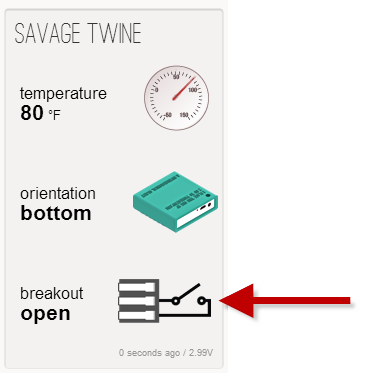
<p>The sensor will be displayed on your&nbsp;<a class="offsite-link-inline" href="https://twine.supermechanical.com/" target="_blank">Twine Dashboard</a>&nbsp;momentarily.&nbsp;</p>
<p><span class="full-image-block ssNonEditable"><span><img src="http://www.savagehomeautomation.com/storage/post-images/twine/dashboard-sensor.png?__SQUARESPACE_CACHEVERSION=1353476886374" alt="" /></span></span></p>
<h3><a id="impression"></a>First Impressions / Thoughts</h3>
<p>My first impressions of the Twine are very favorable. &nbsp;The hardware, plastics, and packaging are top notch. &nbsp;The tactile feel is inviting and size of the Twine is ideal. &nbsp;I was blown away with the initial setup/configuration process. &nbsp;Configuring a device with no display and no inputs can be very challenging and difficult for users to setup on private networks. &nbsp;Twine's approach of using it as a temporary WiFi hot-spot and the seamless integration of the configuration web application is unsurpassed. &nbsp;I literally had my Twine configured and attached to wireless my network in less than 5 minutes. &nbsp;That is a remarkable feat. &nbsp;</p>
<p>I do however have some longer term concerns/opinions ... &nbsp;</p>
<ul>
<li>The usefulness of the Twine is totally predicated on the web software where rules can be applied and triggered actions take place. &nbsp;While admittedly the web application is currently in its infancy, it is pretty basic and very limited at the moment. &nbsp;We will need to see some aggressive advances in the web software to keep pace and promote more uses of the Twine as a platform. &nbsp;</li>
<li>Again, the Twine is in early adoption right now, but some form of an programmatic API must be provided to allow software developers further enhance and integrate with the Twine hardware. &nbsp;An open API will help promote integrations with other systems and devices and not require Supermechanical to do all the heavy lifting. &nbsp;Build a development community and encourage and support developers to take the Twine from an interesting and fun&nbsp;little device to a real platform. &nbsp;</li>
<li>The early adopter cost was in the $100 range. &nbsp;I believe these costs will need to come down dramatically to encourage general adoption. &nbsp;I could see a large number of Twines spread throughout my house all performing unique and discrete little tasks, but the costs would need to be more affordable to make this viable.</li>
<li>Currently the Twine hardware and its sensor accessories are all about inputs. &nbsp;Outputs are another important aspect that will need to be addressed. &nbsp;Not only do I want to send information in to The Cloud, but I also want to trigger outputs to turn on and off things in the real world. &nbsp;The Internet-of-Things is bidirectional.</li>
</ul>
<p>Despite my conerns, this device is still an impressive little beast. &nbsp;The magic is really in the software/firmware and with what we have seen thus far, we can continue to expect an elegant, intuitive and easy to use web user interface for working with the Twine. &nbsp;I do believe that Supermechanical will continue to improve on the software/firmware and we will see some very cool hobbyist projects emerge. &nbsp;I am looking forward to participating in a development community when an API emerges. &nbsp;</p>
<p>A twitter trigger is coming in the next software update, so I have a small project in mind to setup when that feature becomes available. &nbsp;Stay tuned for more articles to come involving Twine.&nbsp;</p>
<div></div>
<div></div>]]></content:encoded></rss:item></rdf:RDF>